> ## Documentation Index
> Fetch the complete documentation index at: https://docs.nxtjob.ai/llms.txt
> Use this file to discover all available pages before exploring further.
# ATS Score
> See how well your resume matches a job description before you apply, with keyword highlighting directly on the job portal page.
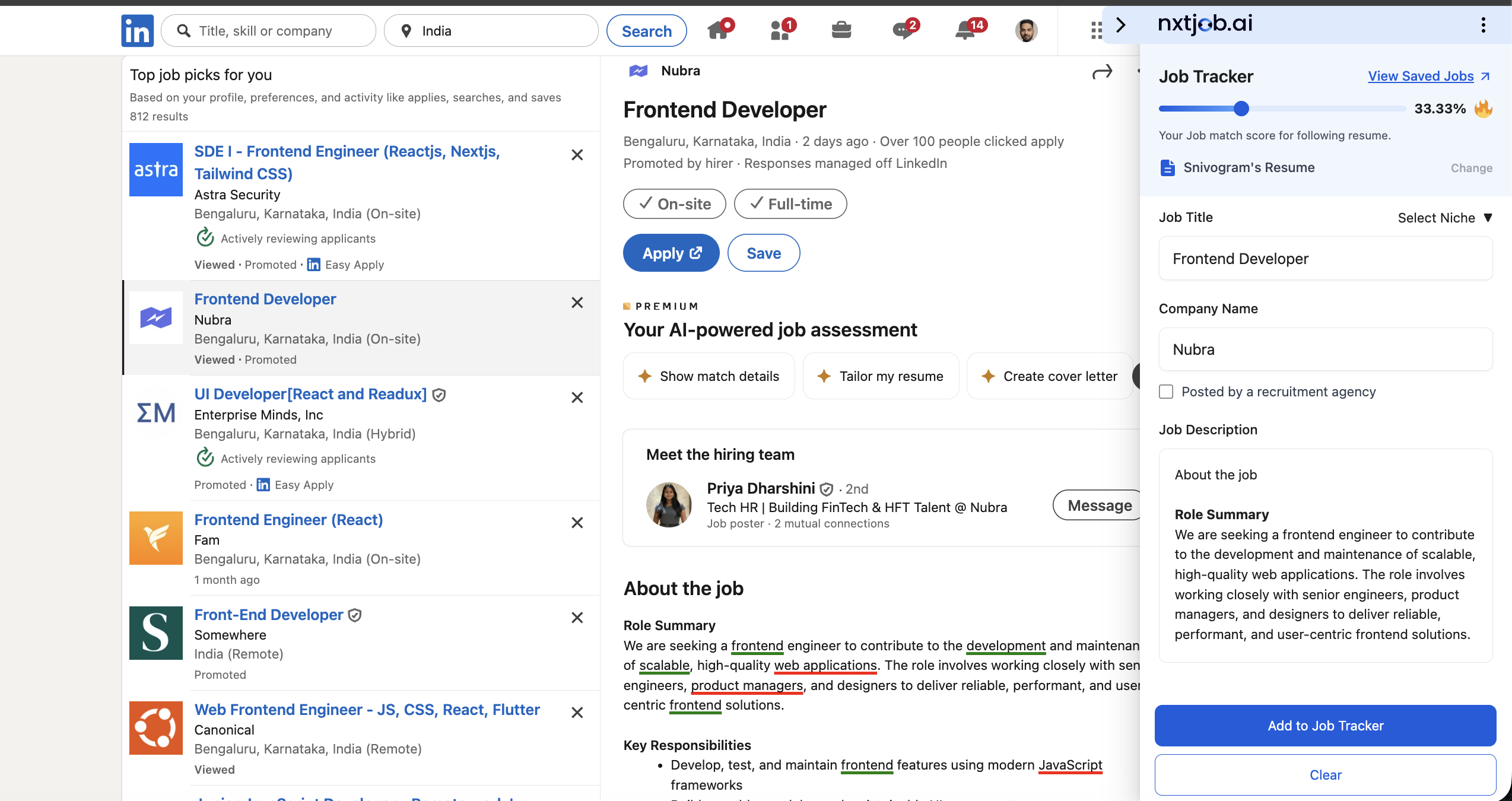
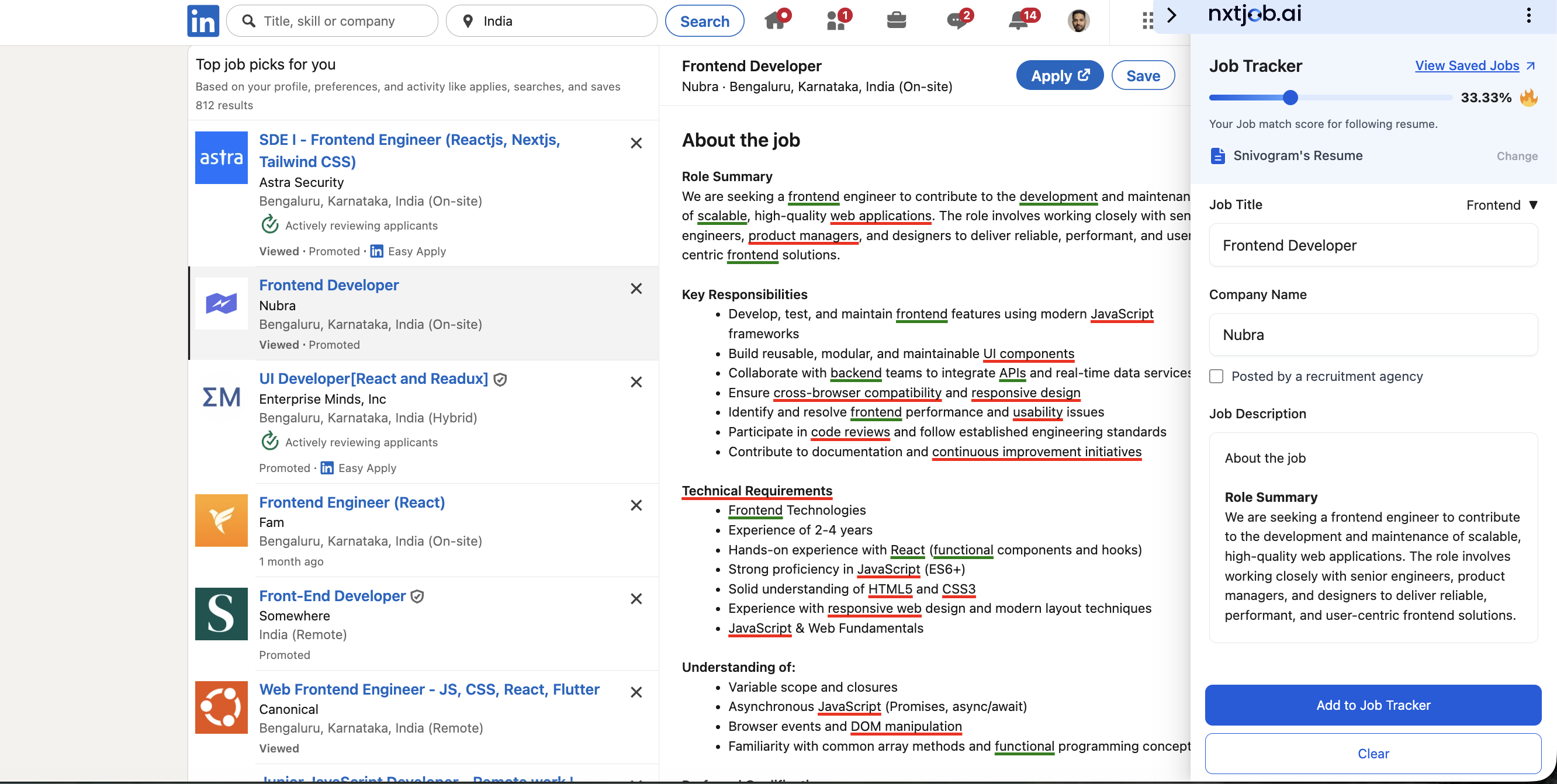
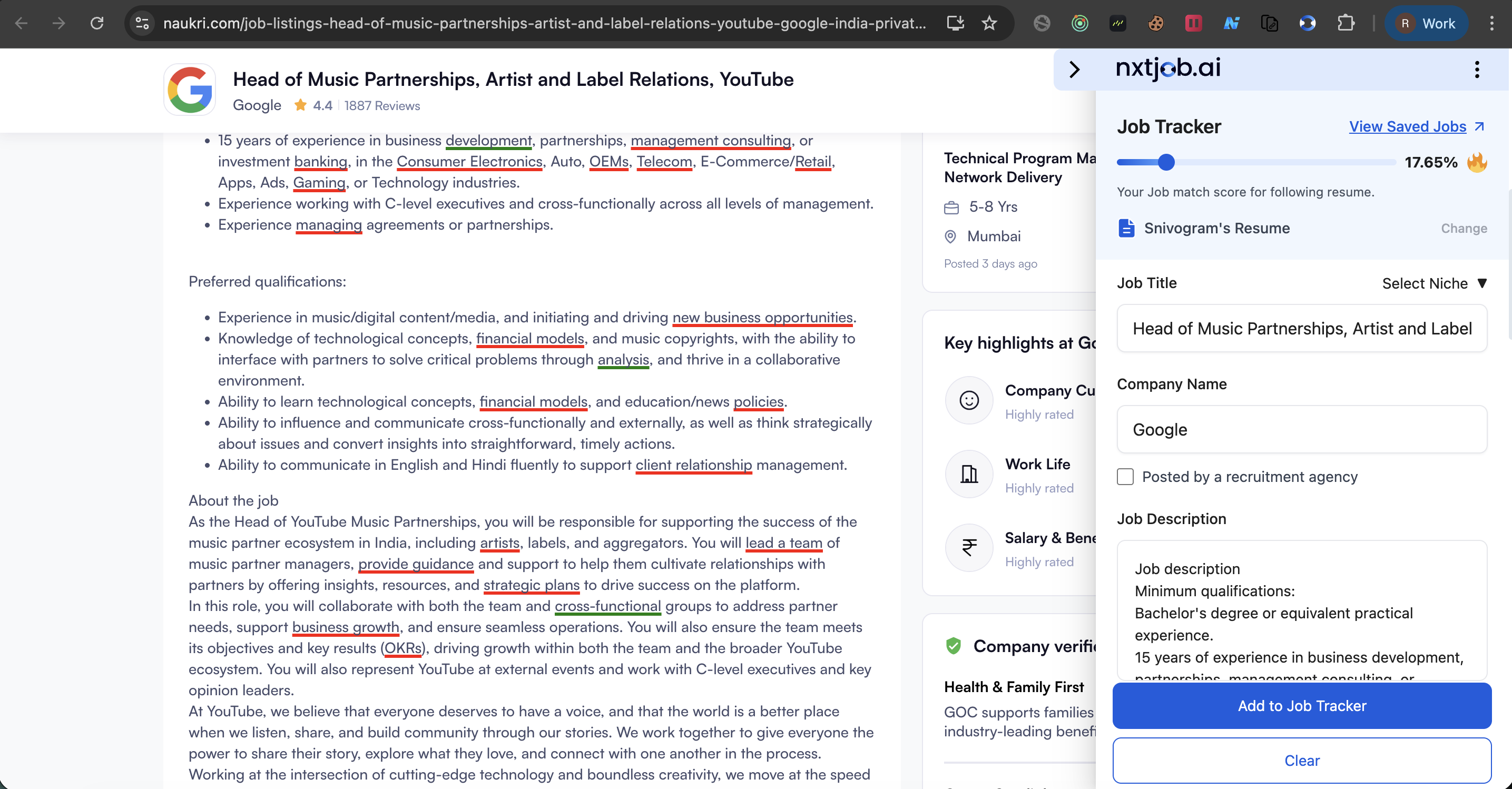
When you visit a job listing on a supported portal, the NxtJob extension calculates an ATS (Applicant Tracking System) match score between your resume and the job description. The score appears at the top of the Job Tracker sidebar as a percentage — for example, "33.33%" or "17.65%" — before you even save the job.
The score uses the same matching engine as the [ATS Score in the Resume Builder](/resume-builder/ats-score), but is calculated directly from the job portal page without requiring you to paste the job description manually.
## How the Score Is Displayed
In the Job Tracker sidebar, the ATS score appears near the top with:
* The percentage in large text, labeled "Your job match score for following resumes"
* The name of the resume being used for scoring (e.g., "Srivasgarni's Resume")
* A **"Change"** link to switch to a different resume
 ## Keyword Highlighting
The extension overlays keyword highlights directly on the job portal page:
* **Green highlighting** — Keywords that are present in your resume (matching terms)
* **Red highlighting** — Keywords that are missing from your resume (gaps)
This visual overlay makes it immediately clear which skills and terms you need to address before applying, without leaving the job listing page.
## Keyword Highlighting
The extension overlays keyword highlights directly on the job portal page:
* **Green highlighting** — Keywords that are present in your resume (matching terms)
* **Red highlighting** — Keywords that are missing from your resume (gaps)
This visual overlay makes it immediately clear which skills and terms you need to address before applying, without leaving the job listing page.
 ## Changing Your Resume
If you maintain multiple resume variants for different role types, you can switch which resume the score is calculated against.
Click the **"Change"** link next to the resume name in the sidebar.
A resume selector appears listing all your resumes from the Resume Builder. Select the resume you want to score against.
The ATS score and keyword highlights recalculate automatically with the selected resume.
## Understanding Your Score
| Score Range | What It Means | Recommended Action |
| ------------- | ------------------------------------------------------------- | ------------------------------------------------------------------ |
| **80%+** | Strong match — your resume covers most required keywords | Apply confidently |
| **50–79%** | Moderate match — some keyword gaps exist | Add missing keywords before applying |
| **20–49%** | Weak match — significant gaps between your resume and the job | Customize your resume using the Resume Builder |
| **Below 20%** | Poor match — the job may not align with your current resume | Consider whether the role is a fit, or create a new resume variant |
## Changing Your Resume
If you maintain multiple resume variants for different role types, you can switch which resume the score is calculated against.
Click the **"Change"** link next to the resume name in the sidebar.
A resume selector appears listing all your resumes from the Resume Builder. Select the resume you want to score against.
The ATS score and keyword highlights recalculate automatically with the selected resume.
## Understanding Your Score
| Score Range | What It Means | Recommended Action |
| ------------- | ------------------------------------------------------------- | ------------------------------------------------------------------ |
| **80%+** | Strong match — your resume covers most required keywords | Apply confidently |
| **50–79%** | Moderate match — some keyword gaps exist | Add missing keywords before applying |
| **20–49%** | Weak match — significant gaps between your resume and the job | Customize your resume using the Resume Builder |
| **Below 20%** | Poor match — the job may not align with your current resume | Consider whether the role is a fit, or create a new resume variant |
 ## Improving a Low Score
If your score is below 50%, follow these steps to close the gap before applying.
Look at the red-highlighted terms on the job page. These are keywords present in the job description that are missing from your resume.
Click **"Customize Resume"** from the job saved success screen, or open your resume directly in the [Resume Builder](/resume-builder/builder).
Incorporate the missing terms into your Skills, Experience, or Summary sections where they accurately reflect your background. Do not add keywords that misrepresent your experience.
Navigate back to the job listing. The ATS score and keyword highlights update automatically to reflect your revised resume.
For the full scoring methodology, see [ATS Score in Resume Builder](/resume-builder/ats-score).
A score below 50% does not necessarily mean the job is wrong for you — it often means your resume is not using the same terminology as the job description. For example, a job might say "stakeholder management" while your resume says "cross-functional collaboration." The keyword highlighting shows you exactly where these gaps are.
Always check your ATS score before applying. Senior professionals often have the right experience but lose out to ATS filters because their resume uses different terminology than the job posting. A 5-minute keyword adjustment can be the difference between passing and being filtered out.
## Improving a Low Score
If your score is below 50%, follow these steps to close the gap before applying.
Look at the red-highlighted terms on the job page. These are keywords present in the job description that are missing from your resume.
Click **"Customize Resume"** from the job saved success screen, or open your resume directly in the [Resume Builder](/resume-builder/builder).
Incorporate the missing terms into your Skills, Experience, or Summary sections where they accurately reflect your background. Do not add keywords that misrepresent your experience.
Navigate back to the job listing. The ATS score and keyword highlights update automatically to reflect your revised resume.
For the full scoring methodology, see [ATS Score in Resume Builder](/resume-builder/ats-score).
A score below 50% does not necessarily mean the job is wrong for you — it often means your resume is not using the same terminology as the job description. For example, a job might say "stakeholder management" while your resume says "cross-functional collaboration." The keyword highlighting shows you exactly where these gaps are.
Always check your ATS score before applying. Senior professionals often have the right experience but lose out to ATS filters because their resume uses different terminology than the job posting. A 5-minute keyword adjustment can be the difference between passing and being filtered out.