> ## Documentation Index
> Fetch the complete documentation index at: https://docs.nxtjob.ai/llms.txt
> Use this file to discover all available pages before exploring further.
# Installation & Setup
> Install the NxtJob Chrome Extension, pin it to your toolbar, sign in, and understand how it behaves on different sites.
## Installing the Extension
You can install the NxtJob Chrome Extension in two ways.
### From the Chrome Web Store
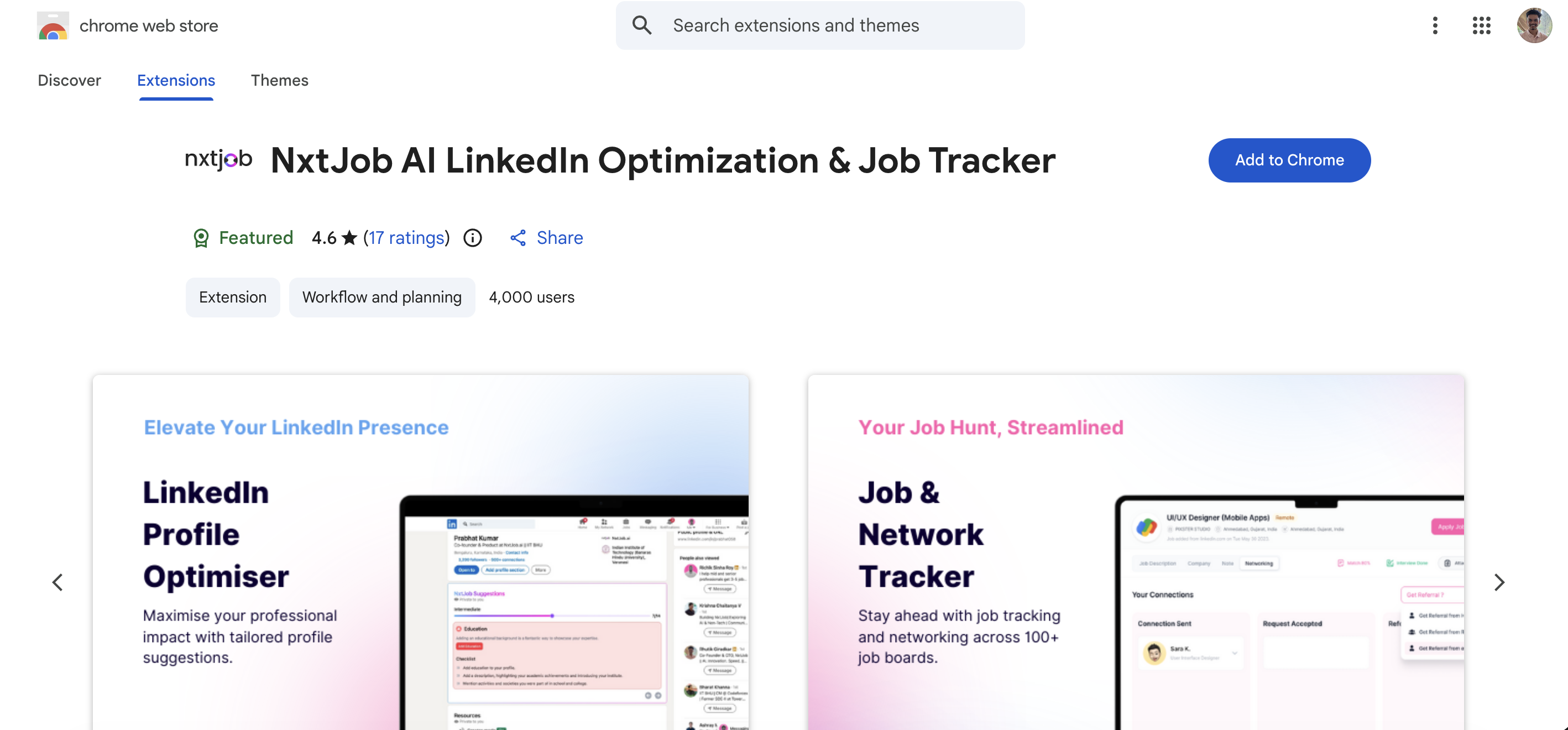
Search "NxtJob" in the Chrome Web Store, or navigate directly to the extension page.
A confirmation dialog appears asking which permissions the extension requires.
The NxtJob icon appears in your browser toolbar once installation completes.
 ### From NxtJob Product Pages
Every page on [resume.nxtjob.ai](https://resume.nxtjob.ai) and [jobs.nxtjob.ai](https://jobs.nxtjob.ai) includes a "Download Extension" prompt. Clicking it takes you directly to the Chrome Web Store listing, where you can complete installation as described above.
## Pin the Extension to Your Toolbar
After installation, the NxtJob icon may be hidden behind Chrome's Extensions menu. Pinning it makes it accessible with one click on any page.
This opens a dropdown listing all your installed extensions.
It appears alongside your other installed extensions.
The NxtJob icon now appears permanently in your toolbar, visible on every page.
## Sign In
The extension requires you to be signed in to sync saved jobs, resumes, and ATS scores with your NxtJob account.
The extension popup opens.
You are prompted to authenticate with your NxtJob account.
Use the same account you use on resume.nxtjob.ai — Google SSO, LinkedIn, or email are all supported.
Once signed in, the extension activates automatically when you visit a supported job portal or LinkedIn page.
You must sign in with the same account you use on resume.nxtjob.ai and jobs.nxtjob.ai. Jobs saved via the extension appear on your Job Board, and ATS scores use your Resume Builder resumes.
## How the Extension Behaves on Different Sites
The extension adapts its interface depending on which site you are visiting. You do not need to configure this — the correct panel opens automatically.
| Site | What Happens |
| -------------------------------------------------------------- | ---------------------------------------------------------------------------------------------- |
| **Supported job portal** (LinkedIn jobs, Naukri, Indeed, etc.) | A sidebar opens with the Job Tracker form, pre-filled with extracted job details |
| **LinkedIn profile (your own)** | A sidebar opens with the Profile Optimization panel and Export to Resume option |
| **LinkedIn profile (someone else's)** | A sidebar opens with the AI Connect panel, showing the person's details and networking actions |
| **LinkedIn messaging** | Nova Reply button appears in the message composer (Premium) |
| **LinkedIn company page** | Option to add the company to Target Companies or Recruitment Agencies |
| **Unsupported site** | Clicking the toolbar icon opens a popup with manual job entry fields and quick links |
If the sidebar does not open automatically on a supported job portal, click the NxtJob icon in your toolbar. Some portals require a page refresh after installation for the content script to activate.
### From NxtJob Product Pages
Every page on [resume.nxtjob.ai](https://resume.nxtjob.ai) and [jobs.nxtjob.ai](https://jobs.nxtjob.ai) includes a "Download Extension" prompt. Clicking it takes you directly to the Chrome Web Store listing, where you can complete installation as described above.
## Pin the Extension to Your Toolbar
After installation, the NxtJob icon may be hidden behind Chrome's Extensions menu. Pinning it makes it accessible with one click on any page.
This opens a dropdown listing all your installed extensions.
It appears alongside your other installed extensions.
The NxtJob icon now appears permanently in your toolbar, visible on every page.
## Sign In
The extension requires you to be signed in to sync saved jobs, resumes, and ATS scores with your NxtJob account.
The extension popup opens.
You are prompted to authenticate with your NxtJob account.
Use the same account you use on resume.nxtjob.ai — Google SSO, LinkedIn, or email are all supported.
Once signed in, the extension activates automatically when you visit a supported job portal or LinkedIn page.
You must sign in with the same account you use on resume.nxtjob.ai and jobs.nxtjob.ai. Jobs saved via the extension appear on your Job Board, and ATS scores use your Resume Builder resumes.
## How the Extension Behaves on Different Sites
The extension adapts its interface depending on which site you are visiting. You do not need to configure this — the correct panel opens automatically.
| Site | What Happens |
| -------------------------------------------------------------- | ---------------------------------------------------------------------------------------------- |
| **Supported job portal** (LinkedIn jobs, Naukri, Indeed, etc.) | A sidebar opens with the Job Tracker form, pre-filled with extracted job details |
| **LinkedIn profile (your own)** | A sidebar opens with the Profile Optimization panel and Export to Resume option |
| **LinkedIn profile (someone else's)** | A sidebar opens with the AI Connect panel, showing the person's details and networking actions |
| **LinkedIn messaging** | Nova Reply button appears in the message composer (Premium) |
| **LinkedIn company page** | Option to add the company to Target Companies or Recruitment Agencies |
| **Unsupported site** | Clicking the toolbar icon opens a popup with manual job entry fields and quick links |
If the sidebar does not open automatically on a supported job portal, click the NxtJob icon in your toolbar. Some portals require a page refresh after installation for the content script to activate.