> ## Documentation Index
> Fetch the complete documentation index at: https://docs.nxtjob.ai/llms.txt
> Use this file to discover all available pages before exploring further.
# Networking Features
> Use AI Connect, Add Target Company, and Add Recruitment Agency to build your professional network directly from LinkedIn.
The NxtJob Chrome Extension brings your networking workflow directly into LinkedIn. Rather than switching between tabs to log contacts and companies, you can capture connections, target companies, and recruitment agencies while you browse — with the extension sidebar handling the details.
## AI Connect: Adding LinkedIn Connections
AI Connect lets you add LinkedIn connections directly to your NxtJob networking pipeline. When you visit someone's LinkedIn profile, the extension provides tools to track the connection, categorize their role, and link them to a specific job or company.
### Where AI Connect Appears
AI Connect is available in two places on LinkedIn:
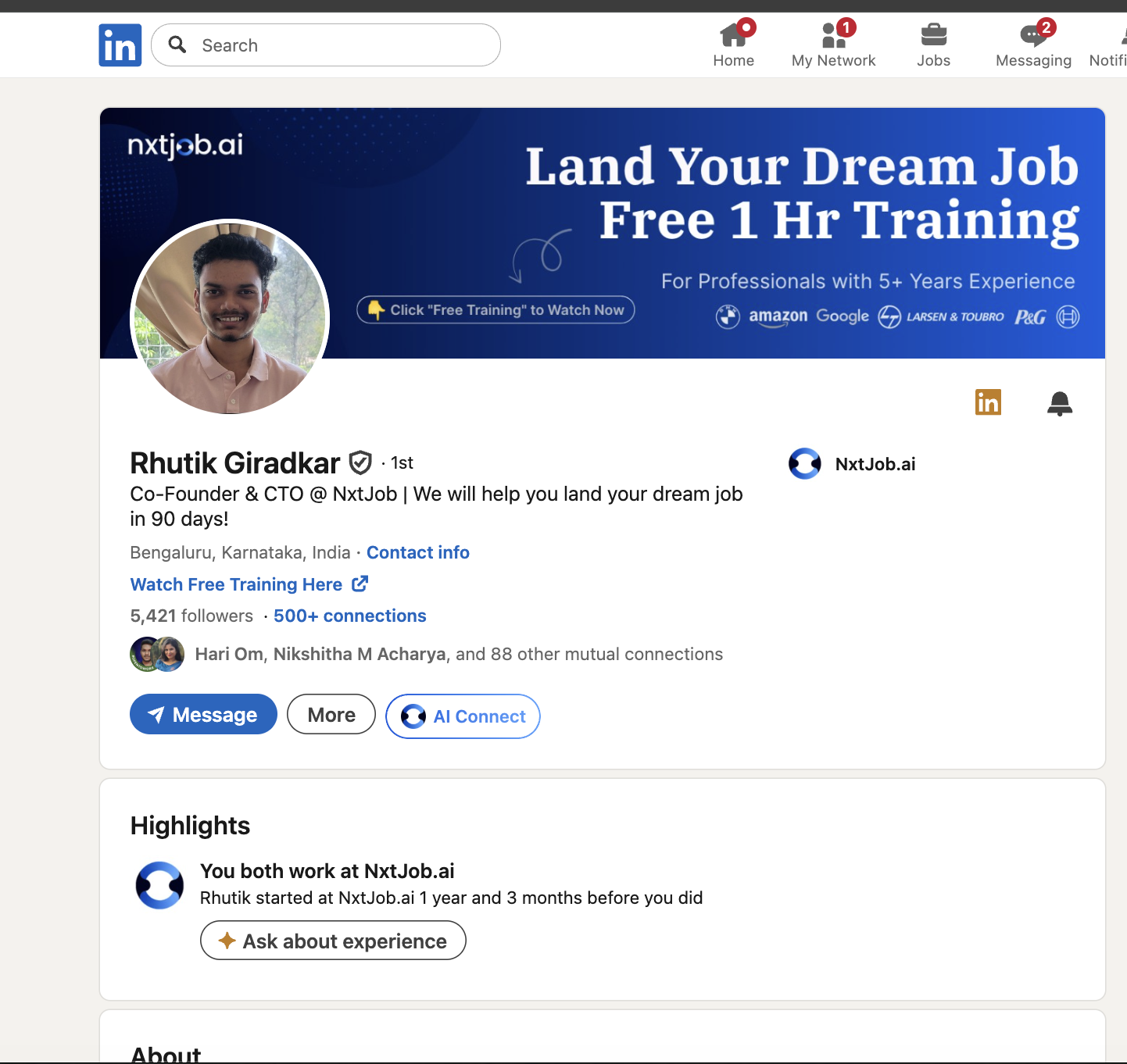
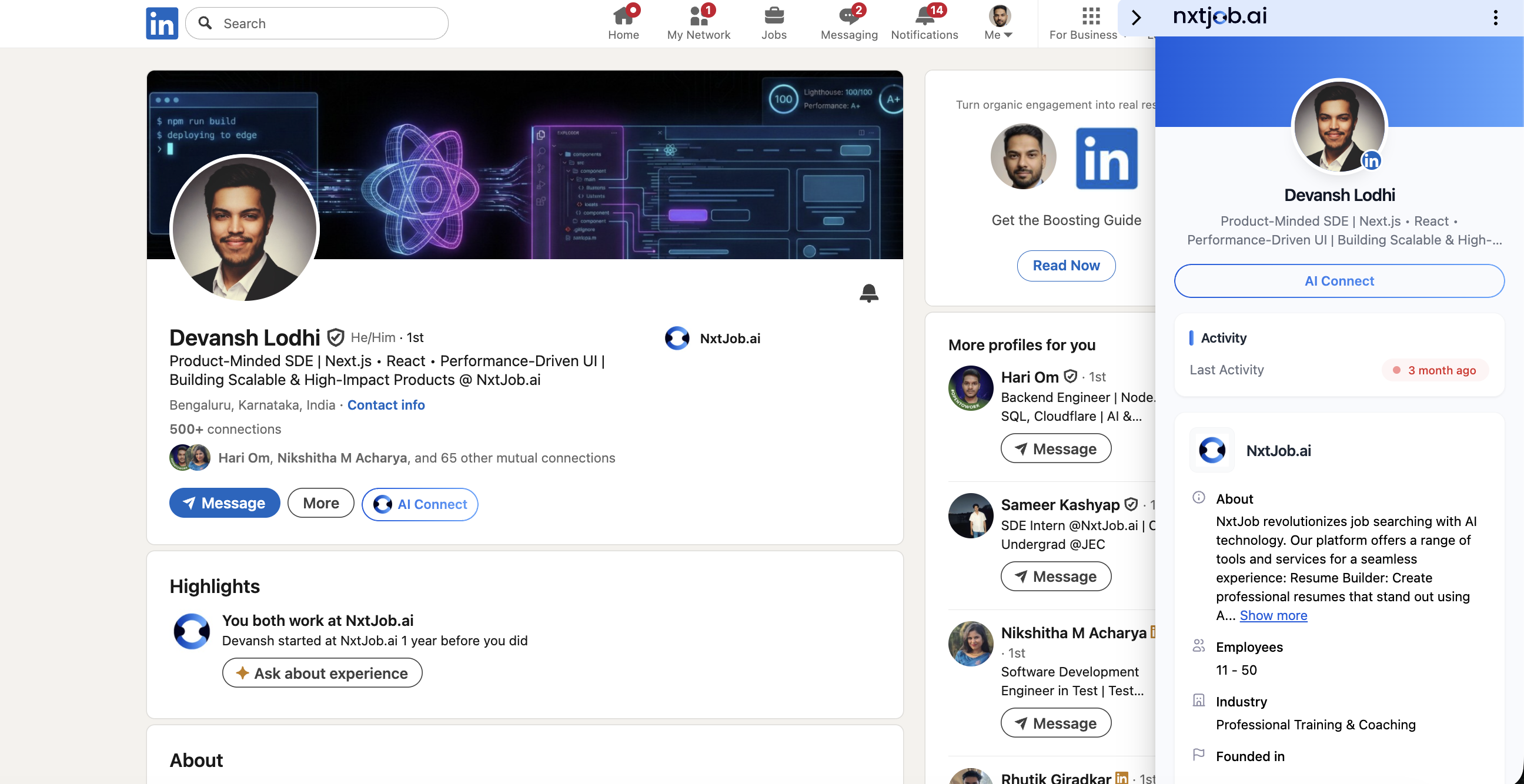
1. **On a LinkedIn profile page** — An "AI Connect" button appears next to the "More" button in the profile action bar (a blue button with a sparkle icon). The extension sidebar also opens alongside the profile, showing the person's details, activity, about section, industry info, and an "AI Connect" button at the top.
2. **From LinkedIn search results** — Available via the extension sidebar when browsing profiles in search.
 ### The Extension Sidebar on LinkedIn Profiles
When you visit someone else's LinkedIn profile, the extension sidebar displays the following information:
* The person's **name, title, and headline** at the top
* An **"AI Connect"** button
* **Activity** section showing their last activity date
* **About** section with the person's or company's description
* **Employees** count
* **Industry** info
* **Founded in** date (for company profiles)
### Track Connection Modal
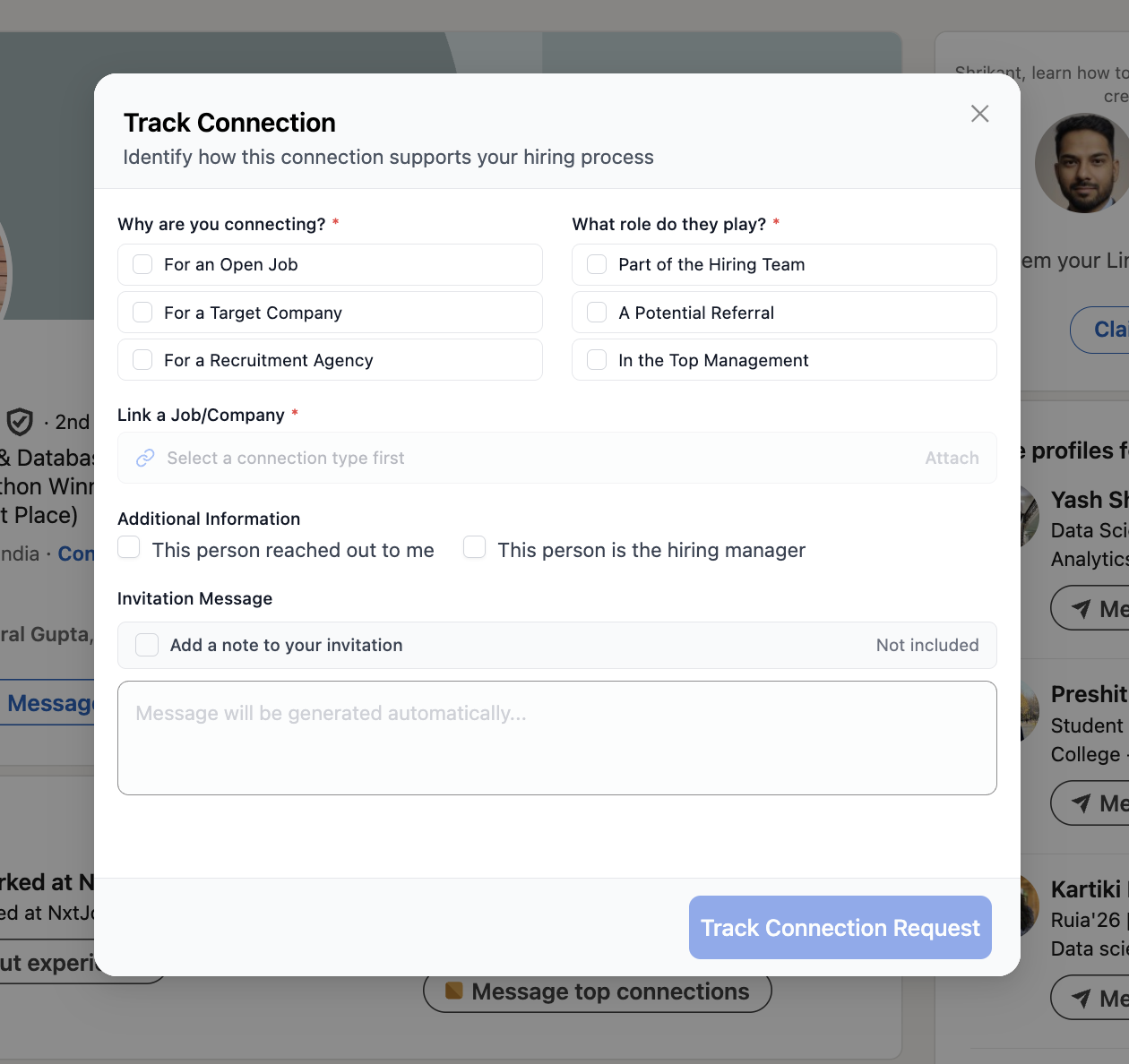
Clicking "AI Connect" opens the Track Connection modal. Complete the following fields before submitting:
| Field | Options |
| --------------------------- | ----------------------------------------------------------------------------------------------------------------------------------- |
| **Why are you connecting?** | For an Open Job / For a Target Company / For a Recruitment Agency |
| **What role do they play?** | Part of the Hiring Team / A Potential Referral / In the Top Management |
| **Link a Job/Company** | Search and select a specific job or company from your pipeline |
| **Additional Information** | "This person reached out to me" / "This person is the hiring manager" / "Not Included" |
| **Invitation Message** | Text area for your connection request message. Shows "Message will be generated automatically..." as a placeholder when left empty. |
At the bottom of the modal, the **"Track Connection Request"** button submits the form. A **"Message top connections"** link is also available for bulk outreach.
### The Extension Sidebar on LinkedIn Profiles
When you visit someone else's LinkedIn profile, the extension sidebar displays the following information:
* The person's **name, title, and headline** at the top
* An **"AI Connect"** button
* **Activity** section showing their last activity date
* **About** section with the person's or company's description
* **Employees** count
* **Industry** info
* **Founded in** date (for company profiles)
### Track Connection Modal
Clicking "AI Connect" opens the Track Connection modal. Complete the following fields before submitting:
| Field | Options |
| --------------------------- | ----------------------------------------------------------------------------------------------------------------------------------- |
| **Why are you connecting?** | For an Open Job / For a Target Company / For a Recruitment Agency |
| **What role do they play?** | Part of the Hiring Team / A Potential Referral / In the Top Management |
| **Link a Job/Company** | Search and select a specific job or company from your pipeline |
| **Additional Information** | "This person reached out to me" / "This person is the hiring manager" / "Not Included" |
| **Invitation Message** | Text area for your connection request message. Shows "Message will be generated automatically..." as a placeholder when left empty. |
At the bottom of the modal, the **"Track Connection Request"** button submits the form. A **"Message top connections"** link is also available for bulk outreach.
 ### Adding a Connection via AI Connect
Navigate to the LinkedIn profile of the person you want to connect with.
Click the **"AI Connect"** button — either on the profile page next to the "More" button, or in the extension sidebar.
In the Track Connection modal, choose one of the three options: **For an Open Job**, **For a Target Company**, or **For a Recruitment Agency**.
Choose the person's role in your job search: **Part of the Hiring Team**, **A Potential Referral**, or **In the Top Management**.
Optionally search for and select a specific job or company from your pipeline to associate with this connection.
Use the checkboxes to note relevant context — for example, whether this person reached out to you first or whether they are the hiring manager.
Review the auto-generated invitation message or write your own. If you leave the field empty, the platform generates a message based on the connection category and role type you selected.
Submit the form. The connection is added to your [My Networks](/job-board/my-networks) board and the connection request is queued.
Use AI Connect strategically. For each saved job, aim to connect with 2-3 people at the company: one potential referrer in a similar role, one hiring team member, and optionally one senior leader. This multi-touch approach dramatically increases your chances of getting a referral.
The invitation message field shows "Message will be generated automatically" — the platform crafts personalized messages based on the connection category and role type you selected. You can customize the message before sending, but the AI-generated defaults are designed for high acceptance rates.
***
## Add Target Company from LinkedIn
When you visit a company's LinkedIn page, you can save it directly to your [Target Companies](/job-board/target-companies) board without leaving LinkedIn.
Go to the LinkedIn page of the company you want to track.
The extension sidebar recognizes the company page automatically and displays the company's details.
Click **"Add to Target Companies"** in the sidebar.
The company name, description, and basic details are extracted automatically from the LinkedIn page.
The company appears on your Target Companies board at jobs.nxtjob.ai.
***
## Add Recruitment Agency from LinkedIn
The flow for adding a recruitment agency follows the same pattern as adding a target company.
Go to the LinkedIn page of the recruitment agency you want to track.
The extension sidebar opens automatically when it recognizes the page.
Check the **"Posted by a recruitment agency"** option or use the agency-specific flow shown in the sidebar.
Click to add the agency. Its details are extracted from the LinkedIn page automatically.
The agency appears on your [Recruitment Agencies](/job-board/recruitment-agencies) board.
### Adding a Connection via AI Connect
Navigate to the LinkedIn profile of the person you want to connect with.
Click the **"AI Connect"** button — either on the profile page next to the "More" button, or in the extension sidebar.
In the Track Connection modal, choose one of the three options: **For an Open Job**, **For a Target Company**, or **For a Recruitment Agency**.
Choose the person's role in your job search: **Part of the Hiring Team**, **A Potential Referral**, or **In the Top Management**.
Optionally search for and select a specific job or company from your pipeline to associate with this connection.
Use the checkboxes to note relevant context — for example, whether this person reached out to you first or whether they are the hiring manager.
Review the auto-generated invitation message or write your own. If you leave the field empty, the platform generates a message based on the connection category and role type you selected.
Submit the form. The connection is added to your [My Networks](/job-board/my-networks) board and the connection request is queued.
Use AI Connect strategically. For each saved job, aim to connect with 2-3 people at the company: one potential referrer in a similar role, one hiring team member, and optionally one senior leader. This multi-touch approach dramatically increases your chances of getting a referral.
The invitation message field shows "Message will be generated automatically" — the platform crafts personalized messages based on the connection category and role type you selected. You can customize the message before sending, but the AI-generated defaults are designed for high acceptance rates.
***
## Add Target Company from LinkedIn
When you visit a company's LinkedIn page, you can save it directly to your [Target Companies](/job-board/target-companies) board without leaving LinkedIn.
Go to the LinkedIn page of the company you want to track.
The extension sidebar recognizes the company page automatically and displays the company's details.
Click **"Add to Target Companies"** in the sidebar.
The company name, description, and basic details are extracted automatically from the LinkedIn page.
The company appears on your Target Companies board at jobs.nxtjob.ai.
***
## Add Recruitment Agency from LinkedIn
The flow for adding a recruitment agency follows the same pattern as adding a target company.
Go to the LinkedIn page of the recruitment agency you want to track.
The extension sidebar opens automatically when it recognizes the page.
Check the **"Posted by a recruitment agency"** option or use the agency-specific flow shown in the sidebar.
Click to add the agency. Its details are extracted from the LinkedIn page automatically.
The agency appears on your [Recruitment Agencies](/job-board/recruitment-agencies) board.