> ## Documentation Index
> Fetch the complete documentation index at: https://docs.nxtjob.ai/llms.txt
> Use this file to discover all available pages before exploring further.
# Nova Reply
> Generate contextual, professional LinkedIn messages with AI directly inside the messaging interface.
Nova Reply is a Premium feature. It requires an active Premium subscription and works only within LinkedIn's messaging interface.
Nova Reply is an AI messaging assistant that integrates directly into LinkedIn's messaging interface. When you open a conversation on LinkedIn, the extension injects a **Nova Reply** button into the message composer bar — right next to the Send button. Instead of spending minutes crafting each networking message from scratch, you click the button, choose a mode, and get a professional, context-aware draft in seconds.
## Where Nova Reply Appears
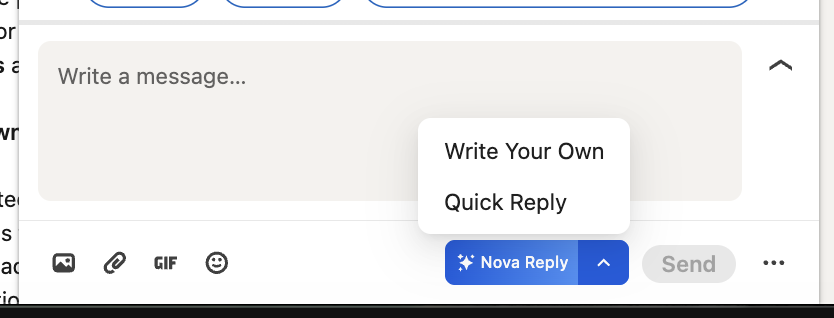
When you open any LinkedIn conversation, a blue **Nova Reply** button appears in the message composer toolbar, positioned between the emoji/attachment icons and the Send button. Clicking the upward arrow on the button opens a dropdown with two options:
* **Write Your Own** — You provide a directive and the AI generates a message based on your instructions
* **Quick Reply** — Select from saved message templates or create new ones
 ## Write Your Own Mode
Write Your Own mode lets you describe what you want to say in plain language, and Nova Reply generates a polished, professional message based on the conversation context and your directive.
### How It Works
Click the **Nova Reply** button in the LinkedIn message composer, then select **Write Your Own** from the dropdown. The NOVA Reply panel opens as an overlay.
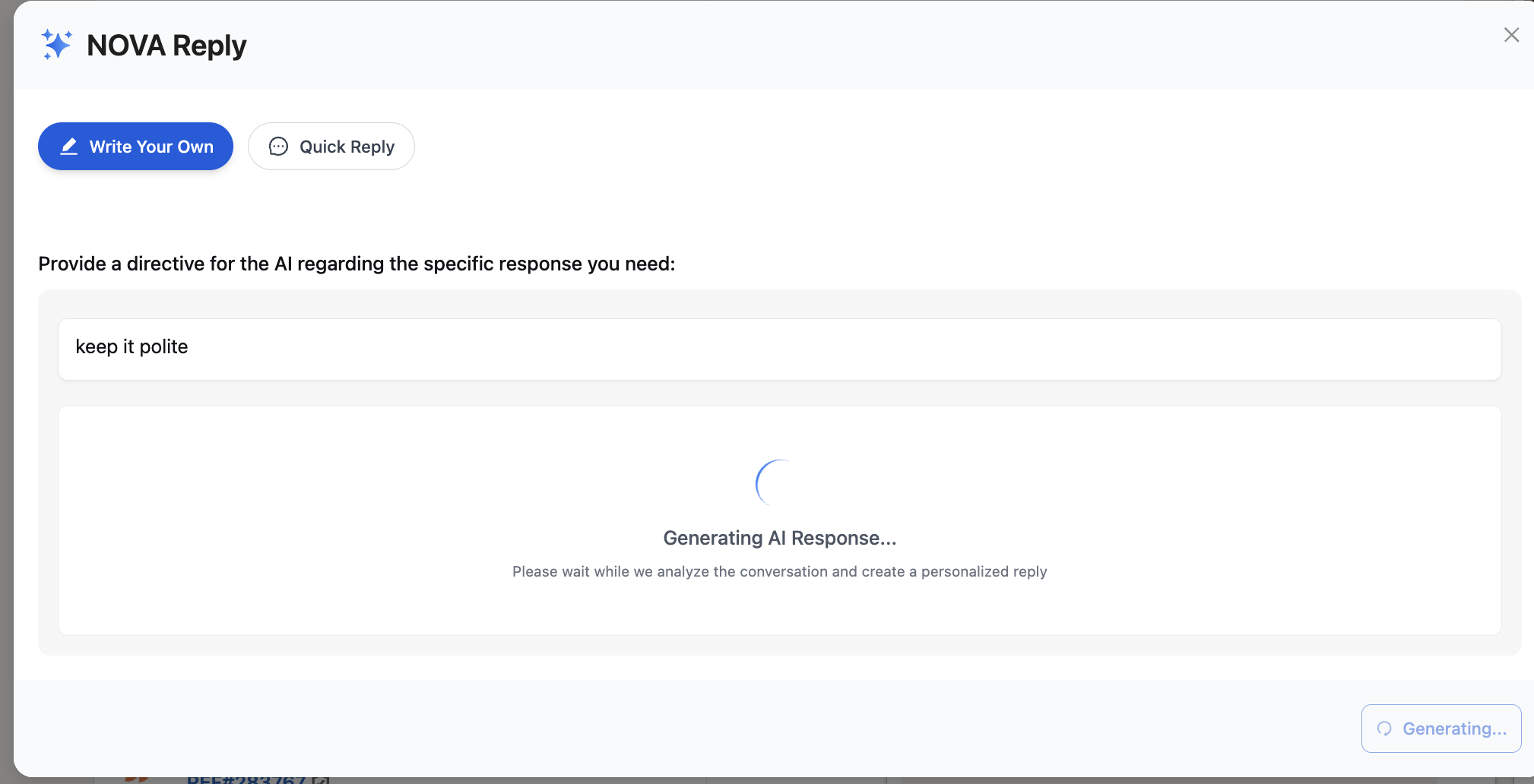
The panel shows two tabs at the top: **Write Your Own** (selected, highlighted in blue) and **Quick Reply**. Below the tabs, you see the prompt: "Provide a directive for the AI regarding the specific response you need." Type your instruction in the text field — for example, "keep it polite" or "thank them for the referral and ask for a 5-minute call."
After entering your directive, the panel shows a loading state with "Generating AI Response..." and the message "Please wait while we analyze the conversation and create a personalized reply." The AI reads the full conversation thread and combines it with your directive to craft the message.
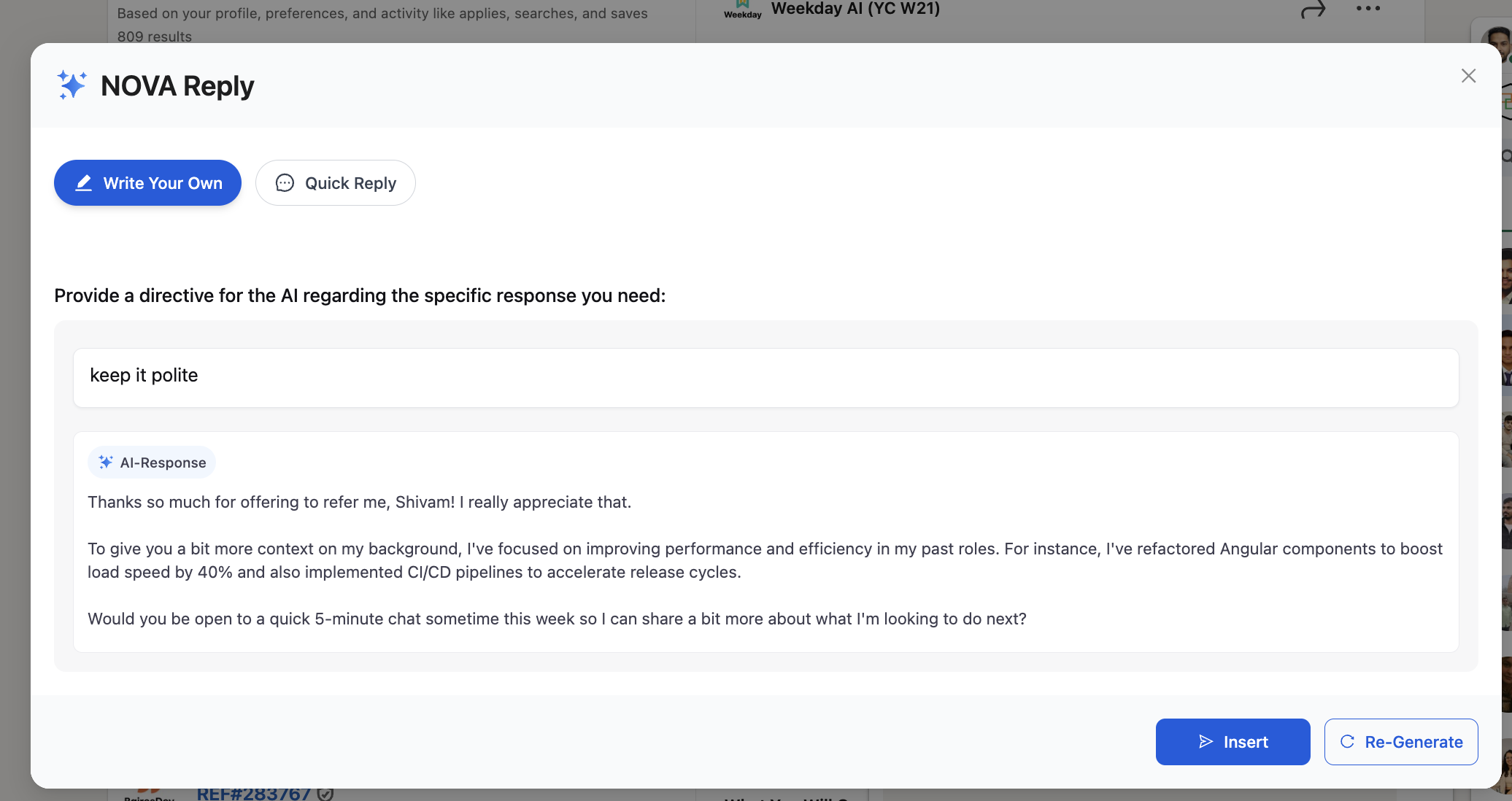
The generated message appears in the panel under an **AI Response** label. The AI produces a complete, ready-to-send message that incorporates conversation context, your background, and your directive. Two buttons appear at the bottom:
* **Insert** — Places the generated message into the LinkedIn compose field
* **Re-Generate** — Generates a new version if you are not satisfied with the first draft
Click **Insert** to place the message into the LinkedIn compose field. Review the text, make any final edits, and click **Send**.
## Write Your Own Mode
Write Your Own mode lets you describe what you want to say in plain language, and Nova Reply generates a polished, professional message based on the conversation context and your directive.
### How It Works
Click the **Nova Reply** button in the LinkedIn message composer, then select **Write Your Own** from the dropdown. The NOVA Reply panel opens as an overlay.
The panel shows two tabs at the top: **Write Your Own** (selected, highlighted in blue) and **Quick Reply**. Below the tabs, you see the prompt: "Provide a directive for the AI regarding the specific response you need." Type your instruction in the text field — for example, "keep it polite" or "thank them for the referral and ask for a 5-minute call."
After entering your directive, the panel shows a loading state with "Generating AI Response..." and the message "Please wait while we analyze the conversation and create a personalized reply." The AI reads the full conversation thread and combines it with your directive to craft the message.
The generated message appears in the panel under an **AI Response** label. The AI produces a complete, ready-to-send message that incorporates conversation context, your background, and your directive. Two buttons appear at the bottom:
* **Insert** — Places the generated message into the LinkedIn compose field
* **Re-Generate** — Generates a new version if you are not satisfied with the first draft
Click **Insert** to place the message into the LinkedIn compose field. Review the text, make any final edits, and click **Send**.
 ### Generated Response Example
The AI generates messages that are specific to the conversation. For example, with the directive "keep it polite" in a conversation about a referral, Nova Reply produced a message that thanked the person by name, referenced specific technical achievements (refactoring components, implementing CI/CD pipelines), and ended with a clear call to action asking for a 5-minute chat.
### Generated Response Example
The AI generates messages that are specific to the conversation. For example, with the directive "keep it polite" in a conversation about a referral, Nova Reply produced a message that thanked the person by name, referenced specific technical achievements (refactoring components, implementing CI/CD pipelines), and ended with a clear call to action asking for a 5-minute chat.
 ### After Inserting
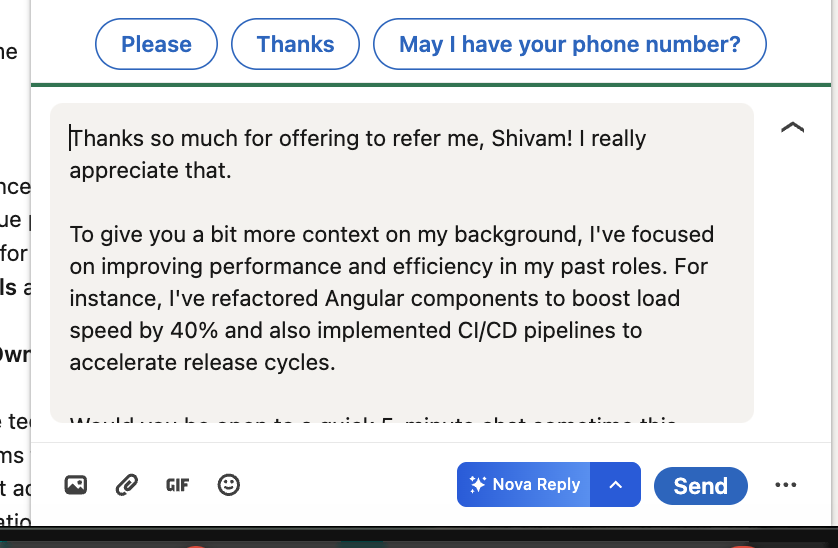
Once you click **Insert**, the generated message appears in the LinkedIn compose field. You can edit it directly before sending. LinkedIn's quick suggestion pills (e.g., "Please", "Thanks", "May I have your phone number?") remain available above the compose area.
### After Inserting
Once you click **Insert**, the generated message appears in the LinkedIn compose field. You can edit it directly before sending. LinkedIn's quick suggestion pills (e.g., "Please", "Thanks", "May I have your phone number?") remain available above the compose area.
 ## Quick Reply Mode
Quick Reply mode provides instant access to saved message templates. Instead of writing a directive each time, you select from a library of pre-built messages that you can insert with one click.
### How It Works
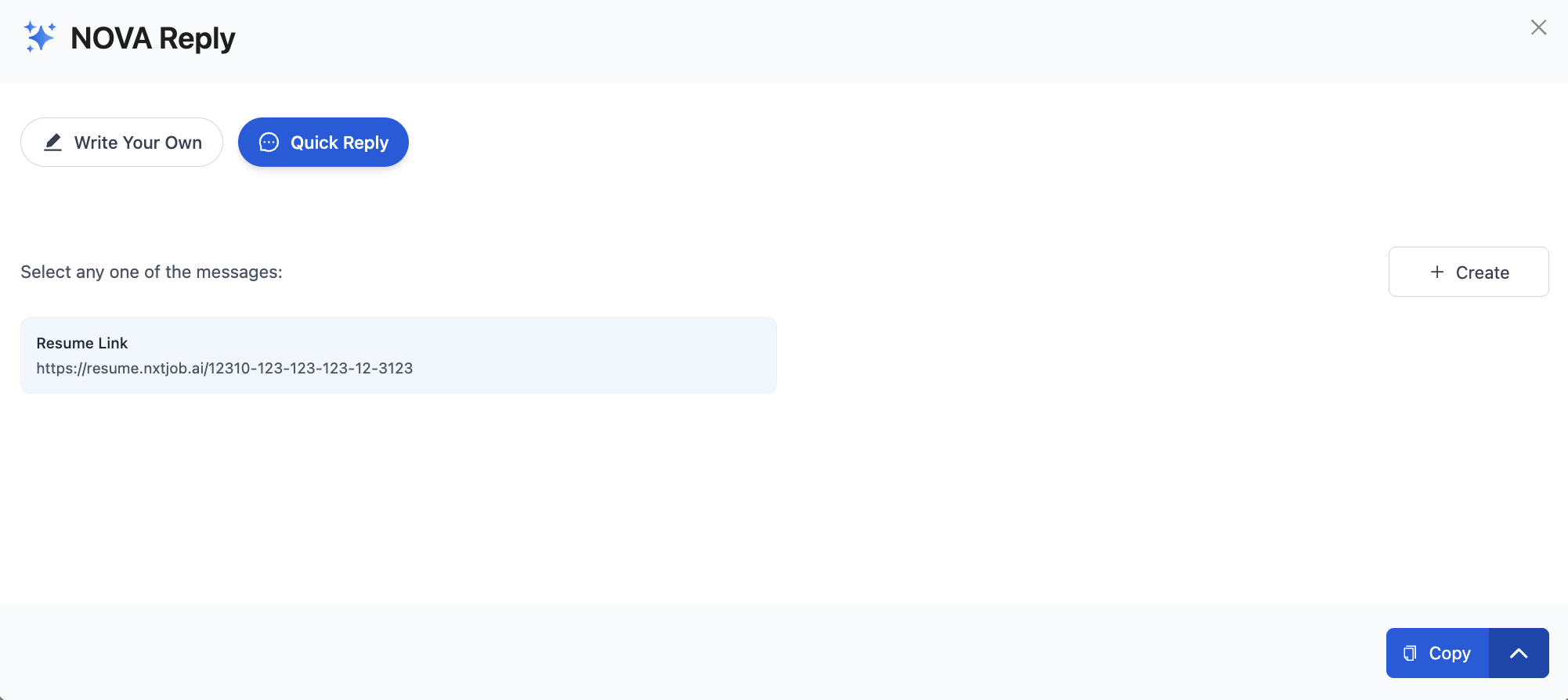
Click the **Nova Reply** button and select **Quick Reply** from the dropdown. The NOVA Reply panel opens with the **Quick Reply** tab active (highlighted in blue).
The panel shows "Select any one of the messages:" followed by your saved templates. Each template displays its name and a preview of the message content. For example, a "Resume Link" template might contain your resume URL from resume.nxtjob.ai.
Click on a template to select it. Use the **Copy** button in the bottom-right corner to copy the message content to your clipboard, then paste it into the LinkedIn compose field.
## Quick Reply Mode
Quick Reply mode provides instant access to saved message templates. Instead of writing a directive each time, you select from a library of pre-built messages that you can insert with one click.
### How It Works
Click the **Nova Reply** button and select **Quick Reply** from the dropdown. The NOVA Reply panel opens with the **Quick Reply** tab active (highlighted in blue).
The panel shows "Select any one of the messages:" followed by your saved templates. Each template displays its name and a preview of the message content. For example, a "Resume Link" template might contain your resume URL from resume.nxtjob.ai.
Click on a template to select it. Use the **Copy** button in the bottom-right corner to copy the message content to your clipboard, then paste it into the LinkedIn compose field.
 ### Creating a New Template
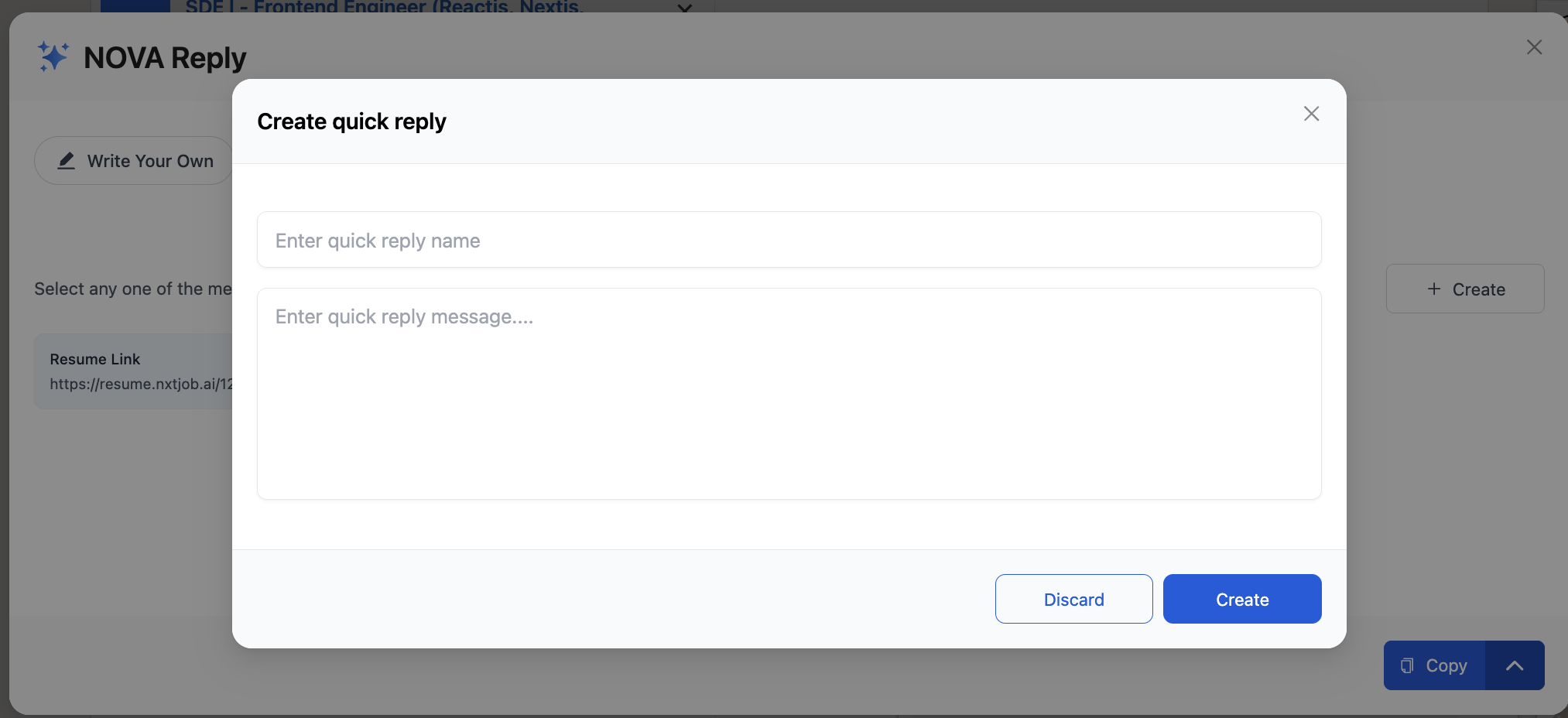
Click the **+ Create** button in the top-right corner of the Quick Reply panel to create a new template. A **"Create quick reply"** dialog appears with two fields:
* **Enter quick reply name** — A short name to identify the template (e.g., "Resume Link", "Referral Ask", "Thank You Note")
* **Enter quick reply message** — The full message text you want to reuse
Click **Create** to save the template, or **Discard** to cancel. Saved templates appear in your Quick Reply list and are available across all LinkedIn conversations.
### Creating a New Template
Click the **+ Create** button in the top-right corner of the Quick Reply panel to create a new template. A **"Create quick reply"** dialog appears with two fields:
* **Enter quick reply name** — A short name to identify the template (e.g., "Resume Link", "Referral Ask", "Thank You Note")
* **Enter quick reply message** — The full message text you want to reuse
Click **Create** to save the template, or **Discard** to cancel. Saved templates appear in your Quick Reply list and are available across all LinkedIn conversations.
 Create templates for messages you send repeatedly: your resume link, a standard referral request, a post-interview thank you, or a brief self-introduction. This turns a 5-minute writing task into a 5-second click.
## The NOVA Reply Panel
The NOVA Reply panel is a floating overlay that appears on top of your LinkedIn messaging interface. It includes:
| Element | Description |
| ------------------------------------- | ------------------------------------------------------------------ |
| **NOVA Reply header** | Panel title with a close (X) button |
| **Write Your Own tab** | AI-powered message generation from your directive |
| **Quick Reply tab** | Saved template library |
| **Directive field** (Write Your Own) | Text input where you describe what you want the AI to write |
| **AI Response area** (Write Your Own) | Displays the generated message with Insert and Re-Generate actions |
| **Template list** (Quick Reply) | Your saved message templates with Copy functionality |
| **+ Create button** (Quick Reply) | Opens the create template dialog |
## When to Use Each Mode
| Scenario | Mode | Why |
| ---------------------------------- | -------------- | ---------------------------------------------------------------------------------------- |
| Responding to a referral offer | Write Your Own | The AI reads the thread and crafts a personalized thank-you with your background details |
| Following up after an interview | Write Your Own | Describe your intent and get a polished follow-up that references the conversation |
| Sharing your resume link | Quick Reply | Save your resume URL as a template and insert it instantly |
| Sending a standard introduction | Quick Reply | Create a reusable self-introduction template |
| Replying to a recruiter's question | Write Your Own | Let the AI draft a response based on the conversation context and your directive |
| Sending a cold outreach pitch | Write Your Own | Describe the person's role and your goal — the AI handles the tone and structure |
## Tips for Effective Use
Nova Reply generates drafts, not final messages. Always review and personalize the generated text before clicking Send. Adding a specific detail — a reference to the person's recent post, a mutual connection, or a shared experience — transforms a good AI draft into a message that feels genuinely personal.
Build your Quick Reply template library early. Start with 3-4 templates: your resume link, a referral request, a thank-you note, and a brief introduction. As your job search progresses, add templates for specific scenarios you encounter repeatedly.
For senior professionals managing 20 or more networking conversations simultaneously, Nova Reply can save hours per week. Write Your Own mode handles the complex, context-specific messages while Quick Reply handles the repetitive ones. Together, they let you maintain high-quality communication at scale.
Create templates for messages you send repeatedly: your resume link, a standard referral request, a post-interview thank you, or a brief self-introduction. This turns a 5-minute writing task into a 5-second click.
## The NOVA Reply Panel
The NOVA Reply panel is a floating overlay that appears on top of your LinkedIn messaging interface. It includes:
| Element | Description |
| ------------------------------------- | ------------------------------------------------------------------ |
| **NOVA Reply header** | Panel title with a close (X) button |
| **Write Your Own tab** | AI-powered message generation from your directive |
| **Quick Reply tab** | Saved template library |
| **Directive field** (Write Your Own) | Text input where you describe what you want the AI to write |
| **AI Response area** (Write Your Own) | Displays the generated message with Insert and Re-Generate actions |
| **Template list** (Quick Reply) | Your saved message templates with Copy functionality |
| **+ Create button** (Quick Reply) | Opens the create template dialog |
## When to Use Each Mode
| Scenario | Mode | Why |
| ---------------------------------- | -------------- | ---------------------------------------------------------------------------------------- |
| Responding to a referral offer | Write Your Own | The AI reads the thread and crafts a personalized thank-you with your background details |
| Following up after an interview | Write Your Own | Describe your intent and get a polished follow-up that references the conversation |
| Sharing your resume link | Quick Reply | Save your resume URL as a template and insert it instantly |
| Sending a standard introduction | Quick Reply | Create a reusable self-introduction template |
| Replying to a recruiter's question | Write Your Own | Let the AI draft a response based on the conversation context and your directive |
| Sending a cold outreach pitch | Write Your Own | Describe the person's role and your goal — the AI handles the tone and structure |
## Tips for Effective Use
Nova Reply generates drafts, not final messages. Always review and personalize the generated text before clicking Send. Adding a specific detail — a reference to the person's recent post, a mutual connection, or a shared experience — transforms a good AI draft into a message that feels genuinely personal.
Build your Quick Reply template library early. Start with 3-4 templates: your resume link, a referral request, a thank-you note, and a brief introduction. As your job search progresses, add templates for specific scenarios you encounter repeatedly.
For senior professionals managing 20 or more networking conversations simultaneously, Nova Reply can save hours per week. Write Your Own mode handles the complex, context-specific messages while Quick Reply handles the repetitive ones. Together, they let you maintain high-quality communication at scale.