> ## Documentation Index
> Fetch the complete documentation index at: https://docs.nxtjob.ai/llms.txt
> Use this file to discover all available pages before exploring further.
# LinkedIn Profile Optimization
> Analyze your LinkedIn profile across 14 sections and get a scored breakdown with actionable recommendations to improve your recruiter visibility.
LinkedIn Profile Optimization is a Premium feature. Connect your LinkedIn account from your NxtJob settings to unlock profile scoring and AI-powered headline and summary generation.
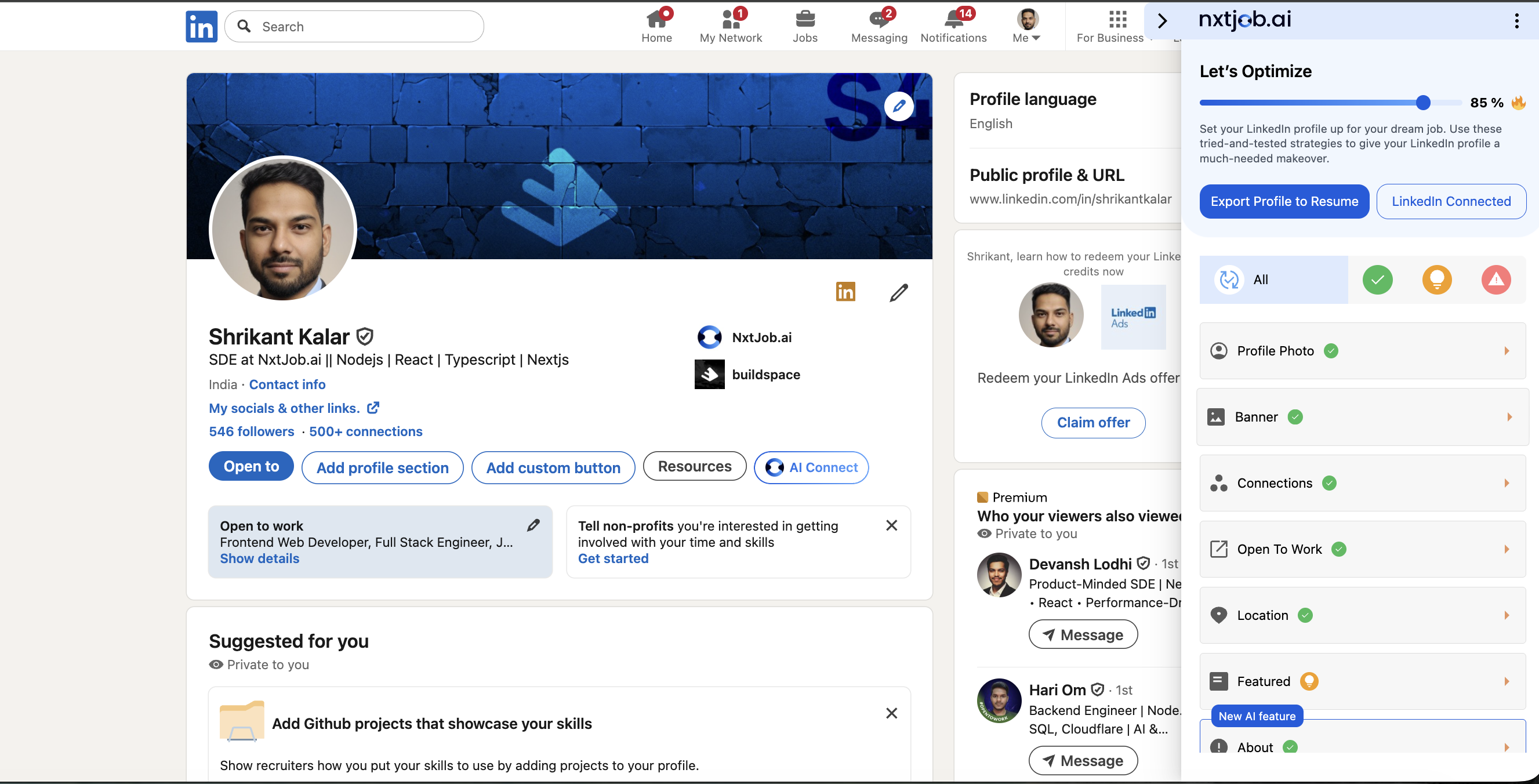
When you visit your own LinkedIn profile with the NxtJob extension installed, the sidebar opens automatically with the **Let's Optimize** panel. It displays your overall profile optimization score as a percentage alongside section-by-section feedback you can act on immediately.
 ## Connecting Your LinkedIn Account
Before the extension can analyze your profile, you need a Premium subscription and a connected LinkedIn account. Once connected, two buttons appear at the top of the sidebar:
* **Export Profile to Resume** — sends your profile data to the Resume Builder
* **LinkedIn Connected** — confirms your account link is active
If you see a prompt to connect instead of these buttons, go to your NxtJob settings and complete the LinkedIn connection flow.
## Your Overall Score
The sidebar displays a circular progress indicator showing your overall optimization score (for example, 85%). This score is a weighted average across all 14 analyzed sections. Below the score indicator, a row of section icons lets you jump directly into any individual section's detail view.
## Profile Sections Analyzed
The extension evaluates 14 sections of your LinkedIn profile. Each section is checked against specific criteria:
| Section | What It Checks |
| ----------------- | --------------------------------------------------------------------- |
| **Profile Photo** | Whether you have a professional photo with a neutral background |
| **Banner** | Whether you have a custom banner image |
| **Connections** | Your connection count and network strength |
| **Open To Work** | Whether the Open To Work frame is enabled |
| **Location** | Whether your location is filled in |
| **Featured** | Whether you have a Featured section with articles, images, or links |
| **About** | Whether your About/Summary section is filled and above 400 characters |
| **Headline** | Whether your headline is optimized |
| **Experience** | Your work experience entries |
| **Education** | Your education entries |
| **Skills** | Skills listed on your profile |
| **Certificates** | Certifications and courses |
| **Volunteering** | Volunteer experience |
| **LinkedIn URL** | Whether you have a custom LinkedIn URL |
## Section Status Indicators
Each section displays one of three statuses:
* **Looking Good** — This section meets all optimization criteria (shown with a green checkmark)
* **Recommendations** — This section could be improved; expand it to see specific tips (shown in yellow/orange)
* **Needs Work** — Critical items are missing from this section (shown in red)
## Navigating Section Details
Click any section icon on the main panel to open its detail view.
## Connecting Your LinkedIn Account
Before the extension can analyze your profile, you need a Premium subscription and a connected LinkedIn account. Once connected, two buttons appear at the top of the sidebar:
* **Export Profile to Resume** — sends your profile data to the Resume Builder
* **LinkedIn Connected** — confirms your account link is active
If you see a prompt to connect instead of these buttons, go to your NxtJob settings and complete the LinkedIn connection flow.
## Your Overall Score
The sidebar displays a circular progress indicator showing your overall optimization score (for example, 85%). This score is a weighted average across all 14 analyzed sections. Below the score indicator, a row of section icons lets you jump directly into any individual section's detail view.
## Profile Sections Analyzed
The extension evaluates 14 sections of your LinkedIn profile. Each section is checked against specific criteria:
| Section | What It Checks |
| ----------------- | --------------------------------------------------------------------- |
| **Profile Photo** | Whether you have a professional photo with a neutral background |
| **Banner** | Whether you have a custom banner image |
| **Connections** | Your connection count and network strength |
| **Open To Work** | Whether the Open To Work frame is enabled |
| **Location** | Whether your location is filled in |
| **Featured** | Whether you have a Featured section with articles, images, or links |
| **About** | Whether your About/Summary section is filled and above 400 characters |
| **Headline** | Whether your headline is optimized |
| **Experience** | Your work experience entries |
| **Education** | Your education entries |
| **Skills** | Skills listed on your profile |
| **Certificates** | Certifications and courses |
| **Volunteering** | Volunteer experience |
| **LinkedIn URL** | Whether you have a custom LinkedIn URL |
## Section Status Indicators
Each section displays one of three statuses:
* **Looking Good** — This section meets all optimization criteria (shown with a green checkmark)
* **Recommendations** — This section could be improved; expand it to see specific tips (shown in yellow/orange)
* **Needs Work** — Critical items are missing from this section (shown in red)
## Navigating Section Details
Click any section icon on the main panel to open its detail view.
 Each detail view includes:
1. Section name and a brief description of what the section covers
2. Status indicator (Looking Good / Recommendations / Needs Work)
3. A short explanation of your current status
4. A **Checklist** of specific items to complete
5. **More Information** with numbered tips explaining why each item matters
6. Two action buttons at the bottom:
* **Go To Section** — scrolls your LinkedIn page directly to that section
* **Edit Now** — opens LinkedIn's edit dialog for that section
Use the **\<** and **>** arrow buttons to move between sections in sequence, or click **All Sections** to return to the overview panel.
### Example: Banner Section
Each detail view includes:
1. Section name and a brief description of what the section covers
2. Status indicator (Looking Good / Recommendations / Needs Work)
3. A short explanation of your current status
4. A **Checklist** of specific items to complete
5. **More Information** with numbered tips explaining why each item matters
6. Two action buttons at the bottom:
* **Go To Section** — scrolls your LinkedIn page directly to that section
* **Edit Now** — opens LinkedIn's edit dialog for that section
Use the **\<** and **>** arrow buttons to move between sections in sequence, or click **All Sections** to return to the overview panel.
### Example: Banner Section
 ### Example: Connections Section
 ### Example: Open To Work Section
 ### Example: Location Section
 ### Example: Featured Section
 ## AI-Powered Generation
Two sections offer AI generation tools to help you write optimized content:
**Generate Headline with AI** — Available from the Headline section. Produces a keyword-rich headline based on your experience and target roles.
**Generate About/Summary with AI** — Available from the About section. A "Generate Using AI — Supercharge your headline" card appears with a **Start Now** button that launches the generation flow.
## AI-Powered Generation
Two sections offer AI generation tools to help you write optimized content:
**Generate Headline with AI** — Available from the Headline section. Produces a keyword-rich headline based on your experience and target roles.
**Generate About/Summary with AI** — Available from the About section. A "Generate Using AI — Supercharge your headline" card appears with a **Start Now** button that launches the generation flow.
 ***
Your LinkedIn profile is often the first thing a recruiter sees — even before your resume. A fully optimized profile with an 85%+ score significantly increases your visibility in recruiter searches. Work through each section systematically, starting with the ones marked Needs Work.
***
Your LinkedIn profile is often the first thing a recruiter sees — even before your resume. A fully optimized profile with an 85%+ score significantly increases your visibility in recruiter searches. Work through each section systematically, starting with the ones marked Needs Work.