> ## Documentation Index
> Fetch the complete documentation index at: https://docs.nxtjob.ai/llms.txt
> Use this file to discover all available pages before exploring further.
# Saving Jobs
> Save jobs from any supported job portal directly to your NxtJob Job Board using the Chrome Extension sidebar.
When you visit a job listing on a supported portal, the NxtJob extension sidebar opens automatically on the right side of the page. It extracts the job title, company name, and job description from the page and pre-fills the form — no copy-pasting required.
## How Job Saving Works
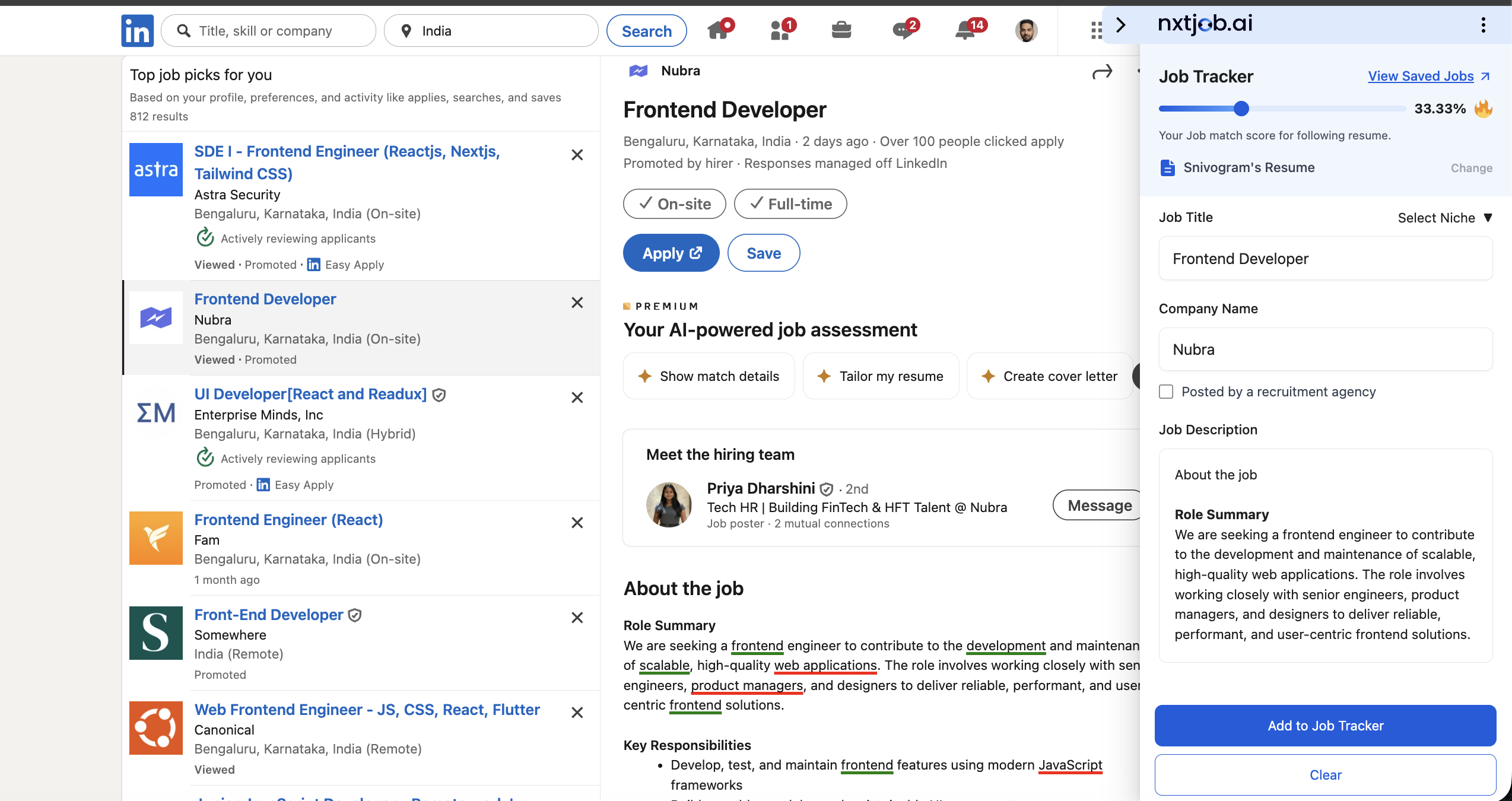
The sidebar shows a **Job Tracker** panel with the following elements:
* **Job Tracker** heading with a **View Saved Jobs** link at the top right
* **ATS match score** shown as a percentage (e.g., "33.33%") with a **Change** link to switch resumes
* The resume name being used for scoring (e.g., "Srivasgarni's Resume")
* **Job Title** field — pre-filled from the page
* **Company Name** field — pre-filled from the page
* **"Posted by a recruitment agency"** checkbox
* **Select Niche** dropdown
* **Job Description** section with extracted content
* **"Add to Job Tracker"** button and a **Clear** button at the bottom
 ## Saving a Job
Go to a job listing on any supported portal — LinkedIn, Naukri, Indeed, and others. The extension sidebar opens automatically.
The sidebar extracts and pre-fills the **Job Title** and **Company Name** from the page. Edit either field if the extraction is incorrect.
If the job was posted by a staffing or recruitment firm rather than the employer directly, check **"Posted by a recruitment agency"**.
If you have multiple niches configured (e.g., "Engineering Management" and "Product Management"), select the appropriate one from the **Select Niche** dropdown.
The extension extracts the full job description from the page. Scroll through it to confirm it looks complete.
Click the **"Add to Job Tracker"** button to save the job. It appears instantly on your [My Jobs](/job-board/my-jobs) board in the Saved column.
## Job Saved Successfully
After saving, the sidebar transitions to a success screen with:
* A green checkmark and **"Job Saved Successfully"** message
* Text: "View saved jobs in Job Board and generate Resume, Cover Letter and Mock Interview"
* Four action buttons to continue working on the application:
* **Start Networking** — Opens networking tools for this job
* **View Job** — Opens the job detail on your Job Board
* **Customize Resume** — Opens the Resume Builder with this job's context loaded
* **[Generate Cover Letter](/cover-letter/creating-cover-letters)** — Creates an AI-generated cover letter for this job
* A **"Back to Add Job"** link at the top to save another job from the same page
## Saving a Job
Go to a job listing on any supported portal — LinkedIn, Naukri, Indeed, and others. The extension sidebar opens automatically.
The sidebar extracts and pre-fills the **Job Title** and **Company Name** from the page. Edit either field if the extraction is incorrect.
If the job was posted by a staffing or recruitment firm rather than the employer directly, check **"Posted by a recruitment agency"**.
If you have multiple niches configured (e.g., "Engineering Management" and "Product Management"), select the appropriate one from the **Select Niche** dropdown.
The extension extracts the full job description from the page. Scroll through it to confirm it looks complete.
Click the **"Add to Job Tracker"** button to save the job. It appears instantly on your [My Jobs](/job-board/my-jobs) board in the Saved column.
## Job Saved Successfully
After saving, the sidebar transitions to a success screen with:
* A green checkmark and **"Job Saved Successfully"** message
* Text: "View saved jobs in Job Board and generate Resume, Cover Letter and Mock Interview"
* Four action buttons to continue working on the application:
* **Start Networking** — Opens networking tools for this job
* **View Job** — Opens the job detail on your Job Board
* **Customize Resume** — Opens the Resume Builder with this job's context loaded
* **[Generate Cover Letter](/cover-letter/creating-cover-letters)** — Creates an AI-generated cover letter for this job
* A **"Back to Add Job"** link at the top to save another job from the same page
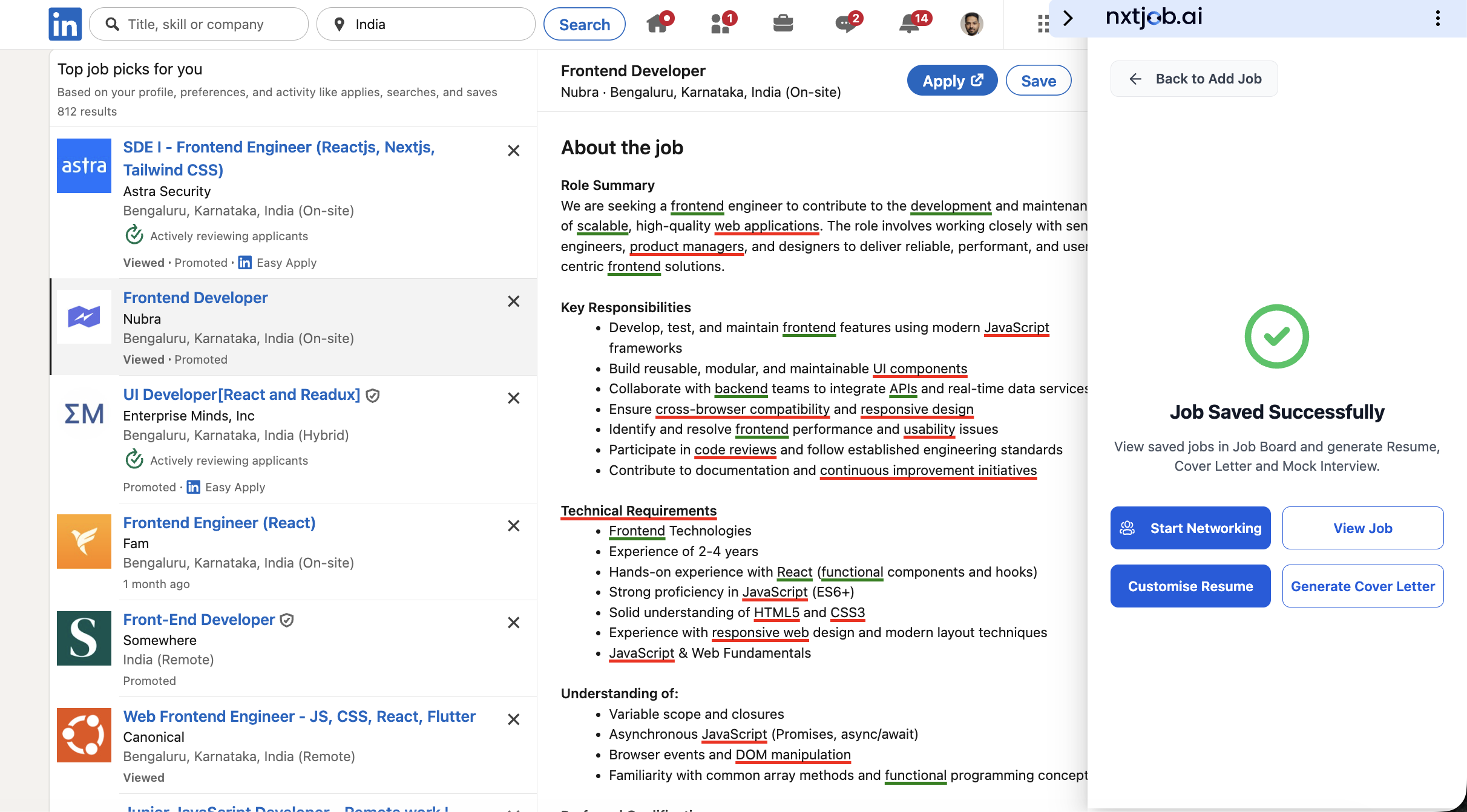 After saving a job, use the action buttons on the success screen to immediately start networking or customize your resume. The most effective job seekers tailor their resume for every application — the Customize Resume button takes you directly to the Resume Builder with the job context loaded.
Jobs saved via the extension appear instantly on your [My Jobs](/job-board/my-jobs) board in the Saved column. You can manage them from there — change status, attach resumes, calculate match scores, and more.
## Supported Portals
The extension performs full automatic extraction on the following portals:
| Portal | Notes |
| --------------- | ----------------------------------------------------------------------------------------------------------------- |
| **LinkedIn** | Full extraction — title, company, description, URL. Works on job listing pages. |
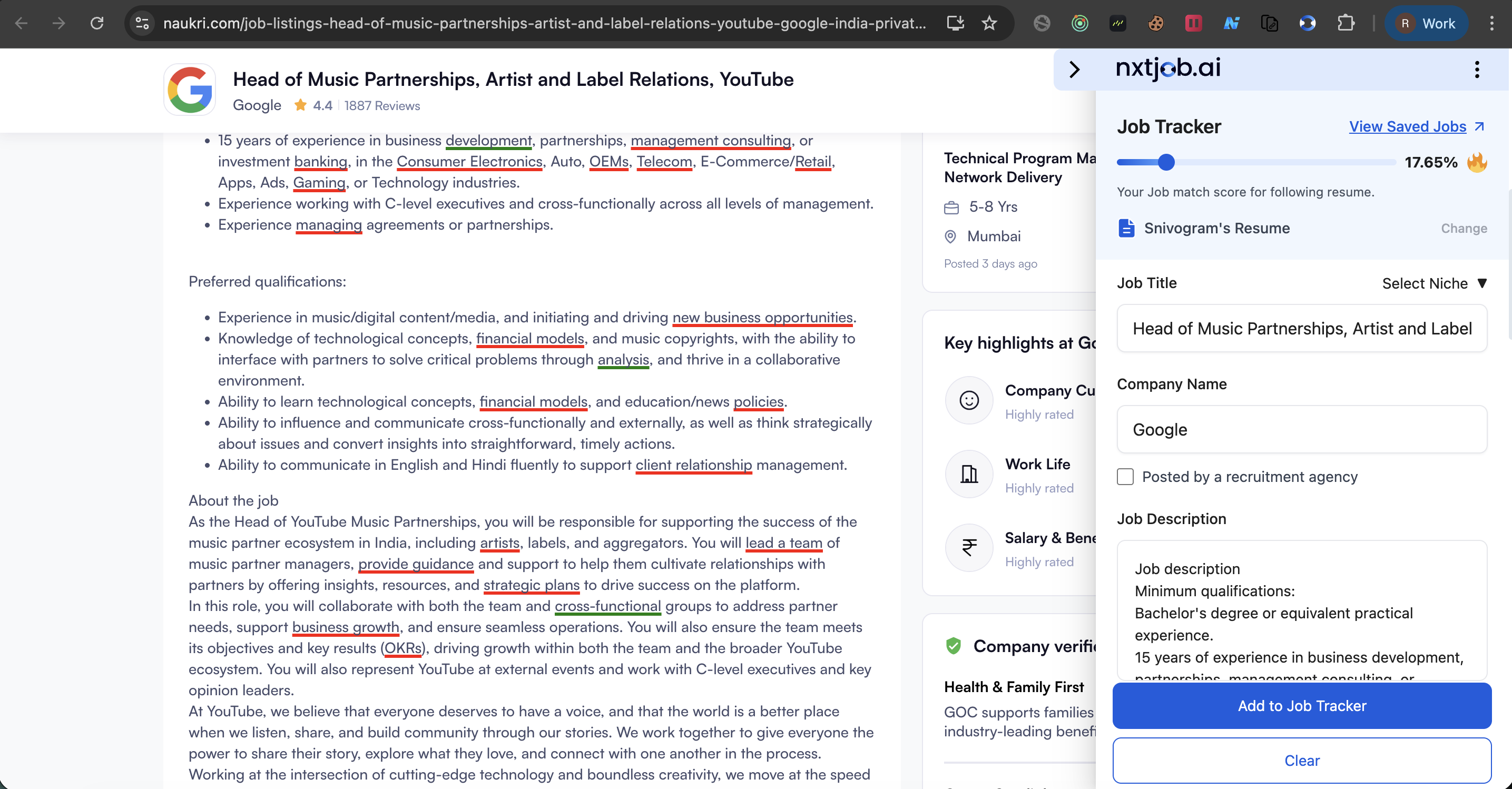
| **Naukri** | Full extraction. Key highlights (experience, salary, location) shown on the page are included in the description. |
| **Google Jobs** | Extracts from the job detail panel. |
| **Indeed** | Extracts from individual job listing pages. |
| **Foundit** | Full extraction supported. |
| **Shine** | Full extraction supported. |
| **Cutshort** | Full extraction supported. |
| **Unstop** | Full extraction supported. |
| **Quikr** | Full extraction supported. |
| **IIM Jobs** | Full extraction supported. |
| **Glassdoor** | Full extraction supported. |
| **Instahyre** | Full extraction supported. |
| **WorkIndia** | Full extraction supported. |
| **Monster** | Full extraction supported. |
| **SimplyHired** | Full extraction supported. |
| **Wellfound** | Full extraction supported. |
After saving a job, use the action buttons on the success screen to immediately start networking or customize your resume. The most effective job seekers tailor their resume for every application — the Customize Resume button takes you directly to the Resume Builder with the job context loaded.
Jobs saved via the extension appear instantly on your [My Jobs](/job-board/my-jobs) board in the Saved column. You can manage them from there — change status, attach resumes, calculate match scores, and more.
## Supported Portals
The extension performs full automatic extraction on the following portals:
| Portal | Notes |
| --------------- | ----------------------------------------------------------------------------------------------------------------- |
| **LinkedIn** | Full extraction — title, company, description, URL. Works on job listing pages. |
| **Naukri** | Full extraction. Key highlights (experience, salary, location) shown on the page are included in the description. |
| **Google Jobs** | Extracts from the job detail panel. |
| **Indeed** | Extracts from individual job listing pages. |
| **Foundit** | Full extraction supported. |
| **Shine** | Full extraction supported. |
| **Cutshort** | Full extraction supported. |
| **Unstop** | Full extraction supported. |
| **Quikr** | Full extraction supported. |
| **IIM Jobs** | Full extraction supported. |
| **Glassdoor** | Full extraction supported. |
| **Instahyre** | Full extraction supported. |
| **WorkIndia** | Full extraction supported. |
| **Monster** | Full extraction supported. |
| **SimplyHired** | Full extraction supported. |
| **Wellfound** | Full extraction supported. |
 ## Saving Jobs from Unsupported Sites
On company career pages or other unsupported sites, the extension cannot auto-extract job details. In this case:
1. Click the NxtJob icon in your browser toolbar to open the extension popup.
2. Manually enter the **Job Title** and **Company Name**.
3. Paste the **Job Description** into the description field.
4. Click **"Add to Job Tracker"**.
This ensures you can save any job from any website, even when automatic extraction is not available.
## Duplicate Detection
If you try to save a job that is already in your pipeline, the extension detects the duplicate and notifies you. This prevents duplicate entries from appearing on your My Jobs board.
## Niche Selection
If you have configured multiple job search niches, use the **Select Niche** dropdown in the sidebar to categorize each job under the correct niche. This keeps your Job Board organized when you are actively pursuing roles across different function areas — for example, running separate searches for "Engineering Management" and "Product Management" simultaneously.
## Saving Jobs from Unsupported Sites
On company career pages or other unsupported sites, the extension cannot auto-extract job details. In this case:
1. Click the NxtJob icon in your browser toolbar to open the extension popup.
2. Manually enter the **Job Title** and **Company Name**.
3. Paste the **Job Description** into the description field.
4. Click **"Add to Job Tracker"**.
This ensures you can save any job from any website, even when automatic extraction is not available.
## Duplicate Detection
If you try to save a job that is already in your pipeline, the extension detects the duplicate and notifies you. This prevents duplicate entries from appearing on your My Jobs board.
## Niche Selection
If you have configured multiple job search niches, use the **Select Niche** dropdown in the sidebar to categorize each job under the correct niche. This keeps your Job Board organized when you are actively pursuing roles across different function areas — for example, running separate searches for "Engineering Management" and "Product Management" simultaneously.