> ## Documentation Index
> Fetch the complete documentation index at: https://docs.nxtjob.ai/llms.txt
> Use this file to discover all available pages before exploring further.
# Creating Cover Letters
> Generate AI-powered cover letters from job descriptions and resumes using the two-step creation flow
## Overview
When you click "New Cover Letter" on the [dashboard](/cover-letter/dashboard), three things happen: a new cover letter is created, the editor opens, and the generation modal appears. The modal walks you through a two-step flow to generate your cover letter with AI.
## Step 1: Optional Sections
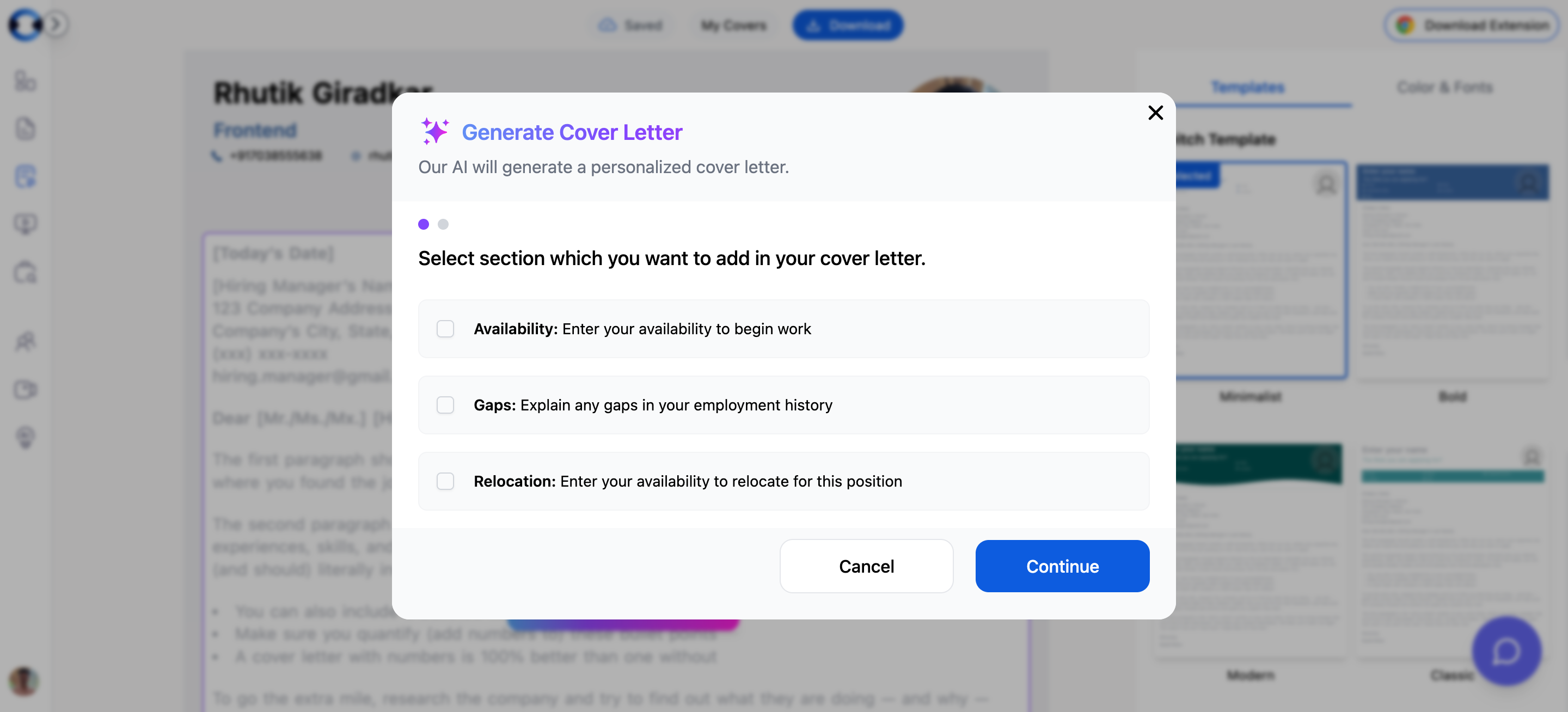 The first step lets you include optional context that strengthens your cover letter. Each section is a checkbox — enable only what applies:
| Section | What You Provide | How It Helps |
| ------------------- | ----------------------------------------------------------------------------------------- | ----------------------------------------------------------------------- |
| **Availability** | A text field for when you can start (e.g., "Immediately", "2 weeks notice", "March 2026") | Shows the employer you are ready and sets clear expectations |
| **Employment Gaps** | A date range plus a reason from a dropdown | Addresses gaps proactively so the hiring manager does not have to guess |
| **Relocation** | A text field for your willingness to relocate (e.g., "Open to relocating to Bangalore") | Relevant for roles that require or prefer local candidates |
**Employment Gap reasons** available in the dropdown:
* Impact By Pandemic
* Job Searching
* Travel
* Family/Personal Medical Issue
* Education
* Relocation
* Taking Care of Children
* Sabbatical
All three sections are optional. If none apply, skip this step entirely.
## Step 2: Select a Job
The first step lets you include optional context that strengthens your cover letter. Each section is a checkbox — enable only what applies:
| Section | What You Provide | How It Helps |
| ------------------- | ----------------------------------------------------------------------------------------- | ----------------------------------------------------------------------- |
| **Availability** | A text field for when you can start (e.g., "Immediately", "2 weeks notice", "March 2026") | Shows the employer you are ready and sets clear expectations |
| **Employment Gaps** | A date range plus a reason from a dropdown | Addresses gaps proactively so the hiring manager does not have to guess |
| **Relocation** | A text field for your willingness to relocate (e.g., "Open to relocating to Bangalore") | Relevant for roles that require or prefer local candidates |
**Employment Gap reasons** available in the dropdown:
* Impact By Pandemic
* Job Searching
* Travel
* Family/Personal Medical Issue
* Education
* Relocation
* Taking Care of Children
* Sabbatical
All three sections are optional. If none apply, skip this step entirely.
## Step 2: Select a Job
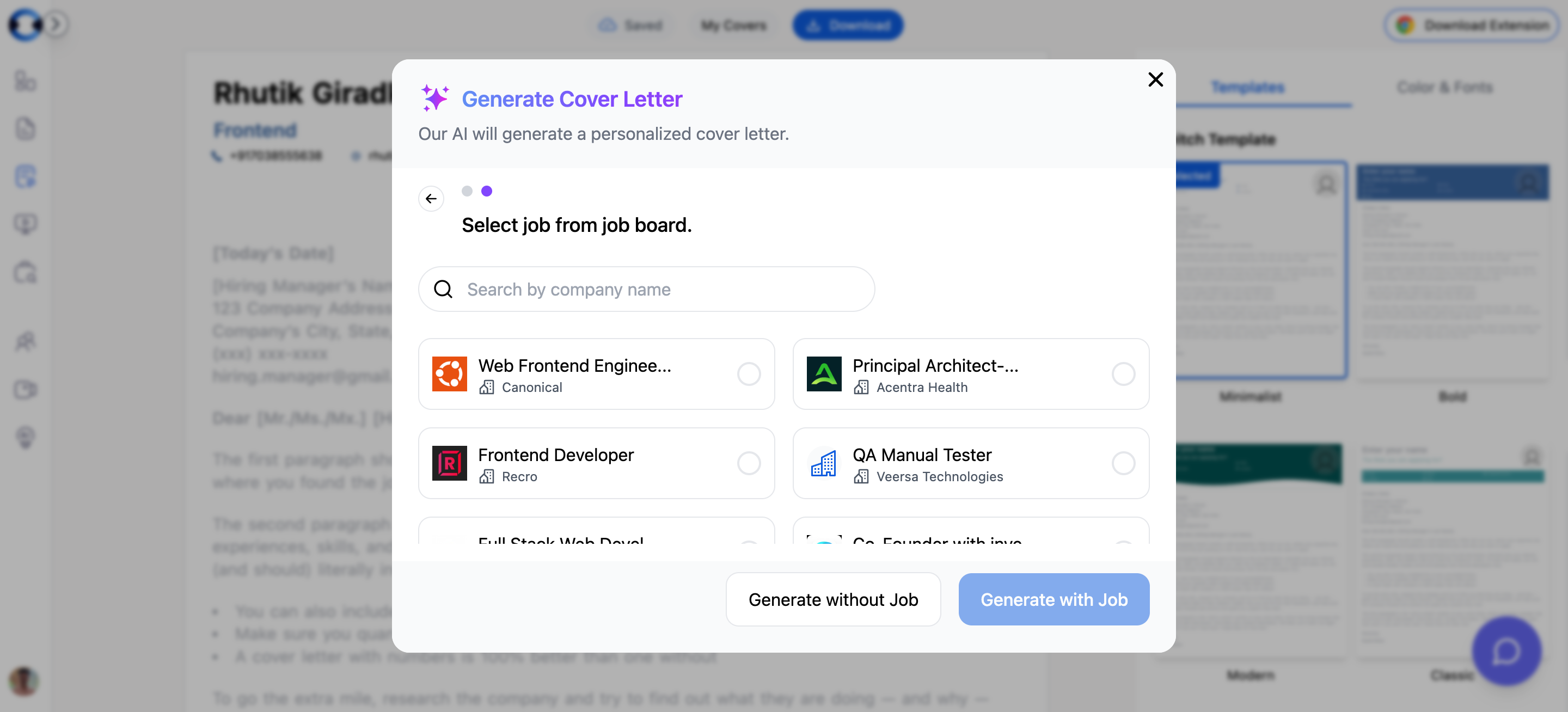 This step shows jobs from your [My Jobs](/job-board/my-jobs) board. Each job card displays the job title, company name, and application status. Jobs with attached resumes are sorted to the top for convenience.
Use the search bar to filter jobs by company name.
**Two paths forward:**
* **Generate with Job** — Select a job card and click generate. The AI analyzes the job description along with your resume to produce a targeted cover letter that addresses the specific requirements of the role.
* **Generate without Job** — Skip this step to create a general-purpose cover letter. Useful when you want a base template that you will customize manually later.
Generating with a job produces significantly better results. The AI matches your experience to the specific job requirements, references the company by name, and highlights the most relevant parts of your background. Save the job to your Job Board first using the [Chrome Extension](/chrome-extension/saving-jobs), then generate.
## Your Primary Resume Is Used Automatically
The Cover Letter Builder automatically uses your **primary resume** from the [Resume Builder](/resume-builder/managing-resumes) during generation. There is no manual resume selection step — whichever resume you have marked as primary is the one the AI reads to extract your experience, skills, and contact information.
Before generating a cover letter, make sure the right resume is set as your primary. If you are applying to different types of roles, switch your primary to the resume most relevant to the job you are targeting. See [Managing Resumes](/resume-builder/managing-resumes) for how to set your primary resume.
## What Happens During Generation
After you complete the steps and click generate, the backend:
1. Reads your **primary resume** content (experience, skills, contact details)
2. Analyzes the job description (if you selected a job)
3. Incorporates any optional sections you enabled (availability, gaps, relocation)
4. Generates a complete cover letter body tailored to the role
The cover letter opens in the [editor](/cover-letter/editor) with the AI-generated content ready to review and refine.
## After Generation
The generated cover letter includes:
* A header pre-filled with your contact information from your primary resume
* A body with AI-written content that references the job description and your experience
* Default styling (Minimalist template, blue color scheme, Inter font)
From here, you can edit the content, change the [template and styling](/cover-letter/templates-and-styling), or [download as PDF](/cover-letter/saving-and-downloading).
This step shows jobs from your [My Jobs](/job-board/my-jobs) board. Each job card displays the job title, company name, and application status. Jobs with attached resumes are sorted to the top for convenience.
Use the search bar to filter jobs by company name.
**Two paths forward:**
* **Generate with Job** — Select a job card and click generate. The AI analyzes the job description along with your resume to produce a targeted cover letter that addresses the specific requirements of the role.
* **Generate without Job** — Skip this step to create a general-purpose cover letter. Useful when you want a base template that you will customize manually later.
Generating with a job produces significantly better results. The AI matches your experience to the specific job requirements, references the company by name, and highlights the most relevant parts of your background. Save the job to your Job Board first using the [Chrome Extension](/chrome-extension/saving-jobs), then generate.
## Your Primary Resume Is Used Automatically
The Cover Letter Builder automatically uses your **primary resume** from the [Resume Builder](/resume-builder/managing-resumes) during generation. There is no manual resume selection step — whichever resume you have marked as primary is the one the AI reads to extract your experience, skills, and contact information.
Before generating a cover letter, make sure the right resume is set as your primary. If you are applying to different types of roles, switch your primary to the resume most relevant to the job you are targeting. See [Managing Resumes](/resume-builder/managing-resumes) for how to set your primary resume.
## What Happens During Generation
After you complete the steps and click generate, the backend:
1. Reads your **primary resume** content (experience, skills, contact details)
2. Analyzes the job description (if you selected a job)
3. Incorporates any optional sections you enabled (availability, gaps, relocation)
4. Generates a complete cover letter body tailored to the role
The cover letter opens in the [editor](/cover-letter/editor) with the AI-generated content ready to review and refine.
## After Generation
The generated cover letter includes:
* A header pre-filled with your contact information from your primary resume
* A body with AI-written content that references the job description and your experience
* Default styling (Minimalist template, blue color scheme, Inter font)
From here, you can edit the content, change the [template and styling](/cover-letter/templates-and-styling), or [download as PDF](/cover-letter/saving-and-downloading).