> ## Documentation Index
> Fetch the complete documentation index at: https://docs.nxtjob.ai/llms.txt
> Use this file to discover all available pages before exploring further.
# Saving & Downloading
> How auto-save works, preview your cover letter, and export as PDF
## Auto-Save
Every edit you make in the [editor](/cover-letter/editor) is saved automatically. Changes persist within 500ms of your last keystroke — there is no save button and no risk of losing work. Close the tab, switch to another tool, or shut down your browser. When you return, everything is exactly as you left it.
All saved cover letters are accessible from the [dashboard](/cover-letter/dashboard) at `cover.nxtjob.ai/all`.
## Previewing a Cover Letter
To preview how your cover letter will look when printed or downloaded:
1. Go to the [dashboard](/cover-letter/dashboard)
2. Click the three-dot menu on any cover letter card
3. Select **Preview**
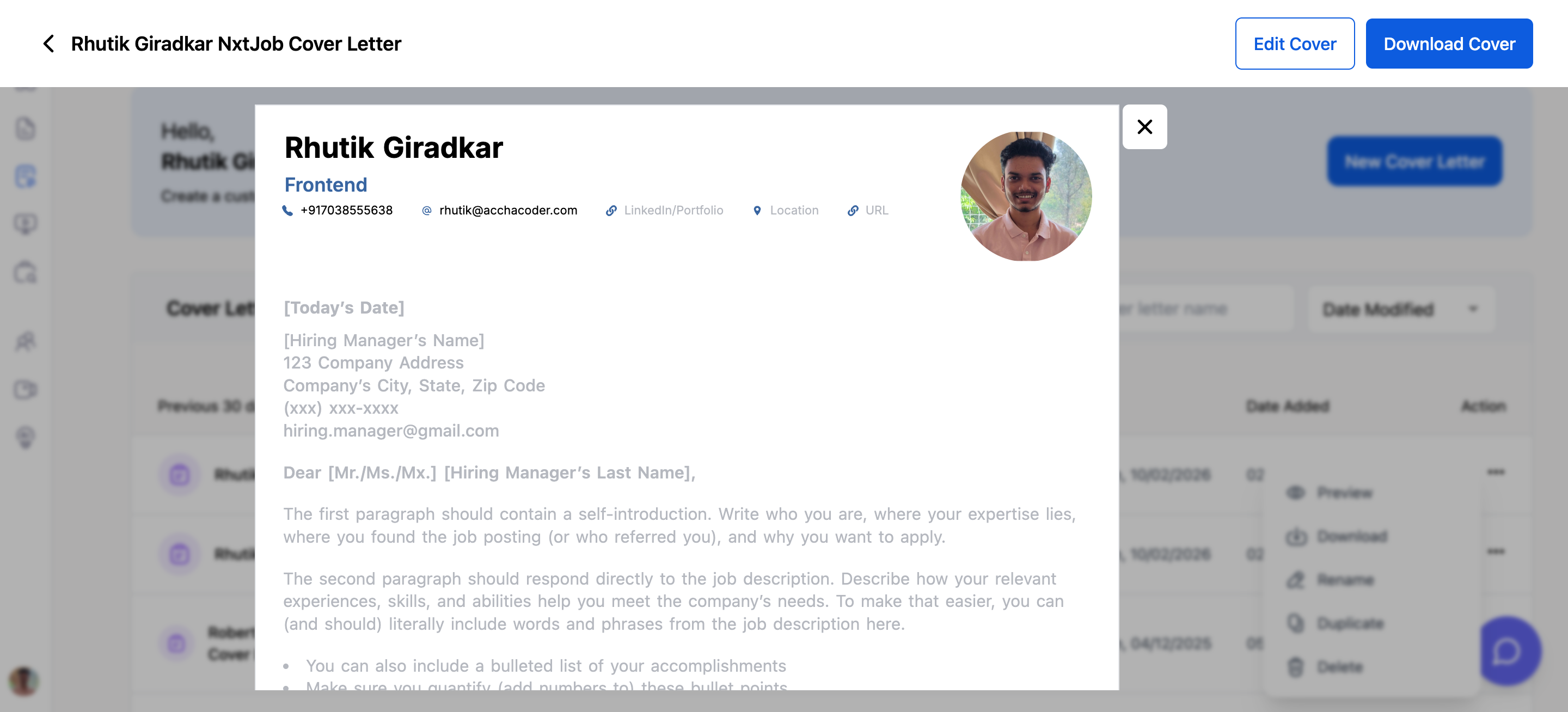
The preview opens in a full-page modal showing the cover letter at its actual rendered size. This is the same output you will get when you download as PDF.
 ## Downloading as PDF
You can download from two places:
* **From the dashboard** — Click the three-dot menu on a card, then select **Download**
* **From the editor** — Use the download option in the editor toolbar
## Downloading as PDF
You can download from two places:
* **From the dashboard** — Click the three-dot menu on a card, then select **Download**
* **From the editor** — Use the download option in the editor toolbar
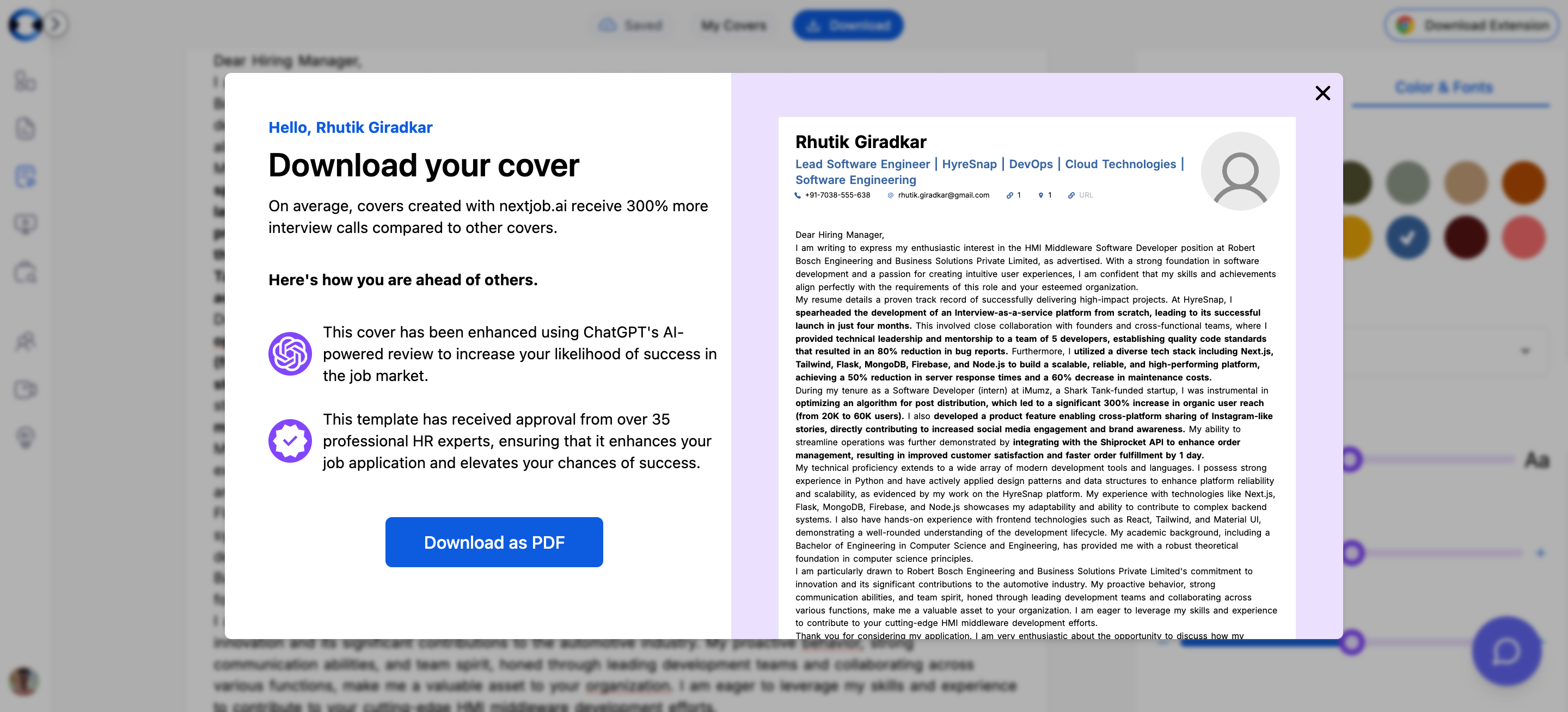 Click **Download** from the dashboard card menu or the editor toolbar. The download modal opens with a scaled preview of your cover letter.
The modal shows your cover letter at 60% scale so you can verify the layout, content, and styling before exporting.
Click the **"Download as PDF"** button. The PDF is generated and downloaded to your computer immediately.
The downloaded file is named `{cover letter title}.pdf` — for example, if your cover letter is titled "Senior PM - Google", the file will be `Senior PM - Google.pdf`.
Before downloading, switch to the Preview modal first to verify that your content fits on one page. If it overflows, reduce the font size or line height from the [styling sidebar](/cover-letter/templates-and-styling), or trim the body content. A single-page cover letter is the standard expectation for senior roles.
Click **Download** from the dashboard card menu or the editor toolbar. The download modal opens with a scaled preview of your cover letter.
The modal shows your cover letter at 60% scale so you can verify the layout, content, and styling before exporting.
Click the **"Download as PDF"** button. The PDF is generated and downloaded to your computer immediately.
The downloaded file is named `{cover letter title}.pdf` — for example, if your cover letter is titled "Senior PM - Google", the file will be `Senior PM - Google.pdf`.
Before downloading, switch to the Preview modal first to verify that your content fits on one page. If it overflows, reduce the font size or line height from the [styling sidebar](/cover-letter/templates-and-styling), or trim the body content. A single-page cover letter is the standard expectation for senior roles.