> ## Documentation Index
> Fetch the complete documentation index at: https://docs.nxtjob.ai/llms.txt
> Use this file to discover all available pages before exploring further.
# Job Details
> View full job information, run AI tools, manage notes, and take action on individual jobs
## What Is the Job Detail View?
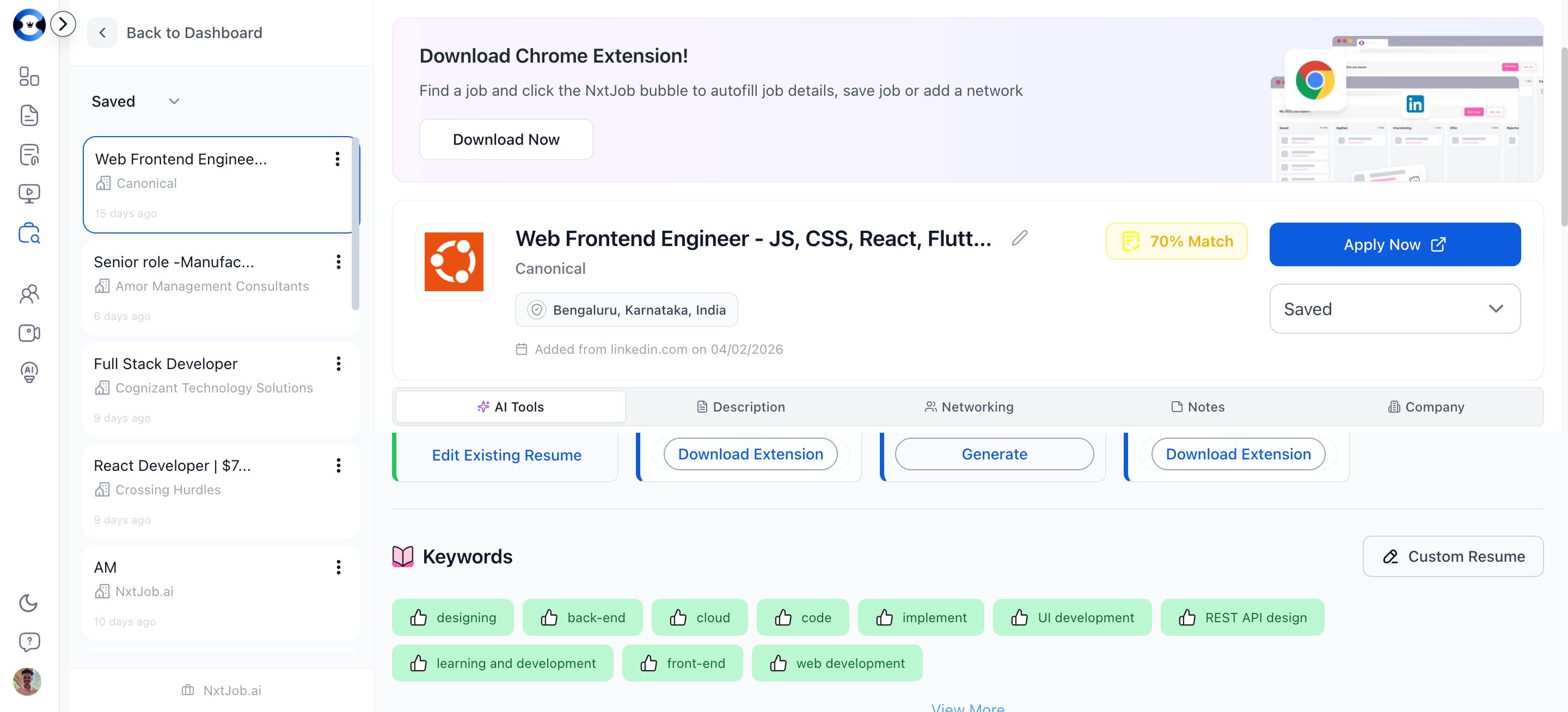
When you click on any job card or select **View Job Details** from the dropdown, you open the full detail page for that job. This is where you access the complete job description, run AI-powered tools, manage your network for the role, and track everything in one place.
 ## Navigation Tabs
The job detail page has seven tabs in a sticky navigation bar:
| Tab | What It Shows |
| --------------- | ------------------------------------------------------------------ |
| **Keywords** | Keyword analysis comparing the job description against your resume |
| **Description** | The full job description text |
| **Tips** | Application tips and insights for this specific job |
| **Network** | People you are networking with at this company |
| **AI Tools** | AI-powered actions organized by application stage |
| **Notes** | Your private notes about the job |
| **Company** | Company details and background (when available) |
Click any tab to scroll directly to that section.
## Viewing and Editing Job Details
### Job Header
The header displays:
* **Job Title** and **Company Name**
* **Match Score** — A color-coded percentage showing how well your resume matches this job
* **Status Dropdown** — The current pipeline stage with an option to change it
* **Apply Now** — Opens the original job posting in a new tab
### Editing the Job Description
If the job description was pasted incorrectly or you want to add supplementary information, you can edit it directly from the Description tab.
## Changing Job Status
Use the status dropdown in the header to move the job between stages:
* **Saved** — In your research queue
* **Applied** — Application submitted
* **Screening** — Under initial review
* **Interviewing** — In active interviews
* **Offer** — Offer received
* **Rejected** — Process ended
Changing the status here immediately updates the card position on your My Jobs board.
## Match Score (ATS Keywords)
The **Keywords** tab shows a detailed breakdown of how your resume aligns with this job description:
* **Match percentage** — Color-coded: green (80%+), yellow (50-79%), orange (20-49%), red (below 20%)
* **Matched keywords** — Terms from the job description that appear in your resume
* **Missed keywords** — Terms you need to add to improve your match
Click the match score badge in the header to view the full keyword analysis.
## Navigation Tabs
The job detail page has seven tabs in a sticky navigation bar:
| Tab | What It Shows |
| --------------- | ------------------------------------------------------------------ |
| **Keywords** | Keyword analysis comparing the job description against your resume |
| **Description** | The full job description text |
| **Tips** | Application tips and insights for this specific job |
| **Network** | People you are networking with at this company |
| **AI Tools** | AI-powered actions organized by application stage |
| **Notes** | Your private notes about the job |
| **Company** | Company details and background (when available) |
Click any tab to scroll directly to that section.
## Viewing and Editing Job Details
### Job Header
The header displays:
* **Job Title** and **Company Name**
* **Match Score** — A color-coded percentage showing how well your resume matches this job
* **Status Dropdown** — The current pipeline stage with an option to change it
* **Apply Now** — Opens the original job posting in a new tab
### Editing the Job Description
If the job description was pasted incorrectly or you want to add supplementary information, you can edit it directly from the Description tab.
## Changing Job Status
Use the status dropdown in the header to move the job between stages:
* **Saved** — In your research queue
* **Applied** — Application submitted
* **Screening** — Under initial review
* **Interviewing** — In active interviews
* **Offer** — Offer received
* **Rejected** — Process ended
Changing the status here immediately updates the card position on your My Jobs board.
## Match Score (ATS Keywords)
The **Keywords** tab shows a detailed breakdown of how your resume aligns with this job description:
* **Match percentage** — Color-coded: green (80%+), yellow (50-79%), orange (20-49%), red (below 20%)
* **Matched keywords** — Terms from the job description that appear in your resume
* **Missed keywords** — Terms you need to add to improve your match
Click the match score badge in the header to view the full keyword analysis.
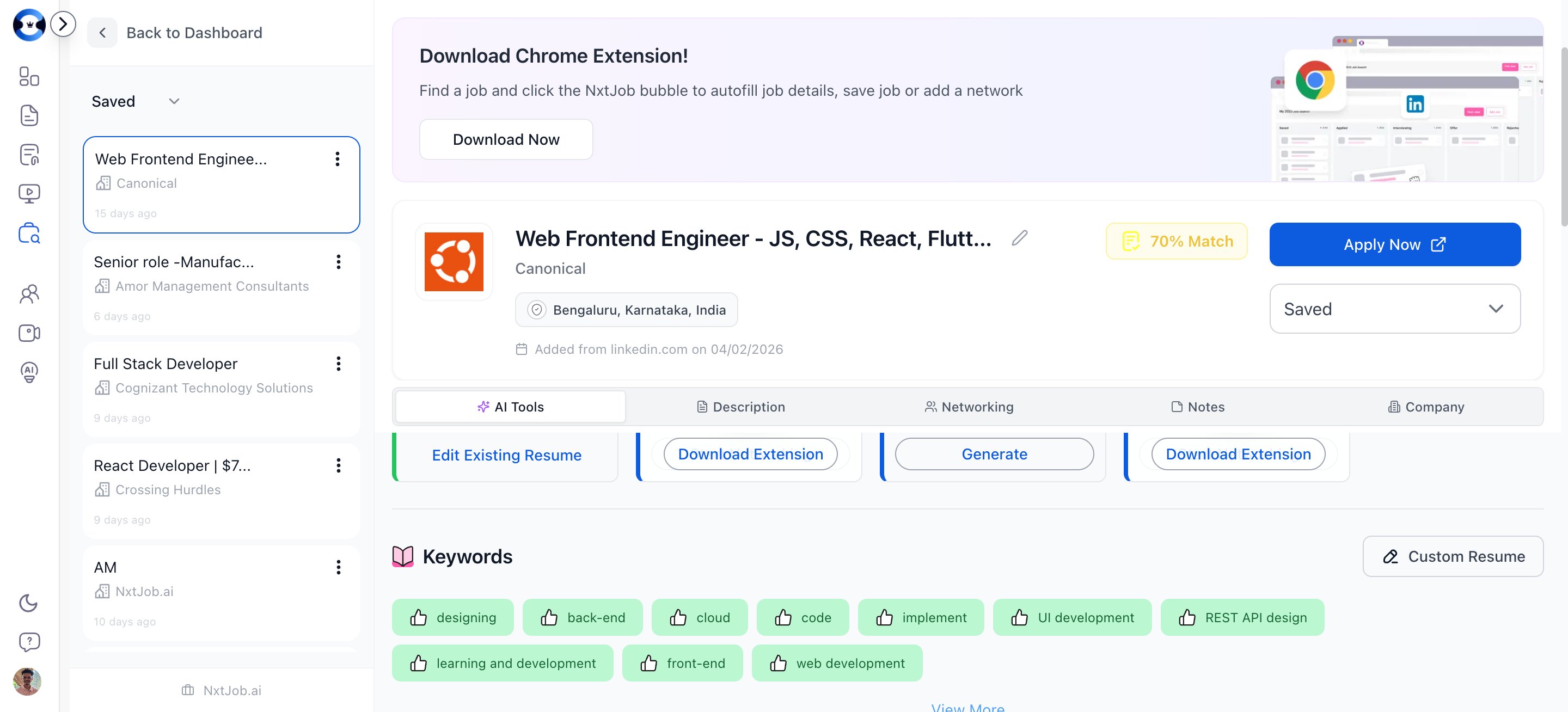 If your match score is below 75%, head to the Resume Builder and use One-Click ATS Optimization against this specific job. You can access it directly from the AI Tools tab below.
## AI Tools
The **AI Tools** tab organizes AI-powered actions into three stages that match your job search progression:
### Application Stage
| Tool | What It Does |
| -------------------------------------------------------- | ------------------------------------------------------------------------------ |
| **Customize Resume** | Generates a tailored version of your resume optimized for this job description |
| **Ask for Referral** | Drafts a referral request message you can send to connections at the company |
| **[Cover Letter](/cover-letter/creating-cover-letters)** | Creates a targeted cover letter based on the job description and your resume |
| **Follow Up Message** | Generates a professional follow-up email after applying |
### Interview Stage
| Tool | What It Does |
| -------------------------------------------------- | ----------------------------------------------------------------------- |
| **[Interview Prep](/interview-prep/introduction)** | Creates practice questions and frameworks based on the job requirements |
| **Questions to Ask** | Generates thoughtful questions to ask your interviewer |
| **Thank You After Interview** | Drafts a thank-you email after an interview round |
| **Follow Up After Interview** | Creates a follow-up message if you haven't heard back |
| **Reschedule Interview** | Drafts a professional rescheduling request |
| **Decline Interview** | Creates a polite decline message if you choose not to proceed |
### Offer Stage
| Tool | What It Does |
| ----------------- | ------------------------------------------------------------------ |
| **Offer Accept** | Drafts a professional acceptance message |
| **Offer Decline** | Creates a polite decline message while preserving the relationship |
Each tool is a collapsible section. Click to expand and generate the content.
## Managing Your Network for This Job
The **Network** tab shows all connections associated with this job — employees, hiring managers, and recruiters you have contacted.
### Adding Networks from Job Detail
Click **Add Network** to open a dropdown with two options:
* **Connect to Employees** — Searches LinkedIn for people working in similar roles at the company
* **Connect to Hiring Managers** — Searches LinkedIn for recruiters and hiring managers at the company
Both options open the Find Network dialog. See [Find Network](/job-board/find-network) for the full workflow.
Network cards show each connection's name, title, profile photo, and current outreach status.
## Action Bar
A sticky action bar at the bottom of the page provides quick access to the most common actions:
| Button | What It Does |
| ------------- | ------------------------------------------------------------- |
| **Apply Now** | Opens the original job posting in a new tab |
| **Network** | Shows your network count and scrolls to the Network section |
| **Save** | Toggles the job's saved/bookmarked status |
| **Share** | Shares the job using your device's native share functionality |
## Adding Notes
The **Notes** tab is your private scratchpad for each job. Use it to track:
* Why you are interested in this role
* Key contacts or referral sources
* Interview preparation notes
* Compensation details discussed
* Follow-up reminders
Notes are visible only to you and persist across sessions.
Use notes to track details that do not fit neatly into other categories — salary expectations, recruiter names, interview dates, or things you want to mention in your next conversation. This context becomes invaluable when you are managing 10+ active applications simultaneously.
If your match score is below 75%, head to the Resume Builder and use One-Click ATS Optimization against this specific job. You can access it directly from the AI Tools tab below.
## AI Tools
The **AI Tools** tab organizes AI-powered actions into three stages that match your job search progression:
### Application Stage
| Tool | What It Does |
| -------------------------------------------------------- | ------------------------------------------------------------------------------ |
| **Customize Resume** | Generates a tailored version of your resume optimized for this job description |
| **Ask for Referral** | Drafts a referral request message you can send to connections at the company |
| **[Cover Letter](/cover-letter/creating-cover-letters)** | Creates a targeted cover letter based on the job description and your resume |
| **Follow Up Message** | Generates a professional follow-up email after applying |
### Interview Stage
| Tool | What It Does |
| -------------------------------------------------- | ----------------------------------------------------------------------- |
| **[Interview Prep](/interview-prep/introduction)** | Creates practice questions and frameworks based on the job requirements |
| **Questions to Ask** | Generates thoughtful questions to ask your interviewer |
| **Thank You After Interview** | Drafts a thank-you email after an interview round |
| **Follow Up After Interview** | Creates a follow-up message if you haven't heard back |
| **Reschedule Interview** | Drafts a professional rescheduling request |
| **Decline Interview** | Creates a polite decline message if you choose not to proceed |
### Offer Stage
| Tool | What It Does |
| ----------------- | ------------------------------------------------------------------ |
| **Offer Accept** | Drafts a professional acceptance message |
| **Offer Decline** | Creates a polite decline message while preserving the relationship |
Each tool is a collapsible section. Click to expand and generate the content.
## Managing Your Network for This Job
The **Network** tab shows all connections associated with this job — employees, hiring managers, and recruiters you have contacted.
### Adding Networks from Job Detail
Click **Add Network** to open a dropdown with two options:
* **Connect to Employees** — Searches LinkedIn for people working in similar roles at the company
* **Connect to Hiring Managers** — Searches LinkedIn for recruiters and hiring managers at the company
Both options open the Find Network dialog. See [Find Network](/job-board/find-network) for the full workflow.
Network cards show each connection's name, title, profile photo, and current outreach status.
## Action Bar
A sticky action bar at the bottom of the page provides quick access to the most common actions:
| Button | What It Does |
| ------------- | ------------------------------------------------------------- |
| **Apply Now** | Opens the original job posting in a new tab |
| **Network** | Shows your network count and scrolls to the Network section |
| **Save** | Toggles the job's saved/bookmarked status |
| **Share** | Shares the job using your device's native share functionality |
## Adding Notes
The **Notes** tab is your private scratchpad for each job. Use it to track:
* Why you are interested in this role
* Key contacts or referral sources
* Interview preparation notes
* Compensation details discussed
* Follow-up reminders
Notes are visible only to you and persist across sessions.
Use notes to track details that do not fit neatly into other categories — salary expectations, recruiter names, interview dates, or things you want to mention in your next conversation. This context becomes invaluable when you are managing 10+ active applications simultaneously.