> ## Documentation Index
> Fetch the complete documentation index at: https://docs.nxtjob.ai/llms.txt
> Use this file to discover all available pages before exploring further.
# My Jobs
> Manage your entire job pipeline with a kanban board, table view, filters, and smart sorting
## What Is My Jobs?
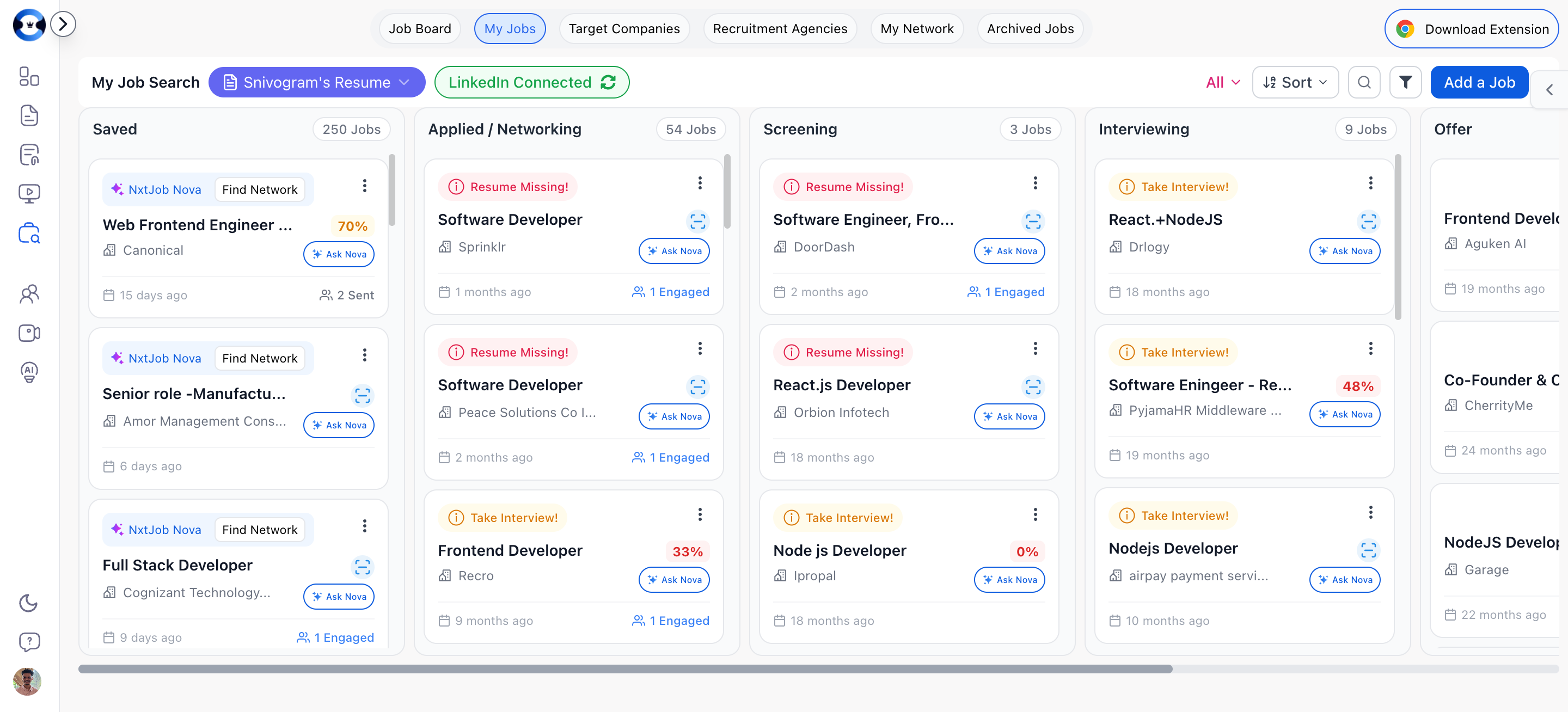
My Jobs is the operational heart of the NxtJob Job Board. It displays every job in your pipeline as cards organized into status columns, giving you a bird's-eye view of where each application stands. Think of it as a personal CRM for your job search.
You can view your pipeline as a **kanban board** (drag-and-drop columns) or a **table** (sortable rows). Both views show the same data — choose whichever fits your workflow.
 ## Status Columns
Jobs move through six stages from left to right:
| Column | What It Means |
| ------------------------ | ------------------------------------------------------------------------------------------------------- |
| **Saved** | Jobs you have bookmarked but not yet applied to. Your research queue. |
| **Applied / Networking** | Jobs where you have submitted an application or started networking with contacts at the company. |
| **Screening** | The company is reviewing your application. You may have a phone screen or initial assessment scheduled. |
| **Interviewing** | You are in active interview rounds — technical, behavioral, or panel. |
| **Offer** | You have received a formal or verbal offer. |
| **Rejected** | The company passed or you withdrew from the process. |
Each column header shows the number of jobs in that stage (e.g., "5 Jobs").
## Adding Jobs
### Adding a Job Manually
Click the **"Add a Job"** button in the top-right toolbar. A dialog opens with a form.
Complete the form fields:
* **Job Title** (required) — e.g., "Senior Frontend Engineer"
* **Job Niche** — Select your target niche if you have multiple configured
* **Company Name** (required) — e.g., "Acme Corp"
* **Location** (optional) — e.g., "Remote, New York, NY"
* **Job Link** (required) — The URL of the original job posting
* **Job Description** (required, minimum 100 characters) — Paste the full job description
Click **Create Job** to add it to your Saved column. The job is now part of your pipeline.
## Status Columns
Jobs move through six stages from left to right:
| Column | What It Means |
| ------------------------ | ------------------------------------------------------------------------------------------------------- |
| **Saved** | Jobs you have bookmarked but not yet applied to. Your research queue. |
| **Applied / Networking** | Jobs where you have submitted an application or started networking with contacts at the company. |
| **Screening** | The company is reviewing your application. You may have a phone screen or initial assessment scheduled. |
| **Interviewing** | You are in active interview rounds — technical, behavioral, or panel. |
| **Offer** | You have received a formal or verbal offer. |
| **Rejected** | The company passed or you withdrew from the process. |
Each column header shows the number of jobs in that stage (e.g., "5 Jobs").
## Adding Jobs
### Adding a Job Manually
Click the **"Add a Job"** button in the top-right toolbar. A dialog opens with a form.
Complete the form fields:
* **Job Title** (required) — e.g., "Senior Frontend Engineer"
* **Job Niche** — Select your target niche if you have multiple configured
* **Company Name** (required) — e.g., "Acme Corp"
* **Location** (optional) — e.g., "Remote, New York, NY"
* **Job Link** (required) — The URL of the original job posting
* **Job Description** (required, minimum 100 characters) — Paste the full job description
Click **Create Job** to add it to your Saved column. The job is now part of your pipeline.
 ### Adding Jobs via Chrome Extension
[Install the NxtJob Chrome Extension](/chrome-extension/installation) to save jobs directly from LinkedIn, Indeed, Glassdoor, and 13 more job portals with one click. The extension opens a sidebar on supported sites and extracts the job title, company, description, and URL automatically. See [Saving Jobs](/chrome-extension/saving-jobs) for the full walkthrough.
### Finding Jobs from the Board
The Add a Job dialog also includes a **Find Jobs** tab where you can search for jobs by:
* Job Title
* Company (optional)
* Industry
* Role Category
* Keywords to include/exclude
* Location
* Experience (years)
Search results link to LinkedIn, Google Jobs, and Naukri, letting you discover and save jobs without leaving the platform.
## Moving Jobs Between Stages
### Drag and Drop (Board View)
Click and hold any job card, then drag it to a different status column. Release to drop. The status updates immediately.
### Status Dropdown
On any job card, open the dropdown menu and select **Change Status**. A submenu shows all available statuses. Click the target status to move the job.
### From Job Detail View
Open any job and use the status dropdown in the header to change the current stage. See [Job Details](/job-board/job-details) for more.
## Job Card Actions
Each job card has a dropdown menu with these actions:
| Action | What It Does |
| ------------------------- | ----------------------------------------------------------------------------- |
| **View Job Details** | Opens the full job detail page with description, keywords, AI tools, and more |
| **Attach Resume** | Select which resume to associate with this job for ATS scoring |
| **Create/Open Interview** | Launch interview prep linked to this specific job |
| **Ask Nova** | Open the AI assistant for this job (Nova only) |
| **Change Status** | Move the job to a different pipeline stage |
| **Calculate Match Score** | Run ATS keyword matching against your attached resume |
| **Add Notes** | Add private notes about the job or your application |
| **Delete** | Remove the job from your pipeline |
## Checking ATS Match Score
To see how well your resume matches a job:
1. Attach a resume to the job using the card dropdown menu.
2. Select **Calculate Match Score** from the dropdown.
3. The match percentage appears as a color-coded badge on the card:
* **Green** (80%+) — Strong match
* **Yellow** (50-79%) — Moderate match, consider optimizing
* **Orange** (20-49%) — Weak match, optimization recommended
* **Red** (below 20%) — Significant gaps
Always calculate your match score before applying. If the score is below 75%, use the Resume Builder's one-click ATS optimization to close keyword gaps. This takes minutes and dramatically improves your chances of passing ATS filters.
## Resume Selector
The toolbar includes a **Primary Resume** selector dropdown. This sets which resume is used by default for match score calculations and AI features across the board. You can also attach a different resume to individual jobs.
### Adding Jobs via Chrome Extension
[Install the NxtJob Chrome Extension](/chrome-extension/installation) to save jobs directly from LinkedIn, Indeed, Glassdoor, and 13 more job portals with one click. The extension opens a sidebar on supported sites and extracts the job title, company, description, and URL automatically. See [Saving Jobs](/chrome-extension/saving-jobs) for the full walkthrough.
### Finding Jobs from the Board
The Add a Job dialog also includes a **Find Jobs** tab where you can search for jobs by:
* Job Title
* Company (optional)
* Industry
* Role Category
* Keywords to include/exclude
* Location
* Experience (years)
Search results link to LinkedIn, Google Jobs, and Naukri, letting you discover and save jobs without leaving the platform.
## Moving Jobs Between Stages
### Drag and Drop (Board View)
Click and hold any job card, then drag it to a different status column. Release to drop. The status updates immediately.
### Status Dropdown
On any job card, open the dropdown menu and select **Change Status**. A submenu shows all available statuses. Click the target status to move the job.
### From Job Detail View
Open any job and use the status dropdown in the header to change the current stage. See [Job Details](/job-board/job-details) for more.
## Job Card Actions
Each job card has a dropdown menu with these actions:
| Action | What It Does |
| ------------------------- | ----------------------------------------------------------------------------- |
| **View Job Details** | Opens the full job detail page with description, keywords, AI tools, and more |
| **Attach Resume** | Select which resume to associate with this job for ATS scoring |
| **Create/Open Interview** | Launch interview prep linked to this specific job |
| **Ask Nova** | Open the AI assistant for this job (Nova only) |
| **Change Status** | Move the job to a different pipeline stage |
| **Calculate Match Score** | Run ATS keyword matching against your attached resume |
| **Add Notes** | Add private notes about the job or your application |
| **Delete** | Remove the job from your pipeline |
## Checking ATS Match Score
To see how well your resume matches a job:
1. Attach a resume to the job using the card dropdown menu.
2. Select **Calculate Match Score** from the dropdown.
3. The match percentage appears as a color-coded badge on the card:
* **Green** (80%+) — Strong match
* **Yellow** (50-79%) — Moderate match, consider optimizing
* **Orange** (20-49%) — Weak match, optimization recommended
* **Red** (below 20%) — Significant gaps
Always calculate your match score before applying. If the score is below 75%, use the Resume Builder's one-click ATS optimization to close keyword gaps. This takes minutes and dramatically improves your chances of passing ATS filters.
## Resume Selector
The toolbar includes a **Primary Resume** selector dropdown. This sets which resume is used by default for match score calculations and AI features across the board. You can also attach a different resume to individual jobs.
 ## Switching Between Niches
If you have configured multiple job search niches (e.g., "Engineering Management" and "Product Management"), use the **Niche Filter** dropdown in the toolbar to view jobs for a specific niche or select "All" to see everything.
## Search, Filter, and Sort
### Search
Click the search icon in the toolbar to expand a search input. Type any part of a job title or company name to filter your board in real time.
### Filter
Click the filter button to access:
* **Date Range** — Filter by when jobs were added (From/To date picker)
* **Company Name** — Filter by specific company
Click **Reset** to clear all filters.
### Sort (Board View)
Use the sort dropdown to reorder cards within columns:
| Sort Option | What It Does |
| ---------------------- | ------------------------------- |
| **Default** | Original order |
| **Company Name (A-Z)** | Alphabetical by company |
| **Company Name (Z-A)** | Reverse alphabetical by company |
| **Newest First** | Most recently added at top |
| **Oldest First** | Oldest additions at top |
## Board View vs Table View
Toggle between views using the icons in the toolbar:
* **Board View** — Kanban-style columns with drag-and-drop. Best for visual pipeline management and moving jobs between stages.
* **Table View** — Spreadsheet-style rows with sortable columns. Best for scanning a large number of jobs quickly and comparing details side by side.
Both views show the same jobs and support the same actions. Choose whichever matches how you prefer to work.
## Archiving and Deleting Jobs
* **Delete** removes a job from your pipeline permanently.
* **Archive** moves a job out of your active board into the [Archived Jobs](/job-board/archived-jobs) section, where it can be restored later.
Use archiving for jobs you are no longer pursuing but might revisit. Use delete for duplicates or jobs you added by mistake.
Keep your active board lean. If a column has more than 15-20 cards, consider archiving jobs you are no longer actively pursuing. A focused board helps you prioritize where to invest your time.
## Switching Between Niches
If you have configured multiple job search niches (e.g., "Engineering Management" and "Product Management"), use the **Niche Filter** dropdown in the toolbar to view jobs for a specific niche or select "All" to see everything.
## Search, Filter, and Sort
### Search
Click the search icon in the toolbar to expand a search input. Type any part of a job title or company name to filter your board in real time.
### Filter
Click the filter button to access:
* **Date Range** — Filter by when jobs were added (From/To date picker)
* **Company Name** — Filter by specific company
Click **Reset** to clear all filters.
### Sort (Board View)
Use the sort dropdown to reorder cards within columns:
| Sort Option | What It Does |
| ---------------------- | ------------------------------- |
| **Default** | Original order |
| **Company Name (A-Z)** | Alphabetical by company |
| **Company Name (Z-A)** | Reverse alphabetical by company |
| **Newest First** | Most recently added at top |
| **Oldest First** | Oldest additions at top |
## Board View vs Table View
Toggle between views using the icons in the toolbar:
* **Board View** — Kanban-style columns with drag-and-drop. Best for visual pipeline management and moving jobs between stages.
* **Table View** — Spreadsheet-style rows with sortable columns. Best for scanning a large number of jobs quickly and comparing details side by side.
Both views show the same jobs and support the same actions. Choose whichever matches how you prefer to work.
## Archiving and Deleting Jobs
* **Delete** removes a job from your pipeline permanently.
* **Archive** moves a job out of your active board into the [Archived Jobs](/job-board/archived-jobs) section, where it can be restored later.
Use archiving for jobs you are no longer pursuing but might revisit. Use delete for duplicates or jobs you added by mistake.
Keep your active board lean. If a column has more than 15-20 cards, consider archiving jobs you are no longer actively pursuing. A focused board helps you prioritize where to invest your time.