> ## Documentation Index
> Fetch the complete documentation index at: https://docs.nxtjob.ai/llms.txt
> Use this file to discover all available pages before exploring further.
# My Networks
> Manage all your networking connections with a kanban board, message sequences, automation, and task tracking
## What Is My Networks?
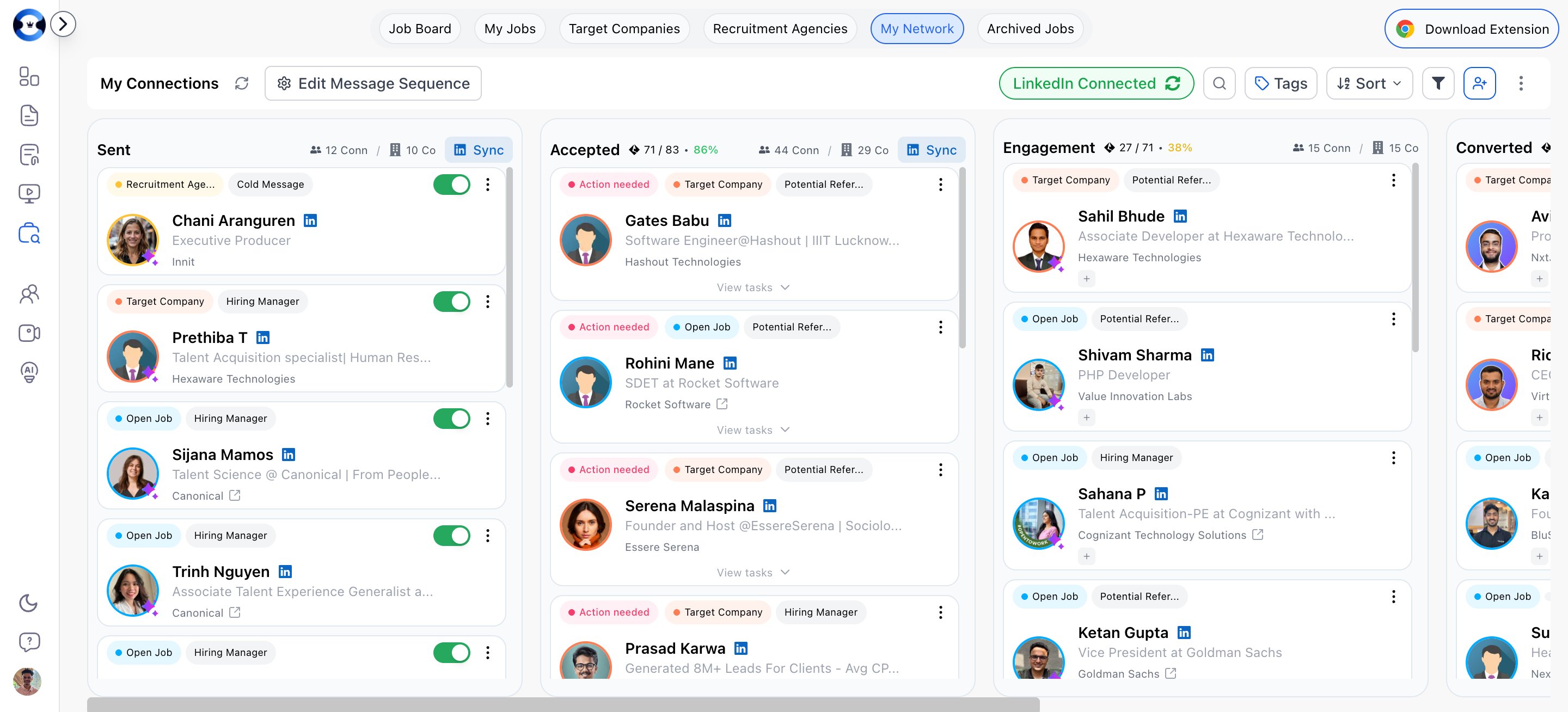
My Networks is a kanban board that tracks every professional connection you are building during your job search. Each person you connect with — whether through Find Network, Target Companies, or manual addition — becomes a card that moves through outreach stages from first contact to active engagement or referral.
This is where you manage the human side of your job search: sending pitch messages, following up, engaging with content, and converting connections into referrals and interview opportunities.
 ## Network Status Columns
The board has five columns:
| Column | What It Means | Sub-statuses |
| -------------- | ----------------------------------------------- | --------------------------------- |
| **Sent** | Connection request sent, waiting for acceptance | — |
| **Accepted** | The person accepted your connection request | — |
| **Engagement** | Active conversation and engagement in progress | — |
| **Converted** | The connection led to a concrete outcome | Interviewing, Referred, Screening |
| **Rejected** | The connection did not progress | Rejected, Dead |
### What "Dead" Means
A connection moves to Dead when they have not responded after all follow-up tasks have been completed. This does not mean the relationship is over — it simply means the automated sequence has ended and no response was received.
### What "Converted" Sub-statuses Mean
* **Referred** — The person provided a referral to the company
* **Interviewing** — You are now in an interview process partly through this connection
* **Screening** — The company is screening your application through this connection
## Adding Networks
Networks are typically added through:
1. **Find Network** — Search LinkedIn for employees/recruiters from a job detail or company card (Nova only)
2. **Manual addition** — Add a connection directly if you met someone outside the platform
Each network card is categorized by connection source:
| Category | Color | When Used |
| ---------------------- | ------ | ------------------------------------------- |
| **Open Job** | Blue | Connected through a specific job posting |
| **Target Company** | Orange | Connected through a Target Company card |
| **Recruitment Agency** | Yellow | Connected through a Recruitment Agency card |
## Network Types
Each connection is also classified by the person's role relative to your job search:
* **Potential Referer** — Someone in a similar role who could provide an internal referral
* **Hiring Manager** — A hiring manager or team lead involved in the hiring decision
* **Top Management** — A senior executive at the company
The network type determines which message templates are used for outreach and follow-ups.
## Networking Tasks
Once a connection accepts your request, the platform creates a sequence of four tasks designed to build the relationship and earn a referral:
| Task | Title | What You Do |
| ---------- | ---------------- | ---------------------------------------------------------------------------- |
| **Task 1** | Pitch Message | Send your initial pitch message introducing yourself and expressing interest |
| **Task 2** | First Follow-up | Send a follow-up message and engage with their LinkedIn content (like posts) |
| **Task 3** | Second Follow-up | Send another follow-up and endorse their skills on LinkedIn |
| **Task 4** | Final Follow-up | Send a final follow-up message to re-engage |
## Network Status Columns
The board has five columns:
| Column | What It Means | Sub-statuses |
| -------------- | ----------------------------------------------- | --------------------------------- |
| **Sent** | Connection request sent, waiting for acceptance | — |
| **Accepted** | The person accepted your connection request | — |
| **Engagement** | Active conversation and engagement in progress | — |
| **Converted** | The connection led to a concrete outcome | Interviewing, Referred, Screening |
| **Rejected** | The connection did not progress | Rejected, Dead |
### What "Dead" Means
A connection moves to Dead when they have not responded after all follow-up tasks have been completed. This does not mean the relationship is over — it simply means the automated sequence has ended and no response was received.
### What "Converted" Sub-statuses Mean
* **Referred** — The person provided a referral to the company
* **Interviewing** — You are now in an interview process partly through this connection
* **Screening** — The company is screening your application through this connection
## Adding Networks
Networks are typically added through:
1. **Find Network** — Search LinkedIn for employees/recruiters from a job detail or company card (Nova only)
2. **Manual addition** — Add a connection directly if you met someone outside the platform
Each network card is categorized by connection source:
| Category | Color | When Used |
| ---------------------- | ------ | ------------------------------------------- |
| **Open Job** | Blue | Connected through a specific job posting |
| **Target Company** | Orange | Connected through a Target Company card |
| **Recruitment Agency** | Yellow | Connected through a Recruitment Agency card |
## Network Types
Each connection is also classified by the person's role relative to your job search:
* **Potential Referer** — Someone in a similar role who could provide an internal referral
* **Hiring Manager** — A hiring manager or team lead involved in the hiring decision
* **Top Management** — A senior executive at the company
The network type determines which message templates are used for outreach and follow-ups.
## Networking Tasks
Once a connection accepts your request, the platform creates a sequence of four tasks designed to build the relationship and earn a referral:
| Task | Title | What You Do |
| ---------- | ---------------- | ---------------------------------------------------------------------------- |
| **Task 1** | Pitch Message | Send your initial pitch message introducing yourself and expressing interest |
| **Task 2** | First Follow-up | Send a follow-up message and engage with their LinkedIn content (like posts) |
| **Task 3** | Second Follow-up | Send another follow-up and endorse their skills on LinkedIn |
| **Task 4** | Final Follow-up | Send a final follow-up message to re-engage |
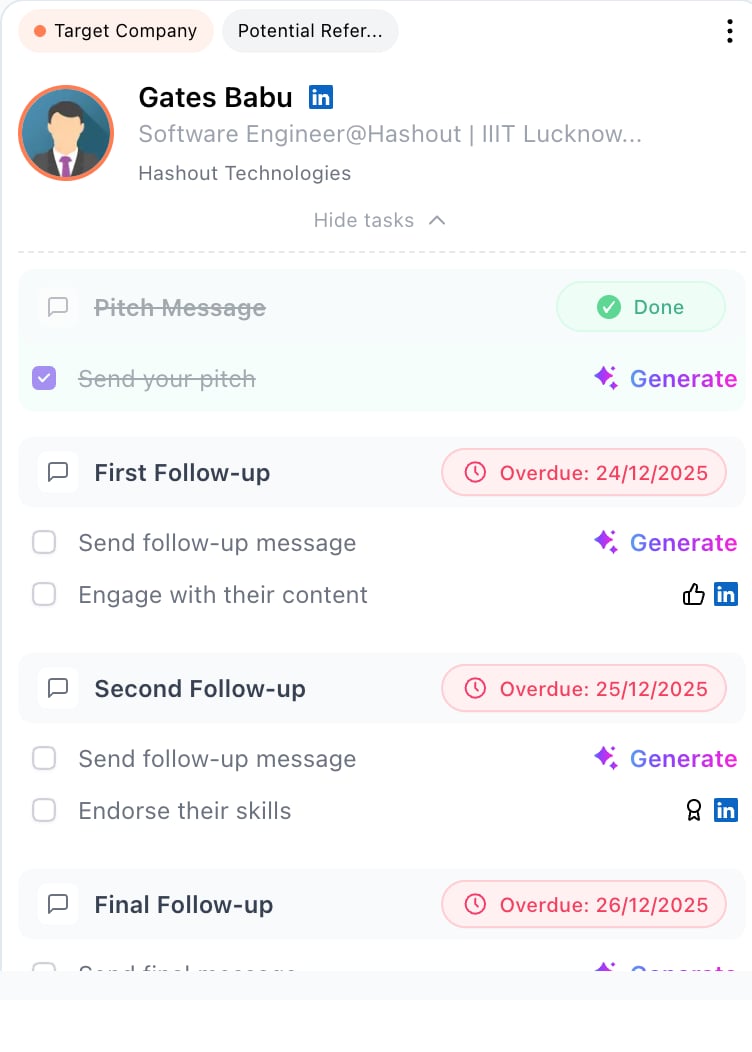 Each task card on the board shows progress:
* **"Action needed"** (red) — Tasks are pending and need your attention
* **"X/Y done"** (green) — Progress through the task sequence
### Manual vs Automated Messaging
You have two options for executing tasks:
* **Manual** — Write and send each message yourself through LinkedIn
* **Automated** — Enable AI automation to send messages automatically with 24-hour gaps between follow-ups (Nova only)
## Message Sequences
Click **"Edit Message Sequence"** to customize the templates used for each stage of outreach. The editor has five tabs:
| Tab | What It Controls |
| --------------- | -------------------------------------------------------- |
| **Connection** | The initial connection request message |
| **Pitch** | Your introductory pitch after the connection is accepted |
| **Follow Up 1** | First follow-up message |
| **Follow Up 2** | Second follow-up message |
| **Guilt** | Final follow-up message (a gentle nudge) |
Templates vary based on the connection category and type. For example, an "Open Job → Potential Referer" template differs from a "Target Company → Hiring Manager" template.
Each template supports **variables** — placeholder tokens that get replaced with actual names, company names, and job titles when the message is sent. A character count tracker helps you stay within LinkedIn's message limits.
Spend time customizing your message templates before starting outreach at scale. Generic messages get ignored. A personalized pitch that references the person's work, a recent company announcement, or a specific project gets dramatically higher response rates.
## AI Networking Automation
AI Networking Automation is a **Nova-exclusive** feature. It automatically sends connection requests, follow-up messages, and engages with content on your behalf.
### Master Automation Toggle
The **"AI Networking Automation"** toggle in the top-right menu controls whether automation is active across your entire network:
* **Active** — AI will automatically send scheduled messages and execute follow-up tasks for all eligible connections
* **Disabled** — All automated outreach is paused; you handle everything manually
When active, a green status badge confirms automation is running.
### Per-Network Automation
You can also control automation for individual connections. For AI-created networks in the Sent or Accepted columns, a per-network toggle lets you enable or disable automation for that specific person without affecting others.
### How Automated Follow-ups Work
When automation is enabled:
1. After a connection is accepted, the system waits for a scheduled interval
2. The pitch message (Task 1) is sent automatically
3. Follow-up messages are sent with **24-hour gaps** between each
4. The system engages with the person's LinkedIn content (likes posts, endorses skills) alongside messages
5. If the person replies, the connection moves to Engagement for you to take over manually
6. If all tasks complete without a response, the connection moves to Dead
See [LinkedIn Automation](/job-board/linkedin-automation) for the full technical workflow.
## Managing Network Cards
### Changing Status
Open the card dropdown and select **Change Status** to move a connection between columns. Sub-statuses are available for Converted (Interviewing, Referred, Screening) and Rejected (Rejected, Dead).
You can also **drag and drop** cards between columns in the kanban view.
### Changing Network Type
From the card dropdown, select **Change Type** to update:
* **Connection Category** — Open Job, Target Company, or Recruitment Agency
* **Message Type** — Hiring Manager, Potential Referer, Top Management, or Cold Outreach
### Editing and Deleting
* **Edit Network** — Update the person's name, company name, or title
* **Delete Network** — Remove the connection (with confirmation)
### LinkedIn Profile
Each card includes a link to the person's LinkedIn profile, opening in a new tab.
## Tags
Add tags to organize your network cards. You can create **up to 4 custom tags** with 6 color options (blue, purple, green, orange, pink, cyan). Use tags to group connections by priority, stage, or any custom category that helps your workflow.
## Filtering and Sorting
### Filter Options
| Filter | Options |
| ------------------- | ------------------------------------------------- |
| **Company Name** | Search and select specific companies |
| **Tasks** | Over Due, Pending, Completed |
| **Category** | Open Job, Target Company, Recruitment Agency |
| **Connection Type** | Potential Referer, Hiring Manager, Top Management |
| **Network Type** | All, AI Added, User Added |
| **Date Range** | From/To date picker |
### Sort Options
| Sort | Order |
| ---------------------- | -------------------- |
| **Default** | Original order |
| **Company Name (A-Z)** | Alphabetical |
| **Company Name (Z-A)** | Reverse alphabetical |
| **Newest First** | Most recently added |
| **Oldest First** | Oldest first |
### Search
Use the search input to find connections by name in real time.
## Syncing with LinkedIn
The Sent and Accepted column headers include a **Sync LinkedIn** button. This triggers a sync with your LinkedIn account to check whether pending connection requests have been accepted. The [Chrome Extension](/chrome-extension/installation) assists with fetching the latest connection status. You can also add connections directly from LinkedIn using the [AI Connect](/chrome-extension/networking-features) feature in the extension sidebar.
Check your My Networks board daily during an active job search. Respond to accepted connections within 24 hours — the faster you engage, the more likely you are to build a productive relationship. Set a morning routine: check Accepted column, execute pending tasks, review Engagement connections.
Each task card on the board shows progress:
* **"Action needed"** (red) — Tasks are pending and need your attention
* **"X/Y done"** (green) — Progress through the task sequence
### Manual vs Automated Messaging
You have two options for executing tasks:
* **Manual** — Write and send each message yourself through LinkedIn
* **Automated** — Enable AI automation to send messages automatically with 24-hour gaps between follow-ups (Nova only)
## Message Sequences
Click **"Edit Message Sequence"** to customize the templates used for each stage of outreach. The editor has five tabs:
| Tab | What It Controls |
| --------------- | -------------------------------------------------------- |
| **Connection** | The initial connection request message |
| **Pitch** | Your introductory pitch after the connection is accepted |
| **Follow Up 1** | First follow-up message |
| **Follow Up 2** | Second follow-up message |
| **Guilt** | Final follow-up message (a gentle nudge) |
Templates vary based on the connection category and type. For example, an "Open Job → Potential Referer" template differs from a "Target Company → Hiring Manager" template.
Each template supports **variables** — placeholder tokens that get replaced with actual names, company names, and job titles when the message is sent. A character count tracker helps you stay within LinkedIn's message limits.
Spend time customizing your message templates before starting outreach at scale. Generic messages get ignored. A personalized pitch that references the person's work, a recent company announcement, or a specific project gets dramatically higher response rates.
## AI Networking Automation
AI Networking Automation is a **Nova-exclusive** feature. It automatically sends connection requests, follow-up messages, and engages with content on your behalf.
### Master Automation Toggle
The **"AI Networking Automation"** toggle in the top-right menu controls whether automation is active across your entire network:
* **Active** — AI will automatically send scheduled messages and execute follow-up tasks for all eligible connections
* **Disabled** — All automated outreach is paused; you handle everything manually
When active, a green status badge confirms automation is running.
### Per-Network Automation
You can also control automation for individual connections. For AI-created networks in the Sent or Accepted columns, a per-network toggle lets you enable or disable automation for that specific person without affecting others.
### How Automated Follow-ups Work
When automation is enabled:
1. After a connection is accepted, the system waits for a scheduled interval
2. The pitch message (Task 1) is sent automatically
3. Follow-up messages are sent with **24-hour gaps** between each
4. The system engages with the person's LinkedIn content (likes posts, endorses skills) alongside messages
5. If the person replies, the connection moves to Engagement for you to take over manually
6. If all tasks complete without a response, the connection moves to Dead
See [LinkedIn Automation](/job-board/linkedin-automation) for the full technical workflow.
## Managing Network Cards
### Changing Status
Open the card dropdown and select **Change Status** to move a connection between columns. Sub-statuses are available for Converted (Interviewing, Referred, Screening) and Rejected (Rejected, Dead).
You can also **drag and drop** cards between columns in the kanban view.
### Changing Network Type
From the card dropdown, select **Change Type** to update:
* **Connection Category** — Open Job, Target Company, or Recruitment Agency
* **Message Type** — Hiring Manager, Potential Referer, Top Management, or Cold Outreach
### Editing and Deleting
* **Edit Network** — Update the person's name, company name, or title
* **Delete Network** — Remove the connection (with confirmation)
### LinkedIn Profile
Each card includes a link to the person's LinkedIn profile, opening in a new tab.
## Tags
Add tags to organize your network cards. You can create **up to 4 custom tags** with 6 color options (blue, purple, green, orange, pink, cyan). Use tags to group connections by priority, stage, or any custom category that helps your workflow.
## Filtering and Sorting
### Filter Options
| Filter | Options |
| ------------------- | ------------------------------------------------- |
| **Company Name** | Search and select specific companies |
| **Tasks** | Over Due, Pending, Completed |
| **Category** | Open Job, Target Company, Recruitment Agency |
| **Connection Type** | Potential Referer, Hiring Manager, Top Management |
| **Network Type** | All, AI Added, User Added |
| **Date Range** | From/To date picker |
### Sort Options
| Sort | Order |
| ---------------------- | -------------------- |
| **Default** | Original order |
| **Company Name (A-Z)** | Alphabetical |
| **Company Name (Z-A)** | Reverse alphabetical |
| **Newest First** | Most recently added |
| **Oldest First** | Oldest first |
### Search
Use the search input to find connections by name in real time.
## Syncing with LinkedIn
The Sent and Accepted column headers include a **Sync LinkedIn** button. This triggers a sync with your LinkedIn account to check whether pending connection requests have been accepted. The [Chrome Extension](/chrome-extension/installation) assists with fetching the latest connection status. You can also add connections directly from LinkedIn using the [AI Connect](/chrome-extension/networking-features) feature in the extension sidebar.
Check your My Networks board daily during an active job search. Respond to accepted connections within 24 hours — the faster you engage, the more likely you are to build a productive relationship. Set a morning routine: check Accepted column, execute pending tasks, review Engagement connections.