

Overview
This is Step 1 of 3 in the interview setup flow: Select Job → Select Questions → General Settings Before you practice answering questions, you choose whether to tie your session to a specific job. Practicing with a job gives the AI the context it needs to generate targeted, role-specific questions based on the job description.Select a Job from the Job Board
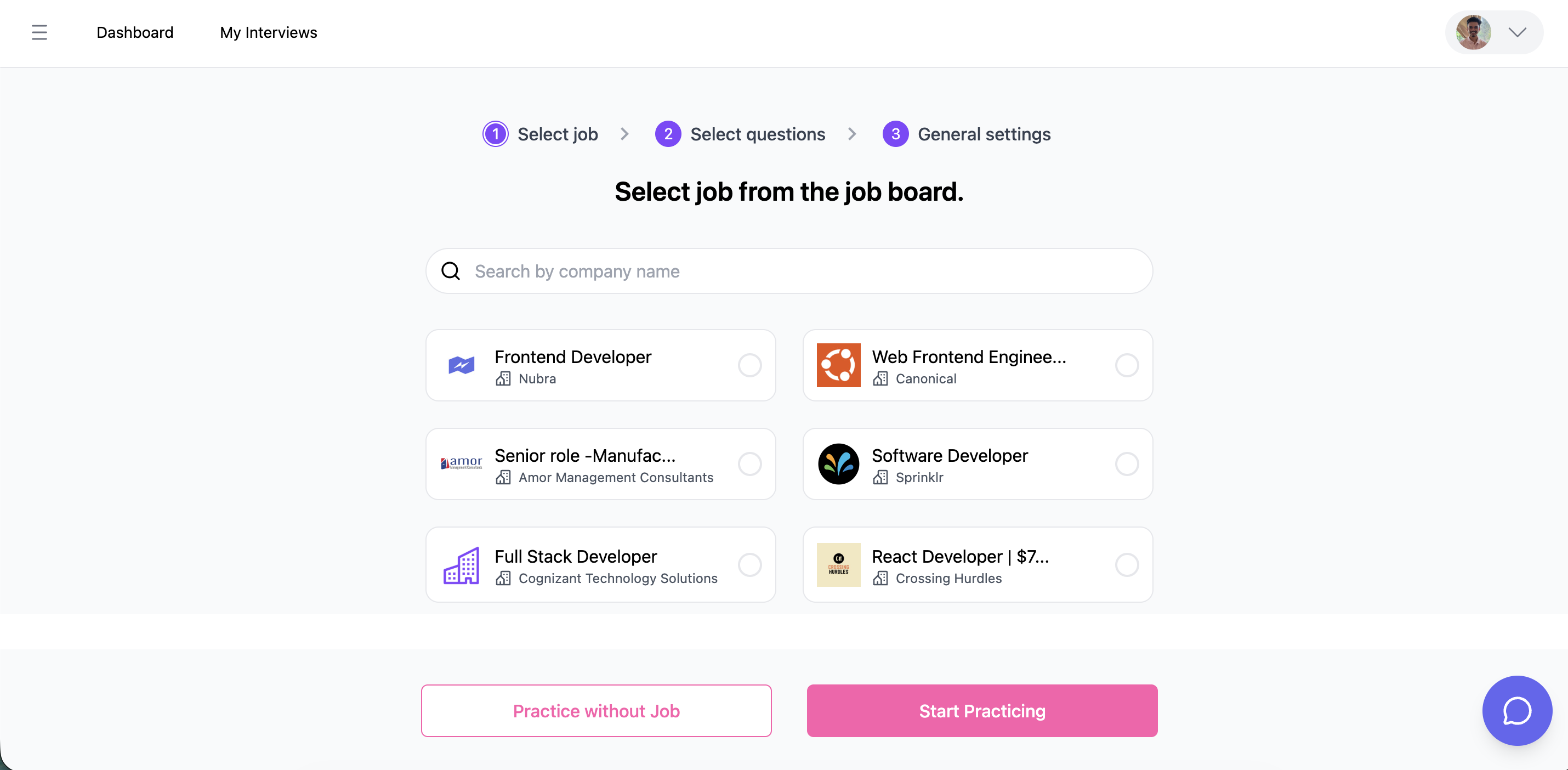
- The company logo (or a default building icon if no logo is available)
- The job title
- The company name
Two Paths Forward
After reviewing your jobs, you have two options at the bottom of the screen:Start Practicing (with a job selected)
Select a job card and click Start Practicing. The AI uses the full job description attached to that job to generate interview questions tailored to the role, company, and required skills. This path produces the most relevant practice experience because every question is grounded in what the employer is actually looking for.Practice without Job
Click Practice without Job to skip job selection entirely. This creates a general practice session where questions come from the preloaded question bank rather than being generated from a job description. Use this path when you want to practice behavioral or situational interview skills without tying them to a specific role.When to Use Each Path
Navigation
- Back returns you to the Interview Prep dashboard.
- Selecting a job and clicking Start Practicing (or clicking Practice without Job) proceeds to question selection.
- If your Job Board is empty, an Add Job to Board button appears in place of Start Practicing, linking you to the Job Board so you can save jobs first.