

How Job Saving Works
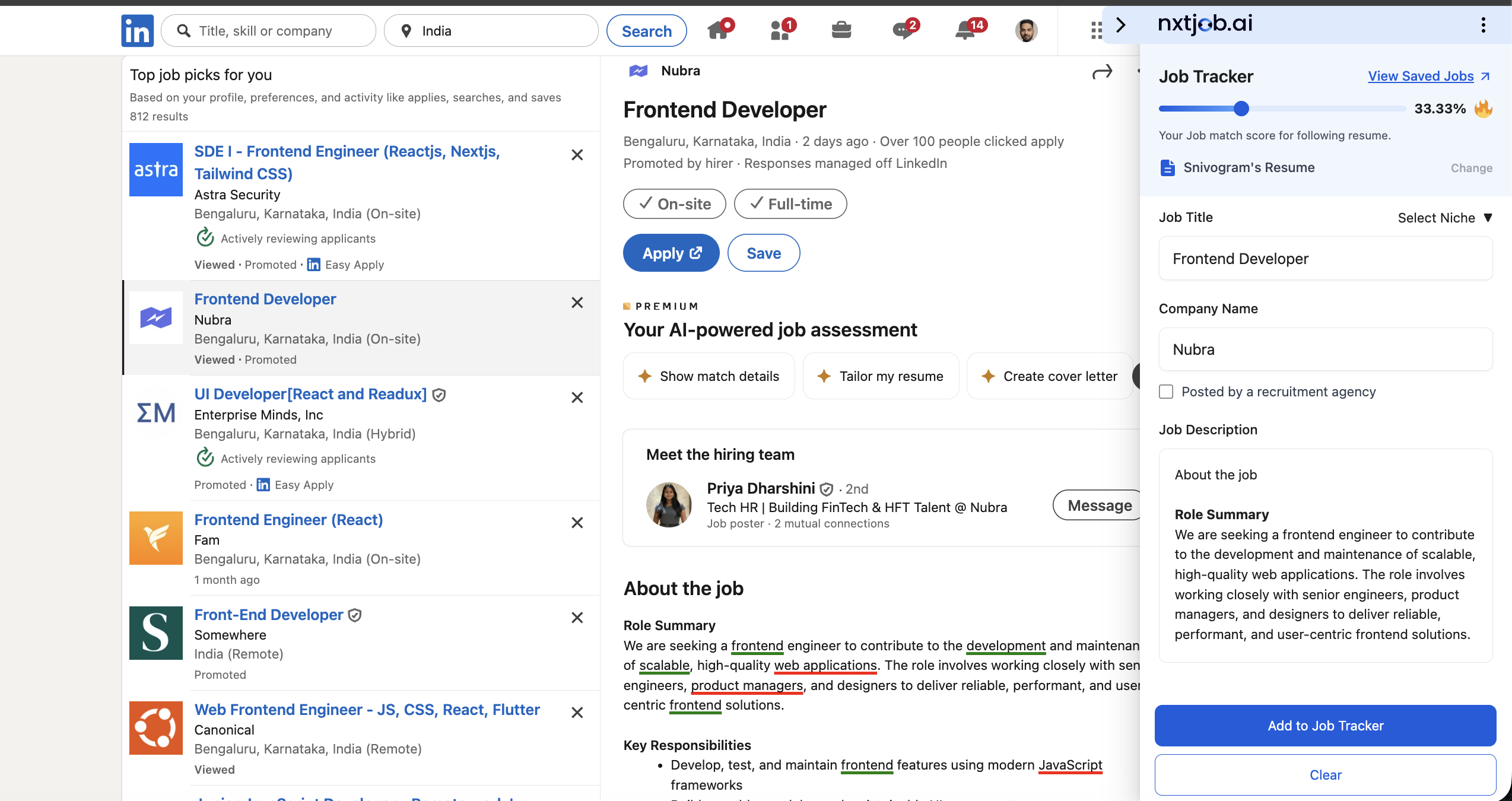
The sidebar shows a Job Tracker panel with the following elements:- Job Tracker heading with a View Saved Jobs link at the top right
- ATS match score shown as a percentage (e.g., “33.33%”) with a Change link to switch resumes
- The resume name being used for scoring (e.g., “Srivasgarni’s Resume”)
- Job Title field — pre-filled from the page
- Company Name field — pre-filled from the page
- “Posted by a recruitment agency” checkbox
- Select Niche dropdown
- Job Description section with extracted content
- “Add to Job Tracker” button and a Clear button at the bottom
Saving a Job
1
Navigate to a job listing
Go to a job listing on any supported portal — LinkedIn, Naukri, Indeed, and others. The extension sidebar opens automatically.
2
Review the pre-filled details
The sidebar extracts and pre-fills the Job Title and Company Name from the page. Edit either field if the extraction is incorrect.
3
Check the recruitment agency checkbox
If the job was posted by a staffing or recruitment firm rather than the employer directly, check “Posted by a recruitment agency”.
4
Select your Niche
If you have multiple niches configured (e.g., “Engineering Management” and “Product Management”), select the appropriate one from the Select Niche dropdown.
5
Review the Job Description
The extension extracts the full job description from the page. Scroll through it to confirm it looks complete.
6
Click Add to Job Tracker
Click the “Add to Job Tracker” button to save the job. It appears instantly on your My Jobs board in the Saved column.
Job Saved Successfully
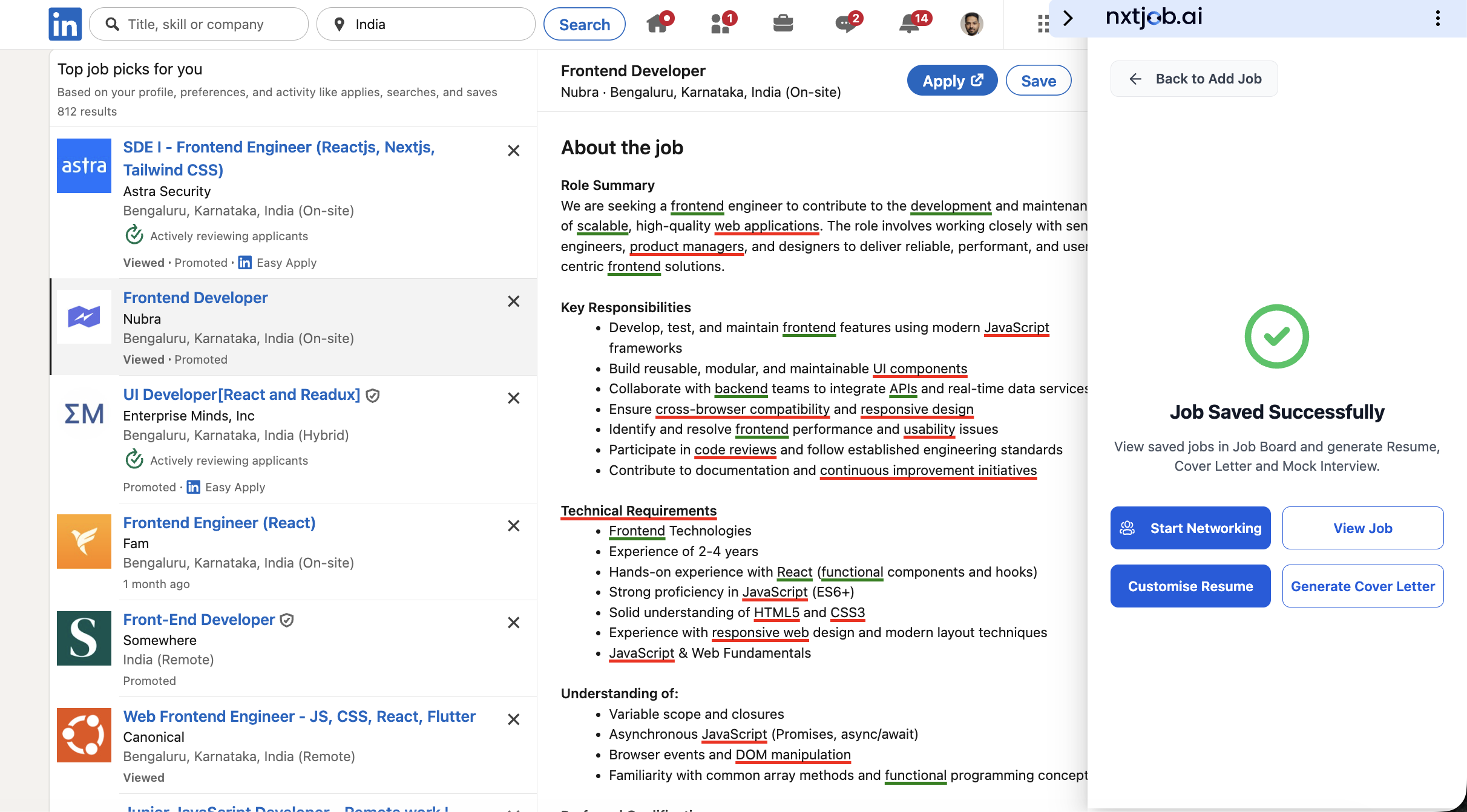
After saving, the sidebar transitions to a success screen with:- A green checkmark and “Job Saved Successfully” message
- Text: “View saved jobs in Job Board and generate Resume, Cover Letter and Mock Interview”
- Four action buttons to continue working on the application:
- Start Networking — Opens networking tools for this job
- View Job — Opens the job detail on your Job Board
- Customize Resume — Opens the Resume Builder with this job’s context loaded
- Generate Cover Letter — Creates an AI-generated cover letter for this job
- A “Back to Add Job” link at the top to save another job from the same page
Supported Portals
The extension performs full automatic extraction on the following portals: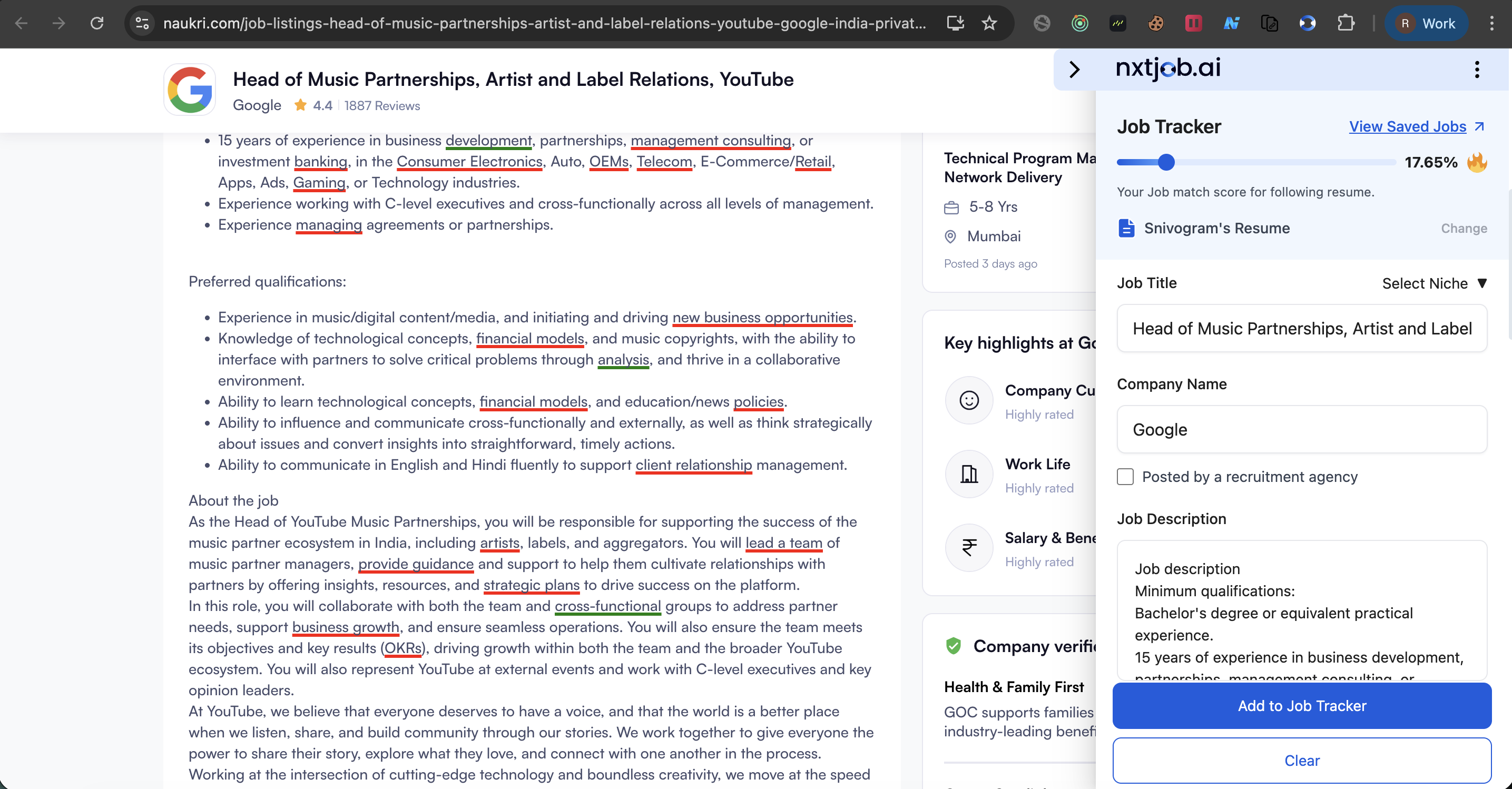
Saving Jobs from Unsupported Sites
On company career pages or other unsupported sites, the extension cannot auto-extract job details. In this case:- Click the NxtJob icon in your browser toolbar to open the extension popup.
- Manually enter the Job Title and Company Name.
- Paste the Job Description into the description field.
- Click “Add to Job Tracker”.