

What Is ATS Score?
The ATS (Applicant Tracking System) Score measures how well your resume matches a specific job description. Most mid-to-large companies use ATS software such as Workday, Greenhouse, Lever, and iCIMS to filter candidates before a human ever reads the application. These systems scan resumes for keywords, phrases, and qualifications that match the job posting. If your resume does not contain the right keywords, it may be automatically rejected regardless of how qualified you are. Your ATS Score is expressed as a percentage. The higher the score, the stronger the keyword overlap between your resume and the target job description.Why ATS Score Is Important for Job Applications
Roughly 75% of resumes are rejected by ATS software before a recruiter sees them. This means that even a well-written resume can fail silently if it does not contain the specific terms the employer is looking for. ATS Score gives you visibility into exactly which keywords are present, which are missing, and how to close the gap before you hit “Apply.” Optimizing your ATS Score directly increases the probability that your resume passes automated filters and reaches a human reviewer. It is one of the highest-leverage activities you can perform during a job search.How ATS Score Is Different from Resume Score
Resume Score and ATS Score serve different purposes:
A common pitfall: your resume says “cloud infrastructure” but the job says “AWS and GCP,” or your resume says “team management” but the job says “people leadership.” These terminology mismatches cause a low ATS Score even when Resume Score is green.
Selecting a Job for ATS Matching
ATS Score requires a target job description to compare against. You select a job before the score can be calculated.How to Select a Job to Calculate ATS Score
1
Open the ATS Score tab
Open your resume in the Resume Builder and navigate to the ATS Score tab on the right-side score panel.
2
Choose a job
You will see a job selector at the top of the panel. If you have Saved Jobs, they appear here for quick selection. Pick the job you want to match against.
3
Click Get ATS Score
After selecting a job, click the “Get ATS Score” button. The system extracts keywords from the job description, compares them against your resume, and returns a detailed score with a keyword-by-keyword breakdown.
What Are Saved Jobs?
Saved Jobs are job listings you have previously saved within the NxtJob platform. When you save a job from the job board or paste a job description manually, it becomes available for ATS matching. Saved Jobs appear in the job selector dropdown so you can quickly run ATS analysis without re-entering the job description each time.How to Add More Jobs for ATS Matching
If the job you want to match against is not in your Saved Jobs list, you can add a new job directly from the ATS Score tab. Paste or enter a new job description, and it will be saved for future reference and available for ATS scoring immediately.What Happens When I Click “Get ATS Score”?
When you click “Get ATS Score”, the system performs the following:- Extracts key terms and phrases from the selected job description.
- Scans your entire resume for each of those keywords.
- Counts how many times each keyword appears in both the job description and your resume.
- Calculates a match percentage based on keyword overlap and frequency alignment.
- Returns a score, a matched/missed keyword summary, and a detailed keyword table.
Can I Change the Selected Job Later?
Yes. You can change the selected job at any time by clicking the “Change” button next to the job title at the top of the ATS Score panel. Selecting a different job recalculates your ATS Score entirely against the new job description. Your resume content is not affected by switching jobs — only the score and keyword analysis update.Understanding ATS Score Result
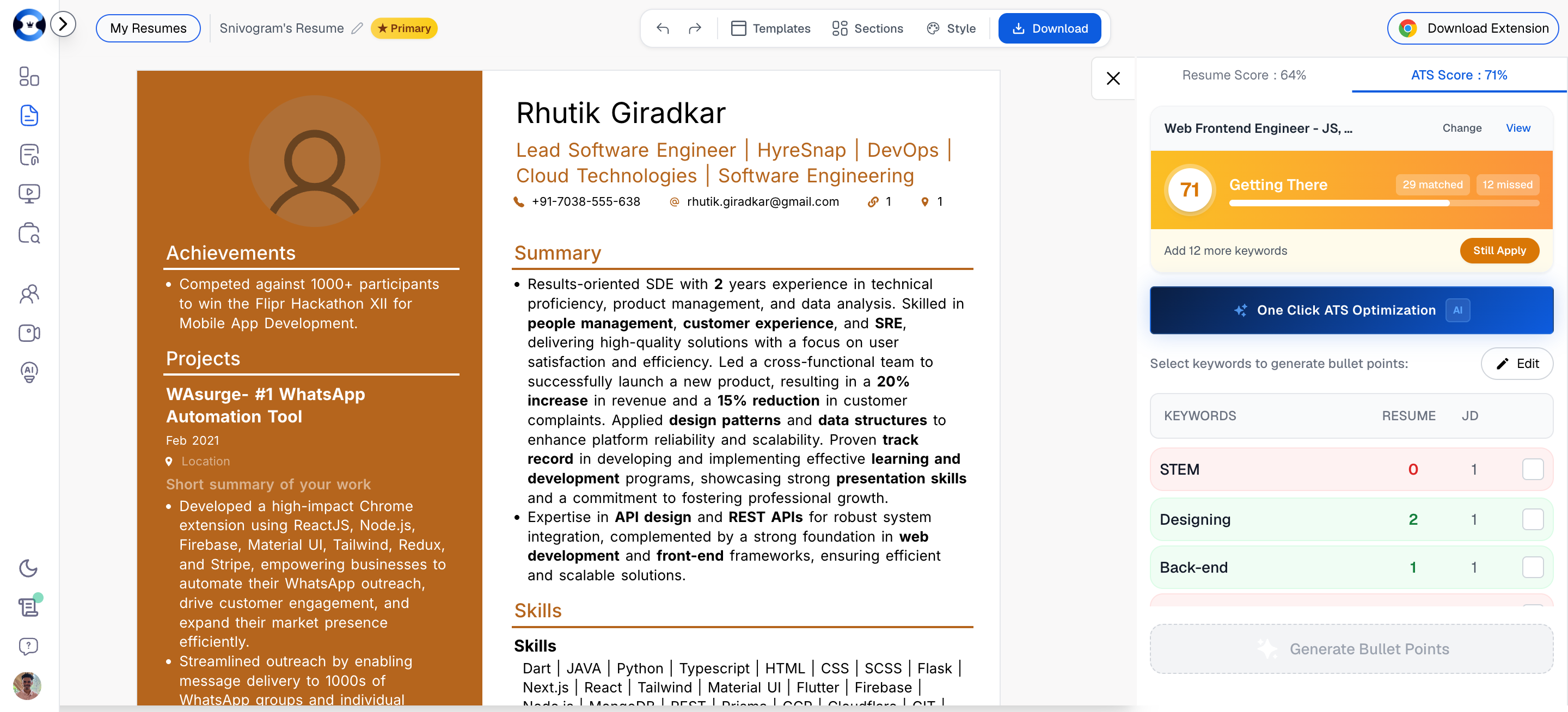
Once you click “Get ATS Score,” the panel displays your results. Here is how to read them.What Does “Getting There” or “Needs Work” Mean?
The ATS Score panel displays a label alongside your numeric score to give you a quick sense of where you stand:What Do “Matched” and “Missed” Keywords Indicate?
Directly below your score, you will see two badges such as “29 matched” and “12 missed.”- Matched keywords are terms from the job description that already appear in your resume. These are working in your favor.
- Missed keywords are terms from the job description that do not appear in your resume at all. These represent gaps you should address.
What Does “Add X More Keywords” Mean?
The message “Add X more keywords” (for example, “Add 12 more keywords”) tells you exactly how many missing job description keywords are absent from your resume. This is the number of terms you need to incorporate to close the gap. The keyword table below the score shows you precisely which terms are missing so you can prioritize the most impactful ones.Can I Still Apply with a Low ATS Score?
Yes. The ATS Score panel includes a “Still Apply” button. If you are confident in your qualifications or if the role does not use heavy ATS filtering (for example, a small startup), you can proceed with your application as-is. However, a low ATS Score means your resume is more likely to be filtered out by automated systems at larger companies.What Is Considered a Good ATS Score?
Aim for 75% or higher before submitting an application. At this level, your resume demonstrates strong keyword alignment with the job description and is likely to pass most ATS filters. For highly competitive roles at large companies, aim for 85%+. Scores below 50% should be treated as a signal to optimize before applying.One-Click ATS Optimization
Nova Exclusive Feature. One-Click ATS Optimization is available exclusively on the Nova plan. Free and standard plan users can still view their ATS Score, keyword analysis, and use Generate Bullet Points, but the one-click AI optimization requires a Nova subscription.
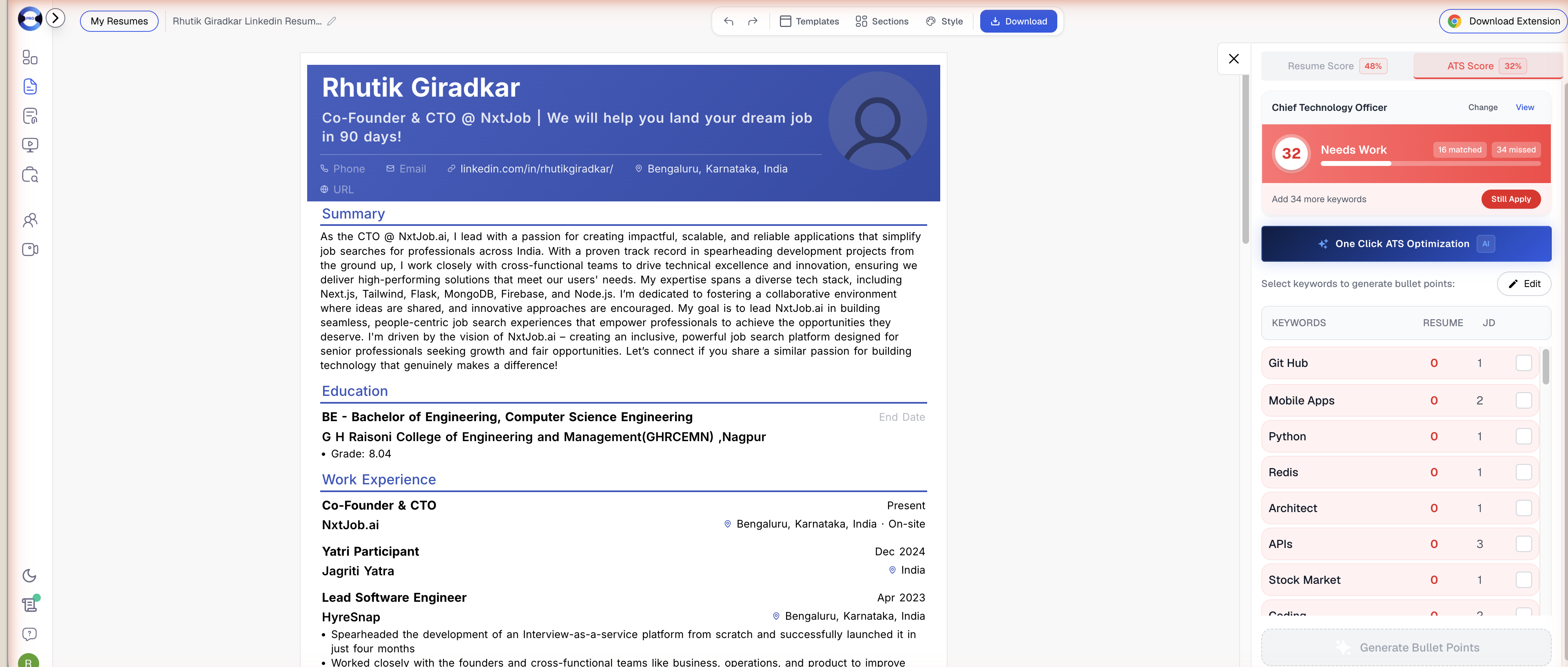
What Is One-Click ATS Optimization?
One-Click ATS Optimization is an AI-powered feature that analyzes the keywords you are missing and rewrites specific sections of your resume to include them. Instead of manually hunting for places to insert each keyword, the AI handles placement, phrasing, and context for you. You will see the “One Click ATS Optimization” button (highlighted in green with an AI badge) in the ATS Score panel after your score is calculated.When Is the Button Available?
The One-Click ATS Optimization button requires all of the following conditions:Which Sections Are Updated?
One-Click ATS Optimization targets four resume sections:
These four sections are where ATS keyword placement has the highest impact.
The Optimization Wizard
After clicking the button, the AI analyzes your resume and returns suggestions organized as a step-by-step wizard. You review each section one at a time.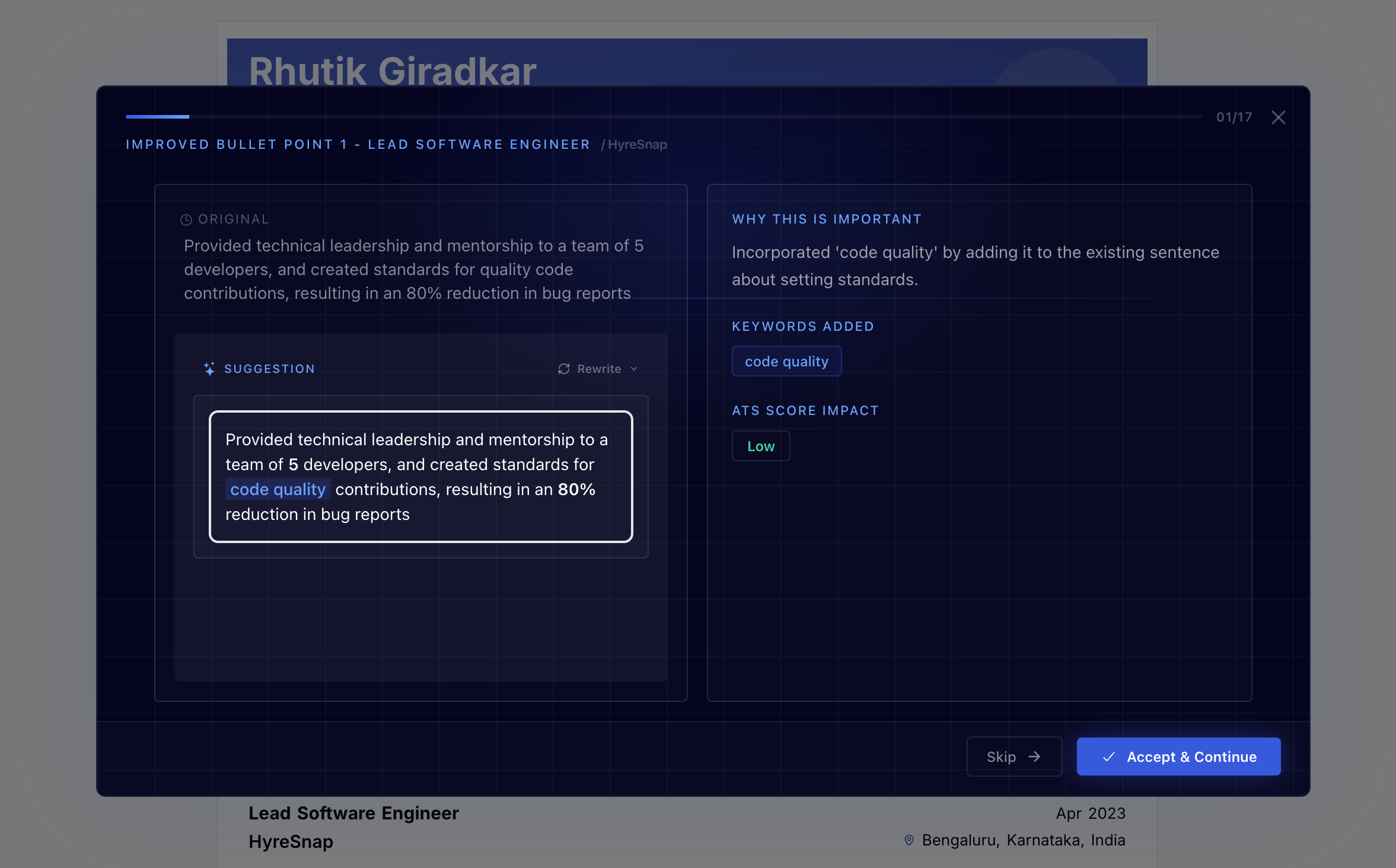
1
AI generates suggestions
The AI analyzes your resume against the job description and generates optimized content for each applicable section, along with explanations and keyword highlights.
2
Review Headline
The first step shows your current headline vs. the suggested headline. Review the change, see which keywords were added, and check the ATS Score Impact badge.
3
Review Summary
The next step shows your professional summary with suggested modifications. Keywords are highlighted so you can see exactly what was added.
4
Review Work Experience bullets
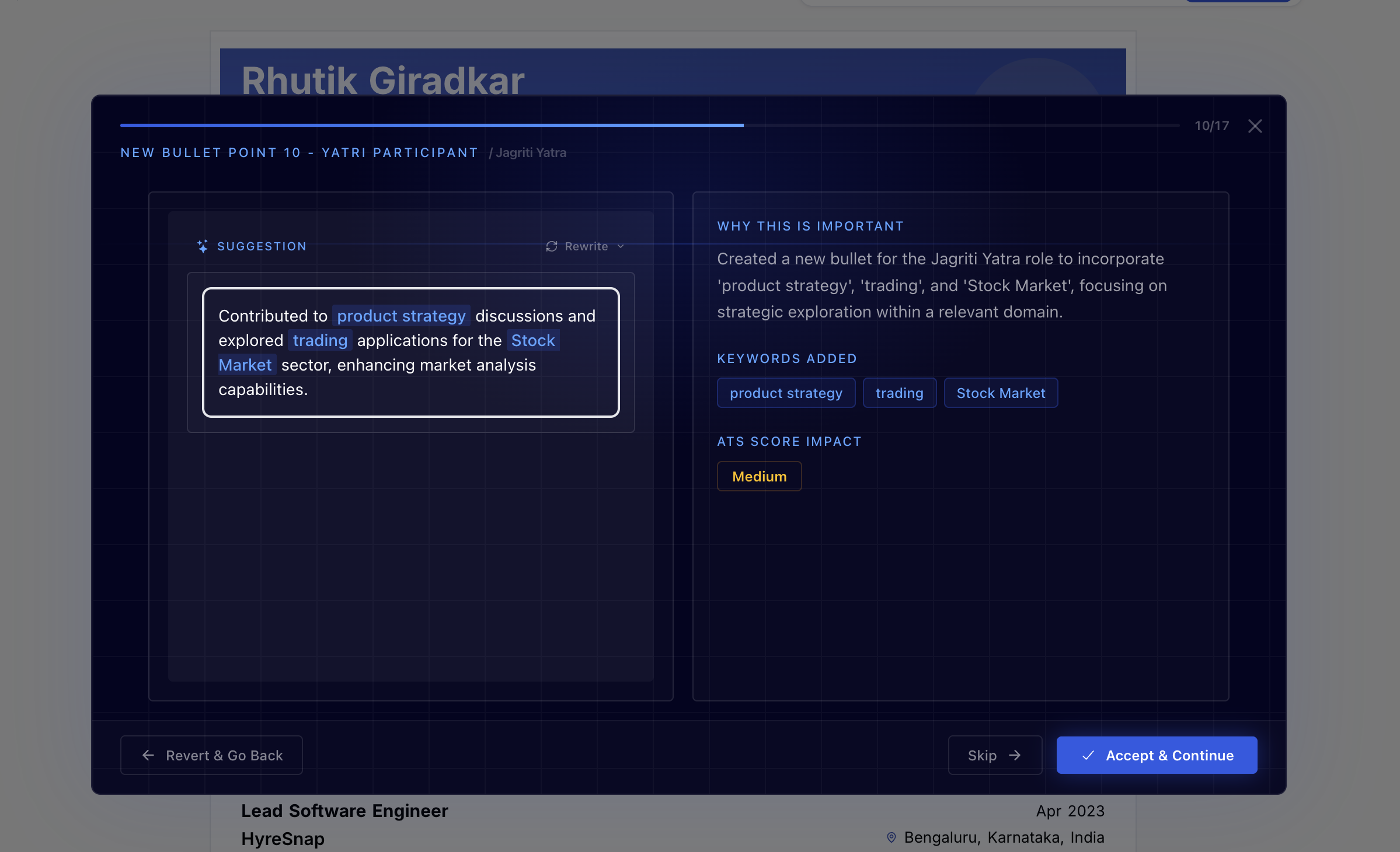
Each modified or new bullet point is presented individually. Bullets are labeled as either improved (existing bullet rewritten) or new (freshly generated). The company name and role title are shown for context.
5
Review Skills
The final step shows suggested skill additions with optimized skill bucket organization.
6
Completion
After reviewing all sections, the wizard closes and your resume reflects all accepted changes. The ATS Score recalculates automatically.
Section Review: What You See for Each Step
Each wizard step presents three components: Content Editor — Shows the suggested content in an editable rich text editor. Keywords that were added are highlighted so you can spot them immediately. You can manually edit the suggestion before accepting if you want to adjust wording. Explanation Panel — Displays:- “Why this is important?” — A brief explanation of why this modification matters for ATS scoring.
- “Keywords added” — Lists the specific missing keywords that were incorporated into this section.
- “ATS Score Impact” — A badge showing the estimated impact of this change:
Action Buttons — Three options for each step:
- “Revert & Go Back” — Undoes the previous step’s accepted changes and goes back. Only available after step 1.
- “Skip” — Skips this section without applying changes. Your original content stays untouched.
- “Accept & Continue” — Applies the suggested changes and advances to the next section.
Rewriting Suggestions Within the Wizard
If you are not satisfied with a suggested bullet point, you can rewrite it without leaving the wizard.1
Click the Rewrite dropdown
On any Work Experience bullet suggestion, click the Rewrite dropdown button.
2
Choose quick rewrite or custom instruction
- Quick Rewrite — The AI generates an alternative version of the bullet.
- Custom Instruction — Type a specific instruction (up to 1,000 characters) to guide the rewrite. For example: “Make it more concise” or “Emphasize the leadership aspect.”
3
Navigate between versions
Use the left/right arrows to browse between rewrite versions. The system maintains a history of all rewrites for that bullet, so you can compare and pick the best one.
Does One-Click Optimization Replace My Content?
One-Click Optimization modifies your existing content rather than replacing it from scratch. The AI preserves your core achievements, metrics, and structure while weaving in missing keywords. However, sentence phrasing and bullet point wording may change. You always have the opportunity to review and edit changes before they are applied via the wizard.When Should I Use One-Click Optimization?
Use One-Click Optimization when:- Your ATS Score is below 75% and you want a fast improvement.
- You have many missed keywords and limited time to add them manually.
- You want AI assistance with natural keyword placement rather than awkwardly forcing terms into existing sentences.
Can I Undo One-Click ATS Changes?
Yes. There are two levels of undo:- During the wizard — Click “Revert & Go Back” to undo the last accepted step and review it again. The system tracks all accepted changes and can restore original content per section.
- After the wizard — Use the undo button (or Ctrl/Cmd+Z) in the builder to revert changes. The builder maintains a full undo history.
Caching and Re-running
ATS suggestions are cached per resume version. If you run One-Click ATS Optimization, partially accept changes, and then run it again without editing your resume, the system returns the same suggestions from last time. If you make edits to your resume after a previous optimization run, clicking the button again generates fresh suggestions based on your updated content.Results After Optimization
After completing the wizard, your ATS Score recalculates immediately. A typical optimization run can improve your score significantly — for example, moving from 32% (“Needs Work”) to 76% (“Great Match”) in a single pass.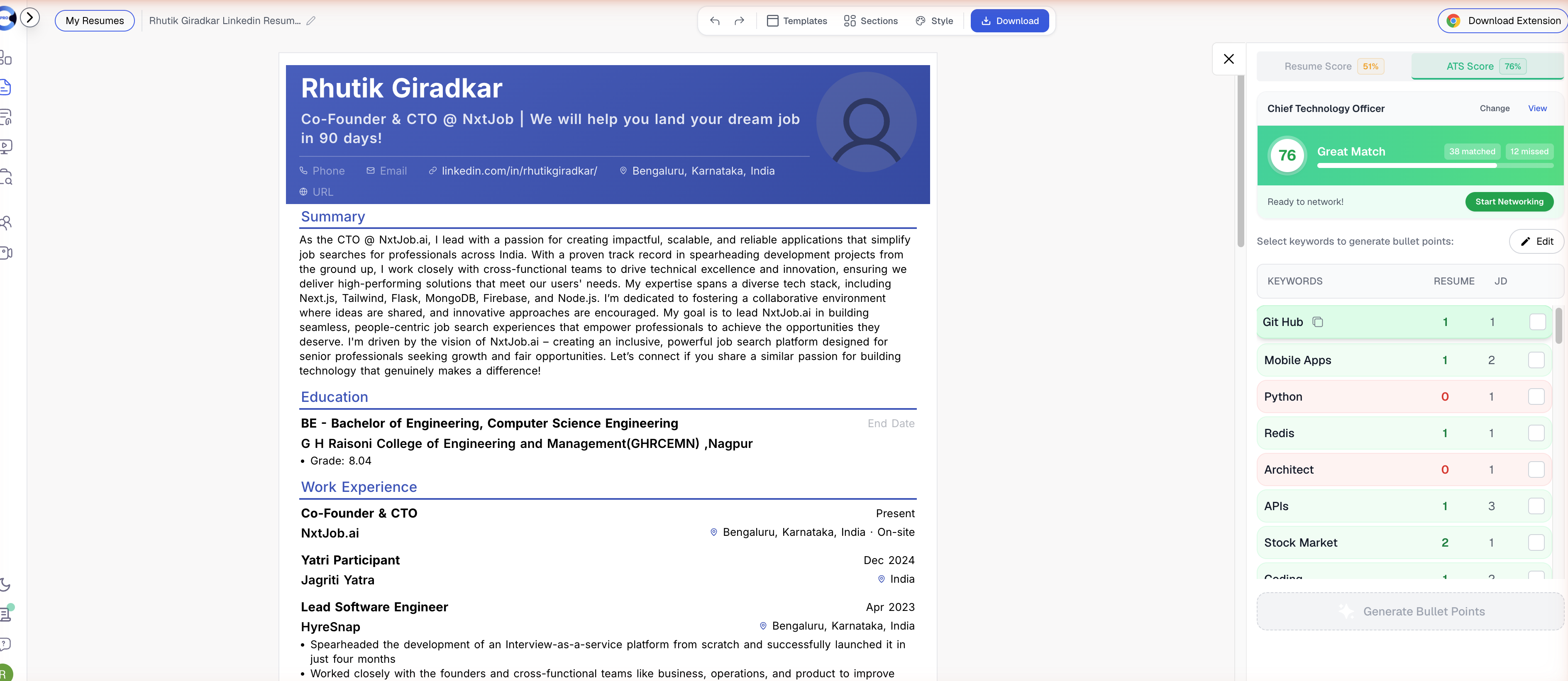
Keyword Analysis Section
The keyword table is the core of the ATS Score panel. It gives you a detailed, keyword-by-keyword view of your match status.How to View Matched and Missed Keywords
The keyword table is displayed below the score summary in the ATS Score tab. Each row represents a keyword extracted from the job description. The table has the following columns:What Do Resume Count and JD Count Mean?
- Resume count is how many times the keyword appears in your current resume. A count of 0 means the keyword is completely absent.
- JD count is how many times the keyword appears in the job description. A higher JD count indicates the employer emphasizes that term, which means it is likely weighted more heavily by ATS filters.
Why Are Some Keywords Marked in Red (0 Count in Resume)?
Keywords with a Resume count of 0 are highlighted in red to draw your attention. These are the terms that are completely absent from your resume and represent the biggest ATS gaps. Red keywords should be your first priority when optimizing because adding even one instance of a missing keyword can improve your match rate.How to Identify High-Impact Keywords
High-impact keywords share these characteristics:- High JD count — The keyword appears multiple times in the job description, signaling it is central to the role.
- Zero Resume count — The keyword is completely missing from your resume.
- Technical specificity — Specific tools, technologies, or methodologies (e.g., “React,” “Kubernetes,” “Agile”) tend to be weighted more heavily by ATS systems than generic terms.
Should I Add All Missing Keywords?
Not necessarily. Add keywords that are genuinely relevant to your experience and the role. Forcing irrelevant keywords into your resume can make your content sound unnatural, and a human reviewer will notice. Prioritize:- Keywords with high JD counts and zero Resume counts.
- Keywords that align with your actual skills and experience.
- Technical terms and specific tools mentioned in the job description.
Edit Keywords
The keyword list used for ATS scoring and bullet point generation can be customized. Not every extracted keyword may be relevant to your situation.What Does “Edit Keywords” Do?
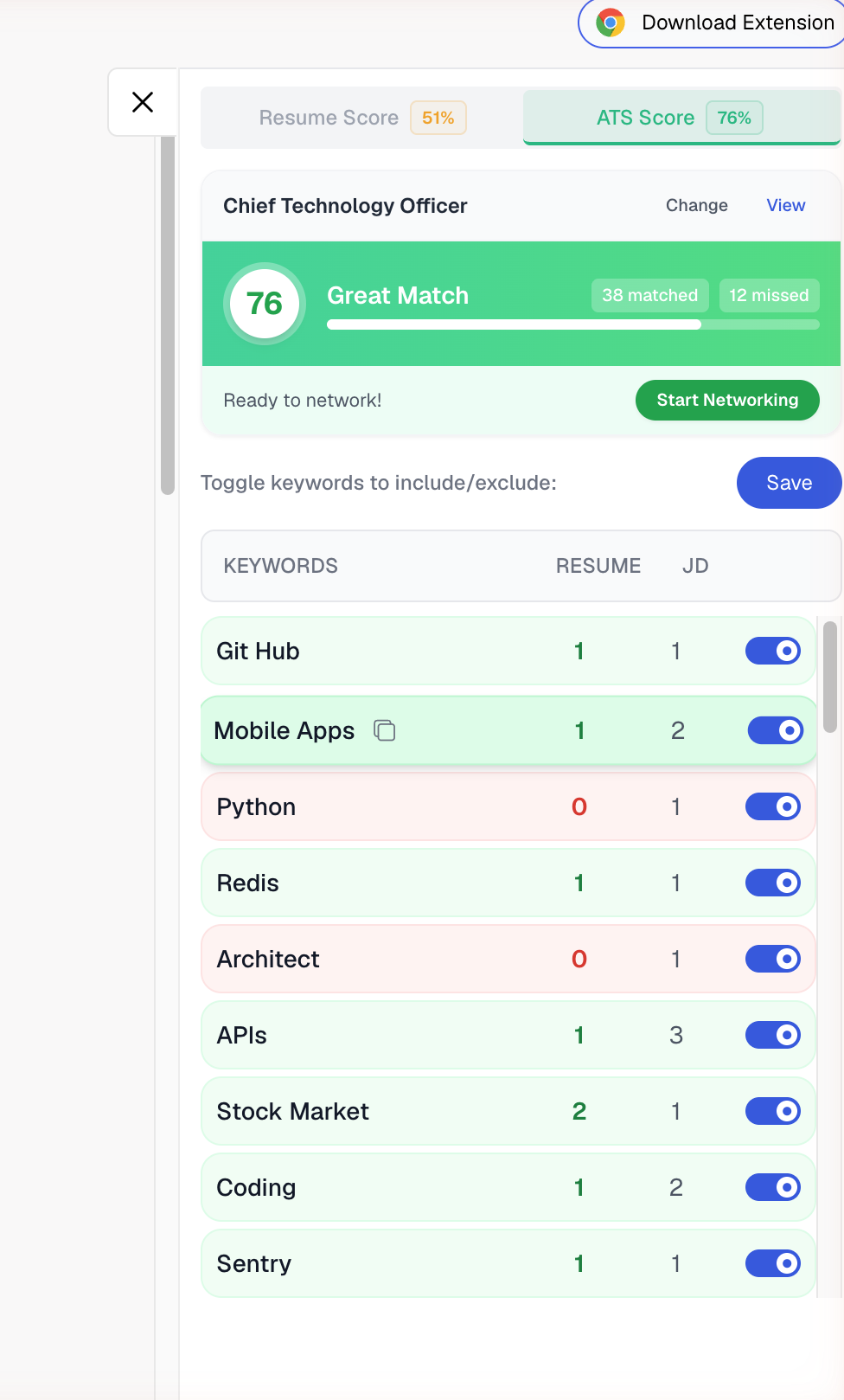
Clicking the “Edit” button next to “Select keywords to generate bullet points” opens a view where you can toggle individual keywords on or off. This lets you control which keywords are included in the ATS analysis and which are excluded.How to Toggle Keywords On or Off
1
Click Edit
Click the “Edit” button in the keyword section of the ATS Score panel.
2
Toggle keywords
Each keyword has a blue toggle switch. Turn off any keyword you want to exclude from the analysis — the toggle turns grey when disabled. Turn on any keyword you want to include.
3
Save your changes
Click “Save” to update the keyword list. The ATS Score and keyword analysis will adjust to reflect your changes.
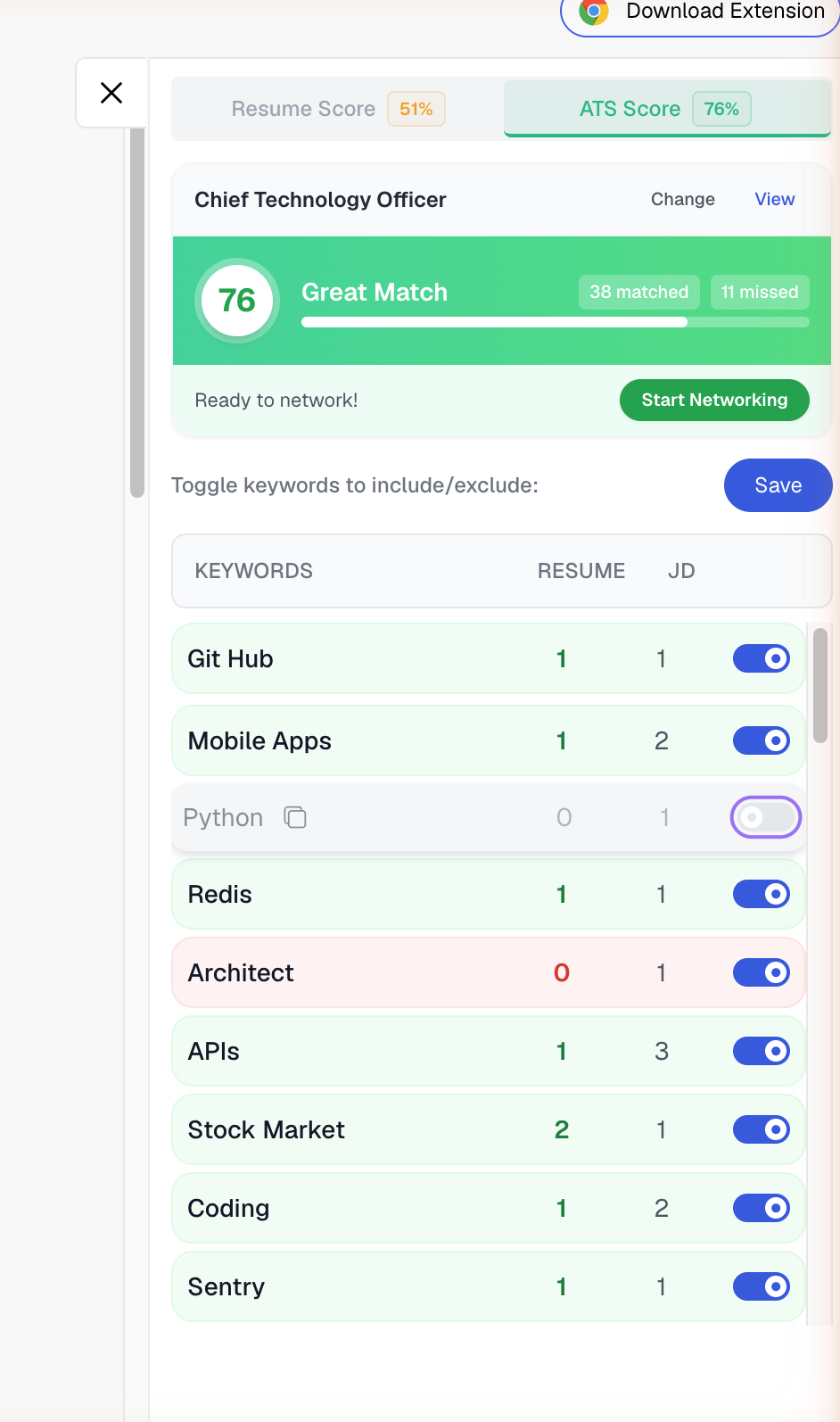
Toggling off a keyword (e.g., Python) excludes it from ATS scoring and optimization
When Should I Exclude a Keyword?
Exclude a keyword when:- It is not relevant to the role you are targeting (the ATS extraction may have picked up a generic term).
- It refers to a skill or technology you do not have and cannot honestly claim.
- It is a duplicate or variant of a keyword you have already addressed (for example, “JS” and “JavaScript” may both appear).
- It is a soft or filler term that does not carry meaningful ATS weight (for example, “team” or “work”).
Will Excluded Keywords Affect ATS Score?
Yes. When you exclude a keyword, it is removed from the scoring calculation. This means your ATS Score will be recalculated based only on the remaining active keywords. Excluding irrelevant keywords can sometimes increase your displayed score because the denominator shrinks, but be careful not to exclude genuinely important terms.How to Save Keyword Selection Changes
After toggling keywords on or off, confirm your selection by clicking the save or apply button. The ATS Score panel updates immediately to reflect the new keyword set. You can re-edit the keyword list at any time.Generate Bullet Points
The Generate Bullet Points feature creates new, keyword-optimized resume bullet points based on the missing keywords you select.What Does “Generate Bullet Points” Do?
Generate Bullet Points uses AI to write new work experience bullet points that naturally incorporate your selected missing keywords. Instead of manually figuring out how to weave a keyword into an existing bullet, the AI produces ready-to-use bullets that include the keyword in a professional, achievement-oriented format. The “Generate Bullet Points” button appears at the bottom of the keyword table. It is disabled until you select at least one keyword using the checkboxes.How to Select Keywords and Generate Bullet Points and Add Them to Your Resume
1
Review the keyword table
Scroll through the keyword table in the ATS Score panel. Identify missing keywords (those with a Resume count of 0 or low counts) that are relevant to your experience.
2
Select keywords
Check the checkbox next to each keyword you want to target. You can select multiple keywords at once. A counter shows how many keywords are selected (e.g., “2/5 keywords selected”). The “Generate Bullet Points” button becomes active once at least one keyword is selected.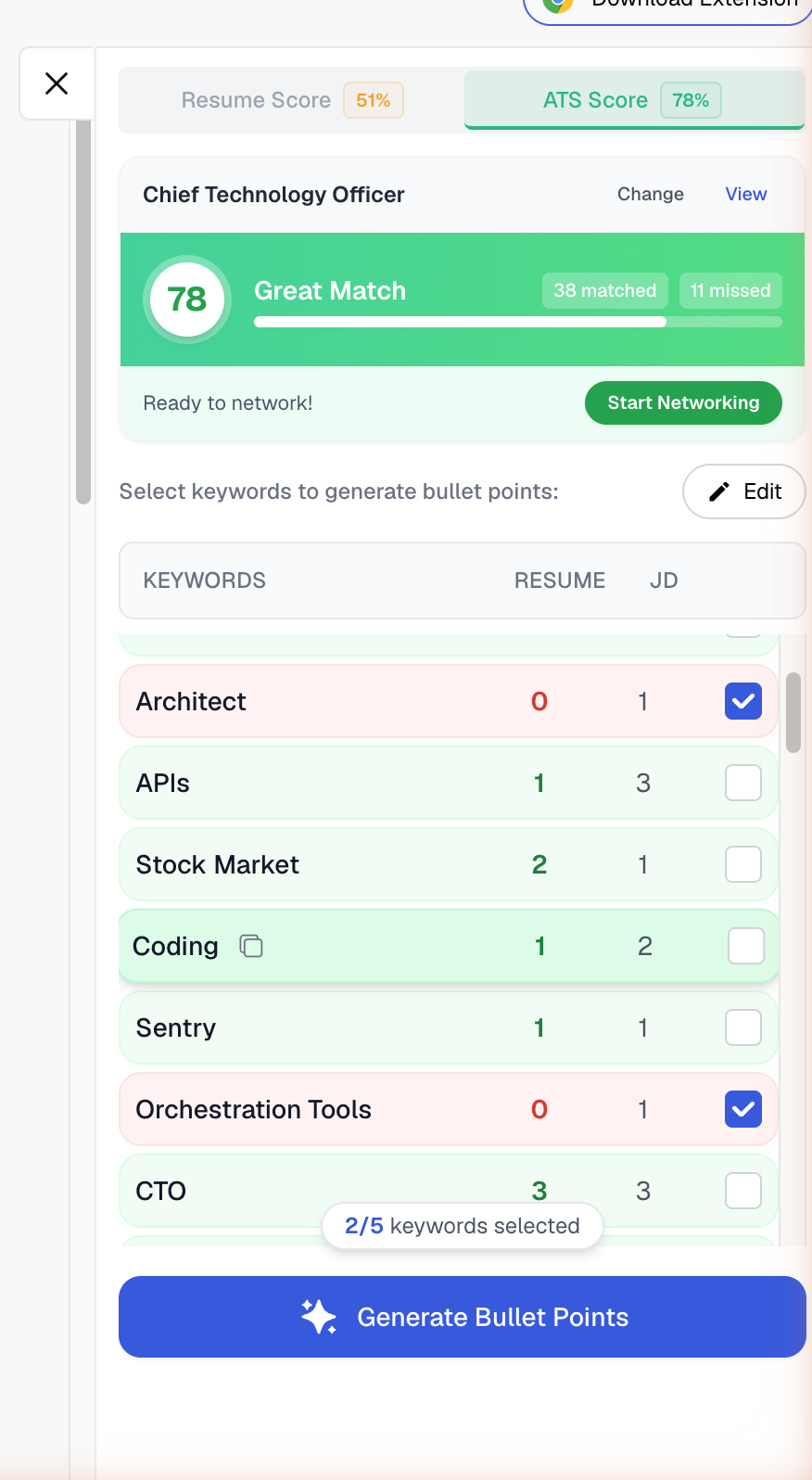
3
Click Generate Bullet Points
Click the “Generate Bullet Points” button at the bottom of the keyword table. The AI generates new bullet points that incorporate your selected keywords.
4
Review the generated bullets
The generated bullet points appear in a panel. Each bullet is written in standard resume format with your selected keywords shown in bold. Use the copy icon next to each bullet to copy it to your clipboard. Click “Generate More Bullet Points” if you need additional options.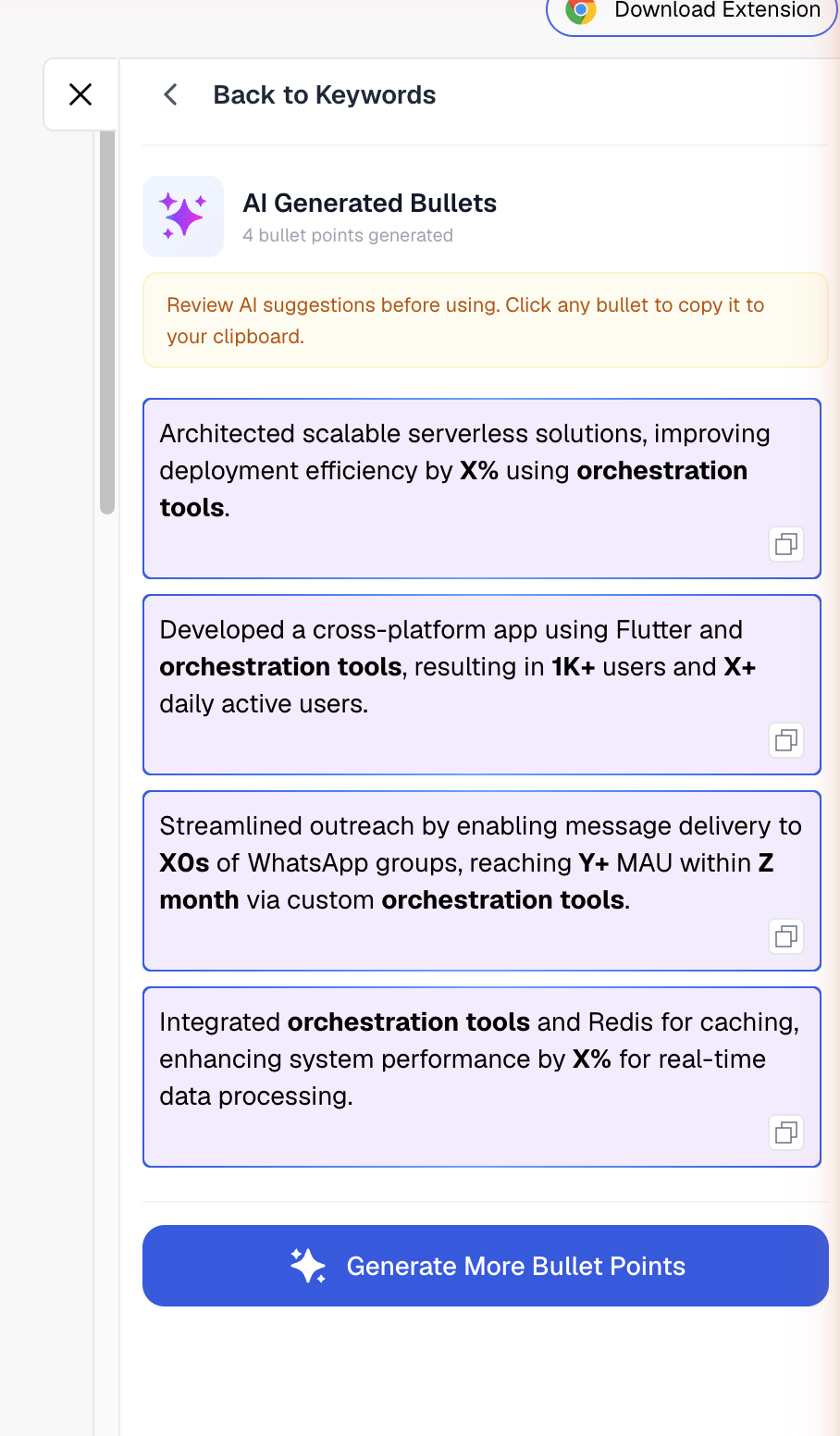
5
Add bullets to your resume
Add the generated bullet points to the appropriate Work Experience entries in your resume. You can edit them further to match your personal voice, add specific metrics, or adjust phrasing.
6
Re-check your ATS Score
After adding the new bullets, re-run the ATS analysis to see your updated score. The previously missing keywords should now show increased Resume counts.