

Creating a Resume
1
Click Create New
On the My Resumes dashboard, click the blue + Create New button in the top-right area.
2
Choose a starting path
Follow the on-screen prompts to choose a template, import an existing document, or start from a blank canvas.
3
Start editing
The new resume opens immediately in the Resume Builder for editing.
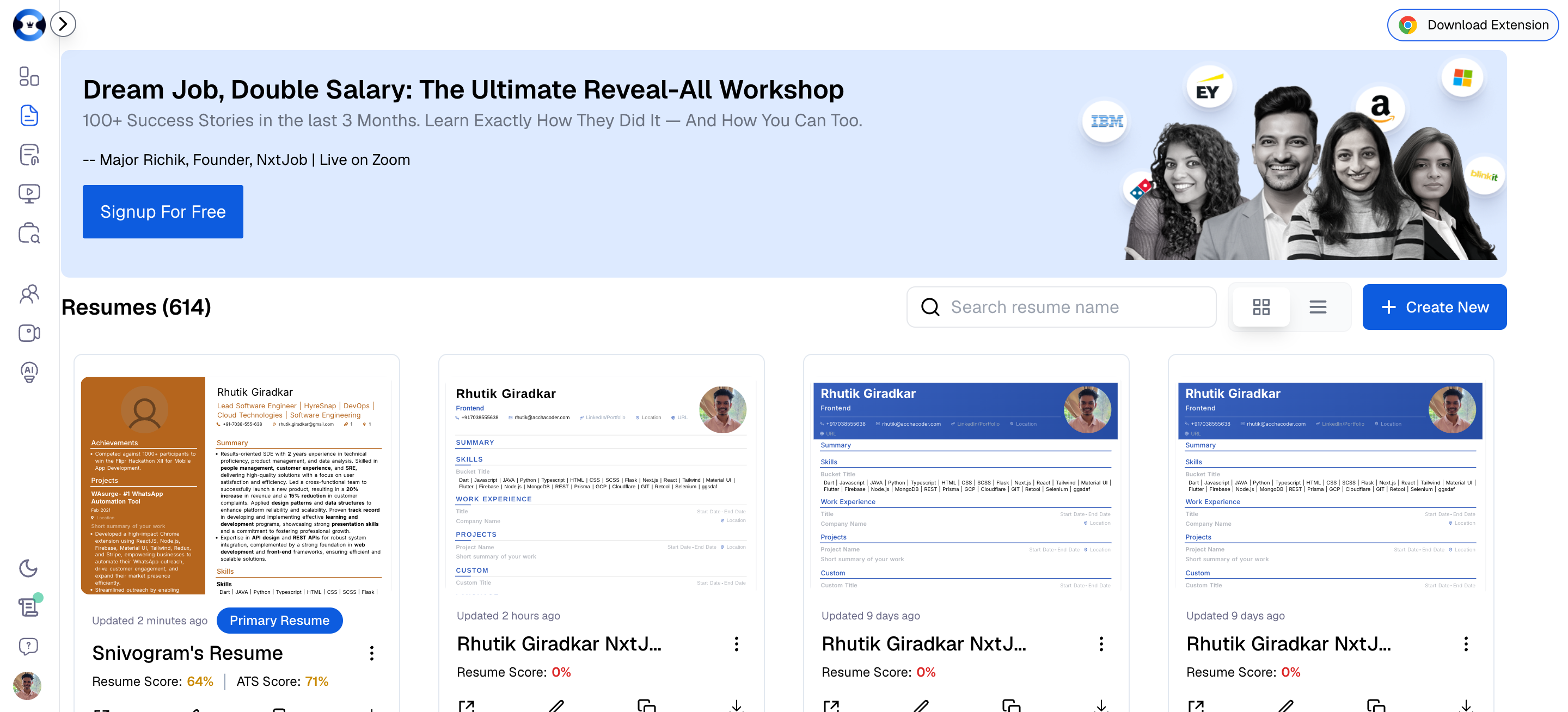
What Happens Behind the Scenes
When you click + Create New, NxtJob creates a new resume document linked to your account. You may be offered several starting paths:- Choose a Template — Select from professionally designed layouts optimized for ATS compatibility.
- Import — Upload an existing resume (PDF or DOCX) and NxtJob will parse it into editable sections.
- Blank Canvas — Start with an empty structure and build from scratch.
Multiple Resumes for Different Roles
NxtJob places no practical limit on the number of resumes you can create. Senior professionals commonly maintain separate resumes tailored to different target roles, industries, or seniority levels.Resume Actions
Every resume card provides a set of quick actions at the bottom of the card, plus an expanded menu behind the three-dot (…) icon.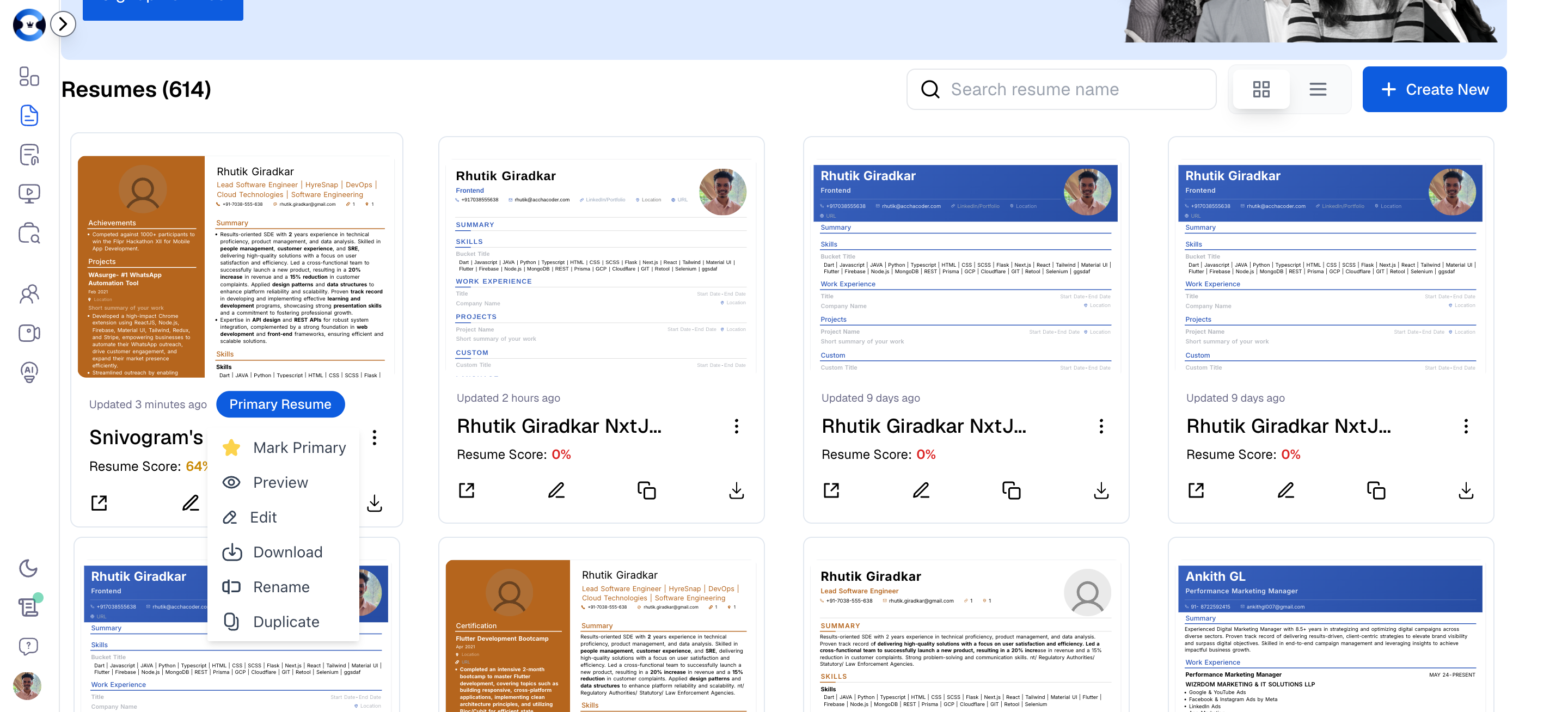
Mark Primary
Sets the selected resume as your default. This is the resume attached automatically when you apply to jobs through NxtJob.ai. Only one resume can be primary at a time. Access via the three-dot menu.Preview
Opens a read-only rendering of the resume, showing exactly how it looks when downloaded or shared. Use this to perform a final visual check before submitting. Access via the three-dot menu.Edit
Opens the full Resume Builder at a URL likeresume.nxtjob.ai/{resume-id}?tab=score. You have full control over every section, template, and styling option. Access via the pencil icon or the three-dot menu.
Download
Exports the resume as a PDF file to your local device. The PDF preserves all formatting, fonts, and layout exactly as displayed in the builder. Access via the download arrow icon or the three-dot menu.Rename
Opens a dialog where you can change the resume’s title. Useful when repurposing a resume for a different role. Access via the three-dot menu.Duplicate
Creates an exact copy of the resume with the same content, formatting, and template. The duplicate appears in your library with a modified name (typically appended with “Copy”). Access via the copy icon or the three-dot menu.Delete
Permanently removes the resume from your library. Deleted resumes cannot be recovered. Access via the three-dot menu.Share
Generates a shareable link for the resume. You can send this link directly to recruiters, hiring managers, or include it on portfolio pages. The shared view is a clean, read-only rendering. Access via the share icon on the card.Primary Resume
What It Is
Your Primary Resume is the default document associated with your NxtJob.ai profile. It is the single resume that the entire NxtJob ecosystem reads from automatically — across the Job Board, Cover Letter Builder, and your public profile.Where Your Primary Resume Is Used
Your primary resume is not just a label. It actively powers features across every NxtJob tool:Why It Matters for Senior Professionals
When you are actively job hunting and applying to multiple positions per week, your primary resume determines:- The quality of your AI-generated cover letters — The Cover Letter Builder pulls your experience, skills, and contact details directly from it. A stale or mismatched primary means your cover letters will not reflect your strongest qualifications for the target role.
- Your ATS match scores — Every match percentage you see across the platform is computed against your primary. If your primary is optimized for one role but you are viewing jobs for another, scores will appear lower than expected.
- Application speed — One-click applications attach your primary automatically. No fumbling to select the right document under pressure.
How to Set It
1
Open the menu
Click the three-dot (…) icon on the resume card you want to designate.
2
Select Mark Primary
Select Mark Primary from the menu.
3
Confirm the badge
The blue “Primary Resume” badge transfers to the selected card. The previous primary loses the badge automatically.