

What Is the Resume Builder?
The Resume Builder is the core editing environment where you craft, refine, and optimize your resume. It combines a document editor, a formatting toolbar, and real-time scoring into a single workspace. When you open any resume for editing, you arrive at a URL likeresume.nxtjob.ai/{resume-id}?tab=score.
The builder is designed so that every change you make — whether adjusting a template, rearranging sections, or tweaking font sizes — is reflected instantly in the live preview on the left side of the screen.
What Can I Do with the Resume Builder?
From the builder interface you can:- Edit every section of your resume with inline formatting (bold, italic, links)
- Switch between professionally designed templates without losing content
- Add, remove, and reorder resume sections
- Customize fonts, colors, and spacing
- Download your resume as a PDF or share it via a public link
- View your Resume Score and ATS Score in the right-hand panel
- Use AI-powered content generation for any section
How Do I Start Editing a Resume?
1
Open the dashboard
Navigate to resume.nxtjob.ai and sign in. You will land on the My Resumes dashboard at
resume.nxtjob.ai/all.2
Select a resume
Click the pencil icon on any resume card, or click the three-dot menu and select Edit. If you do not have a resume yet, click + Create New to create one.
3
Begin editing
The builder opens with the resume preview on the left and the scoring panel on the right. The top toolbar gives you access to Templates, Sections, Style, and Download.
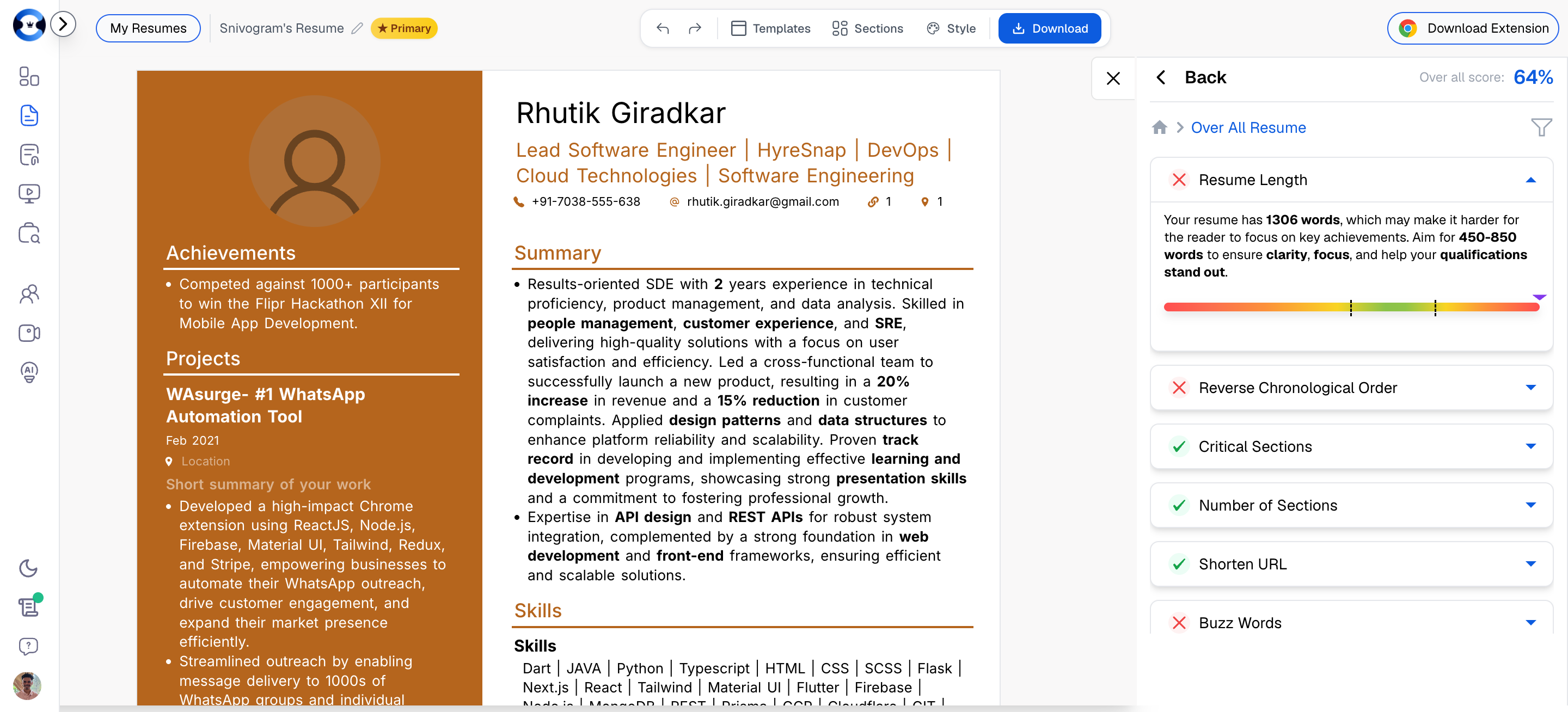
- Top Toolbar — Controls for resume name, undo/redo, Templates, Sections, Style, and Download.
- Left Panel (Editor) — The full resume document with editable sections, inline formatting, and page break indicators.
- Right Panel (Score and Optimization) — The scoring panel with Resume Score and ATS Score tabs, plus the full optimization breakdown.
Top Navigation Options
The top toolbar spans the full width of the builder and provides quick access to the most frequently used controls. Every action you need for formatting, organizing, and exporting your resume lives here.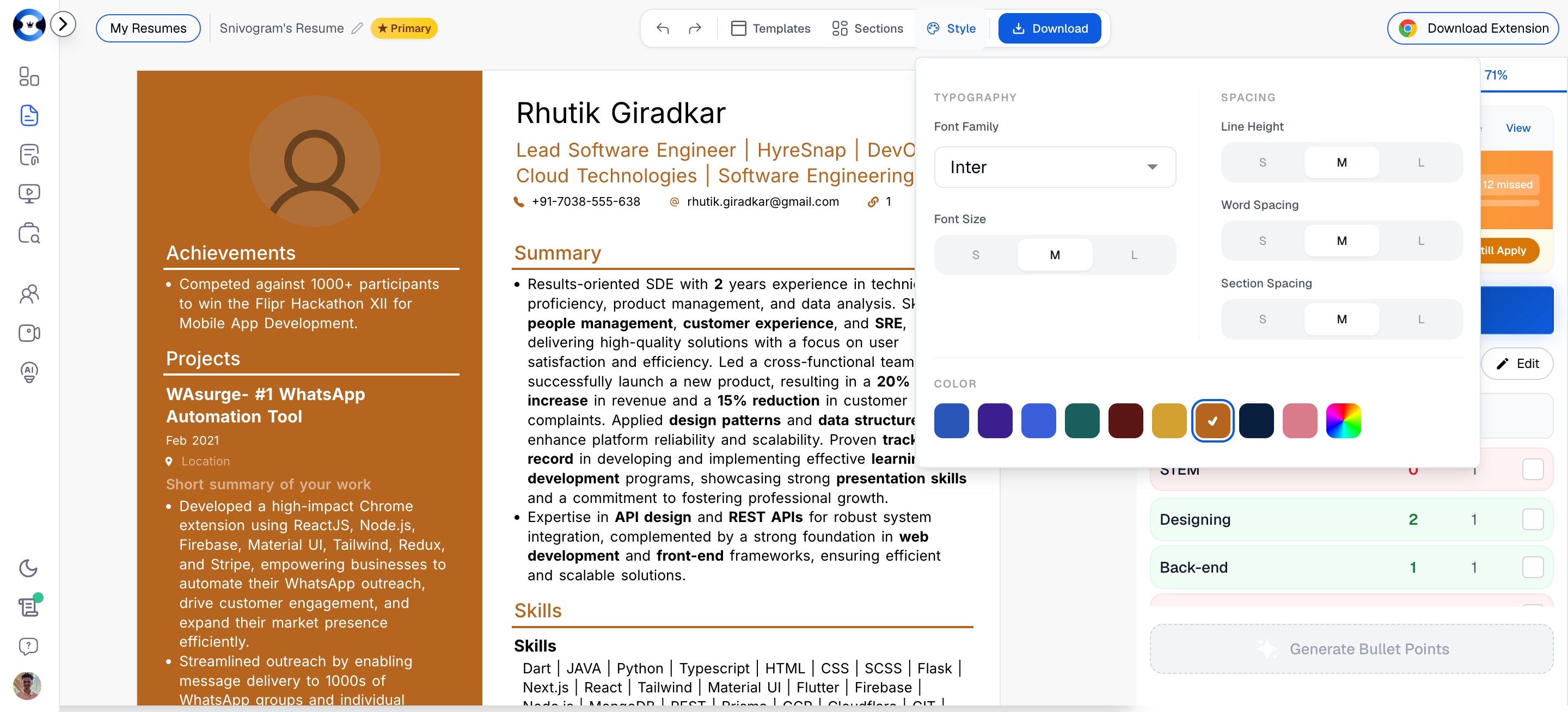
Resume Name and Version
Your resume name is displayed in the top-left area of the toolbar. If the resume has been marked as your primary document, a blue Primary badge appears next to the name. How to view the resume name: The name is always visible in the top toolbar while you are editing. It matches the title you see on the resume card in your dashboard. How to rename a resume:1
Go to the dashboard
Return to the My Resumes dashboard at
resume.nxtjob.ai/all.2
Open the menu
Click the three-dot (…) icon on the resume card you want to rename.
3
Select Rename
Choose Rename from the dropdown menu. A dialog appears where you can type the new name.
4
Save the new name
Confirm your new name. The updated title will appear on the resume card and in the builder toolbar the next time you open it.
Undo and Redo
The undo and redo buttons sit in the top toolbar, represented by left-arrow and right-arrow icons. How to undo changes: Click the Undo button (left-arrow icon) in the top toolbar, or use the keyboard shortcut Ctrl+Z (Windows/Linux) or Cmd+Z (Mac). Each click steps back one action. How to redo changes: Click the Redo button (right-arrow icon) in the top toolbar, or use the keyboard shortcut Ctrl+Y (Windows/Linux) or Cmd+Shift+Z (Mac). Each click restores one undone action. What actions can be undone or redone?Templates
Templates control the visual layout and structure of your resume. Changing a template reformats your content into a new design without losing any data. Your text, sections, and settings all carry over. Click the Templates tab in the top toolbar to open the templates panel.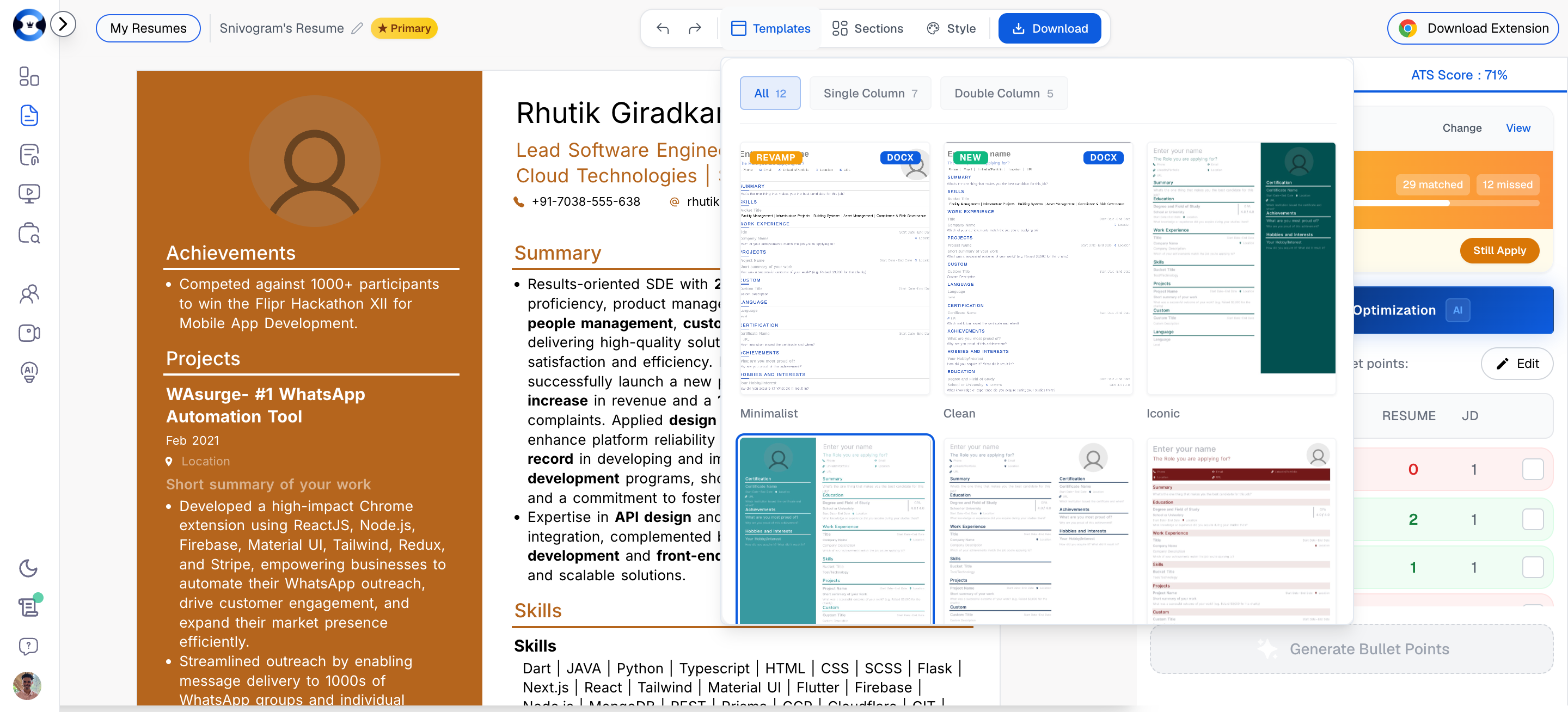
What Resume Templates Are Available?
NxtJob offers 12 professionally designed templates organized into two categories:
You can browse all 12 at once using the All tab, or filter by Single Column or Double Column using the tabs at the top of the templates panel.
What Is the Difference Between Single-Column and Double-Column Templates?
Single-column templates present your resume content in a single, top-to-bottom flow. Every section occupies the full width of the page. This creates a straightforward reading experience that mirrors how most people scan documents: left to right, top to bottom. Double-column templates split the page into two zones. Typically, the main column holds your work experience, projects, and summary, while the sidebar column holds skills, education, certifications, and contact details. This layout fits more information onto one page but introduces a non-linear reading path.When Should I Use a Single-Column Template?
Choose a single-column template when:- You are applying through an Applicant Tracking System and want maximum parsing accuracy
- Your target role is in a traditional industry (finance, consulting, legal, enterprise tech)
- You have extensive work experience that benefits from full-width bullet points
- You want the safest, most universally compatible layout
Can I Switch Templates After Creating a Resume?
Yes. You can switch templates at any time without losing content. When you select a new template from the panel, your text, sections, and formatting are automatically reflowed into the new layout. No data is deleted or overwritten.1
Open the Templates panel
Click the Templates tab in the top toolbar.
2
Browse available templates
Use the All, Single Column, or Double Column tabs to filter. Scroll through the available designs.
3
Click to apply
Click on any template thumbnail to apply it immediately. Your resume content is reformatted into the new layout.
4
Review the result
Check the live preview in the left panel. If you are not satisfied, click a different template or use Undo to revert.
Sections Management
Sections are the building blocks of your resume. The Sections panel lets you control which sections appear, what order they are in, and whether to add new ones. Click the Sections tab in the top toolbar to open the sections panel.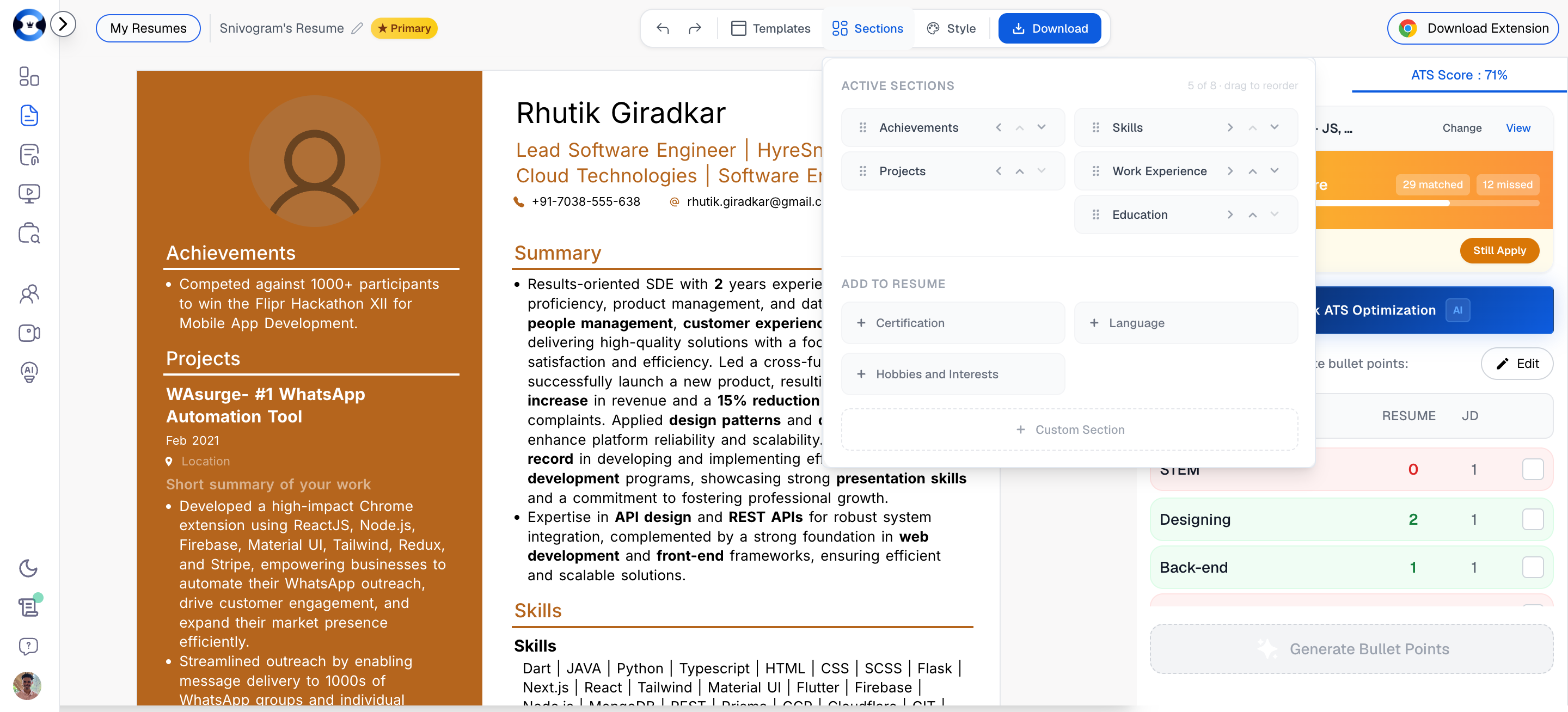
- Active Sections — The sections currently visible on your resume, listed in their display order.
- Add to Resume — A list of available sections you can add with a single click.
How to Add a New Section
1
Open the Sections panel
Click the Sections tab in the top toolbar.
2
Find the section you want
In the Add to Resume area, browse the available sections. Options typically include Summary, Skills, Work Experience, Projects, Education, Certifications, Achievements, Languages, and Custom Sections.
3
Click to add
Click on the section name. It is added to your resume and appears in the Active Sections list.
4
Fill in content
The new section appears in the resume editor on the left. Click into it to begin adding your content.
How to Rearrange Resume Sections
The order of sections on your resume matters. Recruiters spend an average of six seconds on an initial resume scan, so your strongest content should appear first.1
Open the Sections panel
Click the Sections tab in the top toolbar.
2
Drag to reorder
In the Active Sections list, drag any section up or down to change its position. Alternatively, use the Move Up and Move Down arrow buttons available on each section in the editor.
3
Verify in the preview
Check the resume preview on the left to confirm the new order looks correct.
Can I Remove or Hide a Section?
Yes. You can remove a section from your resume using the Delete button that appears on each section in the editor. Removing a section takes it out of your resume but does not permanently delete the content — you can re-add it later from the Sections panel. You can also hide individual fields within a section using Display Settings (covered below), which lets you keep data stored but not visible on the final document.Does Section Order Affect Resume Score or ATS Score?
Section order does not directly change your Resume Score or ATS Score calculations. Both scores evaluate the content and formatting of your resume regardless of which section comes first. However, section order has a practical impact on how recruiters and hiring managers read your resume. The Resume Score playbook recommends placing your most relevant and impressive content near the top of the document, which indirectly supports better outcomes even though the score formula itself is order-agnostic.Style (Fonts and Colors)
The Style panel gives you control over the visual presentation of your resume. You can adjust typography, spacing, and colors to match your personal brand or the expectations of your target industry. Click the Style tab in the top toolbar to open the style panel.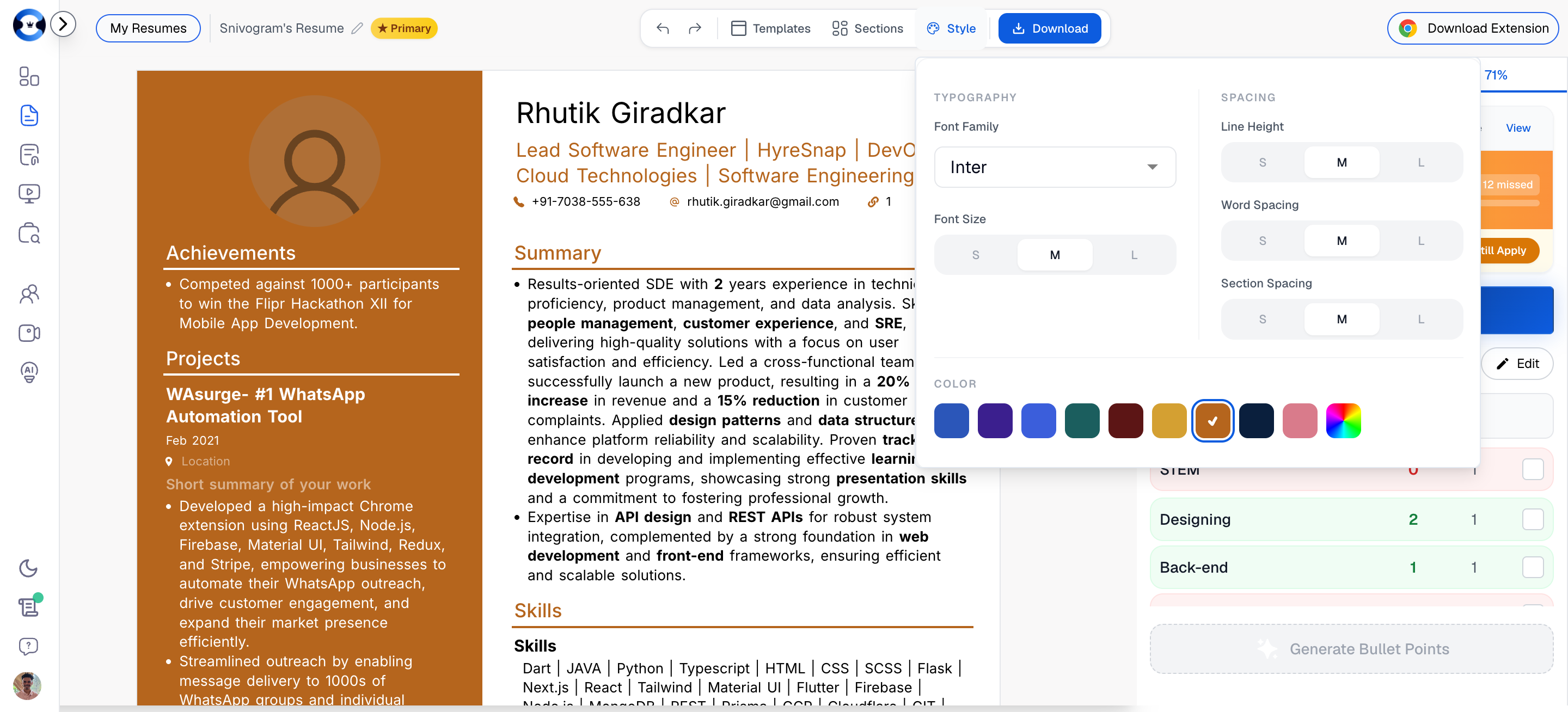
How to Change Font Style
1
Open the Style panel
Click the Style tab in the top toolbar.
2
Select a font family
Under Typography, click the Font Family dropdown. Browse the available professional typefaces and select the one you want. The default is Inter.
3
Choose a font size
Click S (small), M (medium), or L (large) under the Font Size toggle. The change is applied immediately to your resume preview.
4
Adjust spacing if needed
Fine-tune the look with the Line Height, Word Spacing, and Section Spacing toggles. Each offers S, M, and L options.
How to Change Resume Colors
1
Open the Style panel
Click the Style tab in the top toolbar.
2
Pick a color
Under the Color section, click any color swatch. The selected color is applied to accent elements across your resume, including section headings, divider lines, and highlights.
3
Preview the result
Check the resume preview on the left to see how the new color looks with your chosen template and font.
Download Option
The Download button in the top toolbar lets you export and share your resume. You can download a PDF file or generate a shareable link.How to Download My Resume
1
Finish editing
Make sure all your content, formatting, and template choices are finalized in the builder.
2
Click Download
Click the Download button in the top toolbar.
3
Choose your option
Select from the available download and sharing options (described below).
What Download Options Are Available?
How to Download Resume as PDF
1
Click Download in the toolbar
Click the Download button in the top toolbar.
2
Select PDF download
Choose the PDF download option. Your browser will download the file to your default downloads folder.
3
Verify the file
Open the downloaded PDF and verify that all content, formatting, and layout match what you see in the builder preview.
How to Share My Resume Using a Link
1
Click Download in the toolbar
Click the Download button in the top toolbar.
2
Select the share option
Choose the Share via Link option. NxtJob generates a unique URL for your resume.
3
Copy the link
Copy the generated URL to your clipboard.
4
Send the link
Paste the link in an email, LinkedIn message, or portfolio page. Anyone with the link can view a clean, read-only version of your resume.
Section Display Settings
Every section in the builder includes a Settings button (gear icon) that opens display settings for that section. Display settings let you control which fields within a section are visible on your resume without deleting the underlying data.What Are Display Settings?
Display settings are toggles that control the visibility of individual fields within a resume section. For example, the Work Experience section may have fields for job title, company name, dates, location, and bullet points. Display settings let you show or hide any of these fields independently. This is useful when you want to keep information stored in your resume (for future use or other variants) without displaying it on the current version.How to Show or Hide Fields in a Section
1
Locate the section
Find the section in the resume editor on the left side of the builder.
2
Open settings
Click the Settings (gear icon) button on the section. A panel or dropdown appears showing all available fields for that section.
3
Toggle field visibility
Use the toggles to show or hide individual fields. Hidden fields are removed from the visible resume but their data is retained.
4
Close settings
Close the settings panel. The resume preview updates immediately to reflect your changes.