

Common Section Actions
All sections share these standard action buttons in the builder: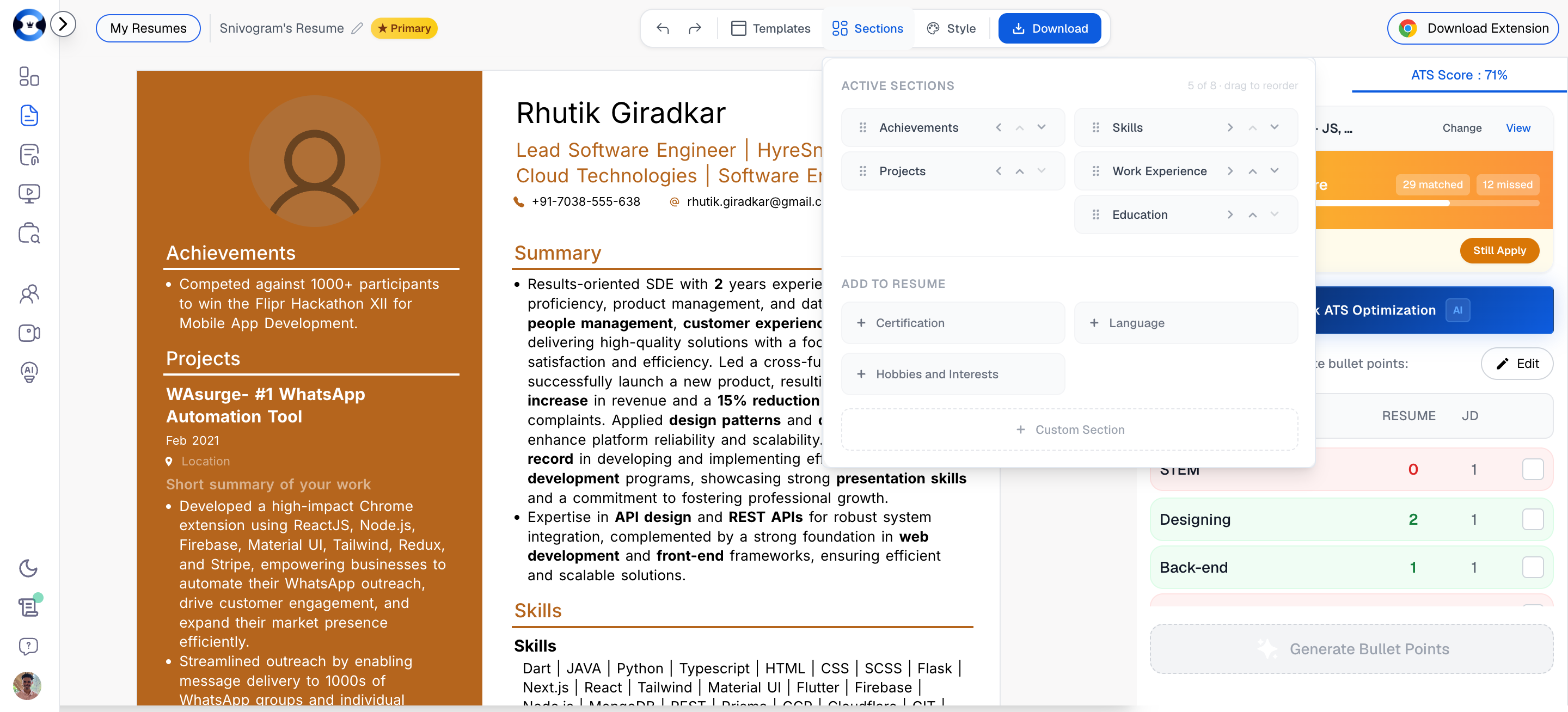
Work Experience Section
The Work Experience section is typically the largest and most important part of your resume. It directly impacts your Resume Score through multiple rules: quantification, action verbs, bold highlighting, bullet count, and more.How to Add a New Work Experience
1
Navigate to Work Experience
Scroll to the Work Experience section in the builder editor.
2
Click Add
Click the + Add button at the bottom of the Work Experience section. A new empty entry appears.
3
Fill in the details
Enter the required fields: Job Title, Company Name, Start Date, End Date (or check “Present” for current role), and Location.
4
Add bullet points
Click into the bullet point area and start typing your accomplishments. Each bullet should begin with an action verb and include quantified results.
5
Use AI Generate (optional)
Click AI Generate to have the AI create initial bullet points based on your job title and company. Edit the generated content to add your specific numbers.
How to Add Multiple Roles Under the Same Company
If you held multiple positions at the same company (e.g., promoted from Senior Engineer to Engineering Manager), you have two approaches: Approach 1: Separate Entries (Recommended) Create a separate Work Experience entry for each role at the same company. This clearly shows career progression and allows each role to have its own bullet points, dates, and title.
Approach 2: Single Entry with Multiple Roles
Use one Work Experience entry with the company name, and list your roles chronologically within the bullet points. This saves space but provides less visual clarity.
How to Edit an Existing Role
1
Click on the entry
Click on any field within the Work Experience entry you want to edit.
2
Modify fields
Edit the job title, company name, dates, location, or bullet points directly. All fields are inline-editable.
3
Edit bullet points
Click on any bullet to edit its text. Use the formatting toolbar to add bold highlighting to key metrics and achievements.
4
Add or remove bullets
Press Enter at the end of a bullet to add a new one. Delete the text and press Backspace to remove an empty bullet.
How to Reorder Work Experiences
Your Work Experience entries should be in reverse chronological order (most recent first). The Resume Score specifically checks for this and will flag entries that are out of order.1
Locate the move controls
Each Work Experience entry has Move Up and Move Down arrow buttons.
2
Click Move Up or Move Down
Click the appropriate arrow to shift the entry one position up or down in the list.
3
Verify order
Ensure your most recent role appears first. Check the Resume Score to confirm the “Reverse Chronological Order” rule passes.
How to Delete a Work Experience
1
Locate the entry
Find the Work Experience entry you want to remove.
2
Click Delete
Click the Delete button (trash icon) on the entry.
3
Confirm deletion
Confirm the deletion when prompted. The entry and all its bullet points are removed permanently.
Work Experience Display Settings
Each Work Experience entry has display settings that control what information is visible on the final resume:
Access display settings by clicking the Settings (gear) icon on the Work Experience entry.
Projects Section
The Projects section follows the same structure as Work Experience and is scored using identical rules. It is particularly valuable for senior professionals who want to highlight strategic initiatives, open source contributions, or cross-functional projects.How to Add a New Project
1
Navigate to Projects
Scroll to the Projects section in the builder. If you do not see it, add it from the Sections menu in the top toolbar.
2
Click Add
Click the + Add button at the bottom of the Projects section.
3
Fill in project details
Enter the Project Name, Dates, and optionally a URL or Link to the project.
4
Add bullet points
Add accomplishment bullets following the same CAR framework used for Work Experience: Action verb + what you did + measurable result.
How to Reorder Projects
1
Use the move controls
Each project entry has Move Up and Move Down arrow buttons.
2
Prioritize by impact
Unlike Work Experience (which must be reverse chronological), Projects can be ordered by impact. Put your most impressive project first.
How to Delete a Project
1
Locate the project
Find the project entry you want to remove.
2
Click Delete
Click the Delete button (trash icon) on the entry.
3
Confirm
Confirm when prompted. The project and all its bullet points are removed permanently.
Projects Display Settings
Similar to Work Experience, each project entry has display settings:
Access these by clicking the Settings (gear) icon on the project entry.
Education Section
How to Add Education
1
Navigate to Education
Scroll to the Education section, or add it from the Sections menu.
2
Click Add
Click + Add to create a new entry.
3
Fill in details
Enter: Degree Type (B.S., M.S., MBA, Ph.D., etc.), Field of Study, Institution Name, Graduation Date, and Location.
Education Display Settings
Certifications Section
How to Add a Certification
1
Navigate to Certifications
Scroll to the Certifications section, or add it from the Sections menu.
2
Click Add
Click + Add to create a new entry.
3
Fill in details
Enter: Certification Name, Issuing Organization, Date Earned, and optionally a Verification URL.
Languages Section
How to Add a Language
1
Navigate to Languages
Scroll to the Languages section, or add it from the Sections menu.
2
Click Add
Click + Add to create a new entry.
3
Set proficiency
Enter the Language Name and select a Proficiency Level: Native, Fluent, Conversational, or Basic.
Adding and Removing Sections
How to Add a Section to Your Resume
1
Open the Sections panel
Click the Sections button in the top toolbar.
2
Browse available sections
The panel shows Active Sections (currently on your resume) and sections available to add: Certification, Language, Hobbies and Interests, and Custom Section.
3
Click to add
Click the + button next to any available section to add it to your resume.
How to Remove a Section
1
Open the Sections panel
Click the Sections button in the top toolbar.
2
Remove from active
Click the remove button next to the section you want to hide. The section data is preserved but hidden from the resume output.
How to Rearrange Sections
1
Open the Sections panel
Click the Sections button in the top toolbar.
2
Drag to reorder
Use the drag handles (six-dot icon) on each active section to drag it to a new position. Alternatively, use the up/down arrows to move sections one position at a time.
3
Verify the order
Check your Resume Score — the scoring engine checks that Skills is the 3rd section and Education is near the end for experienced professionals.