

Installing the Extension
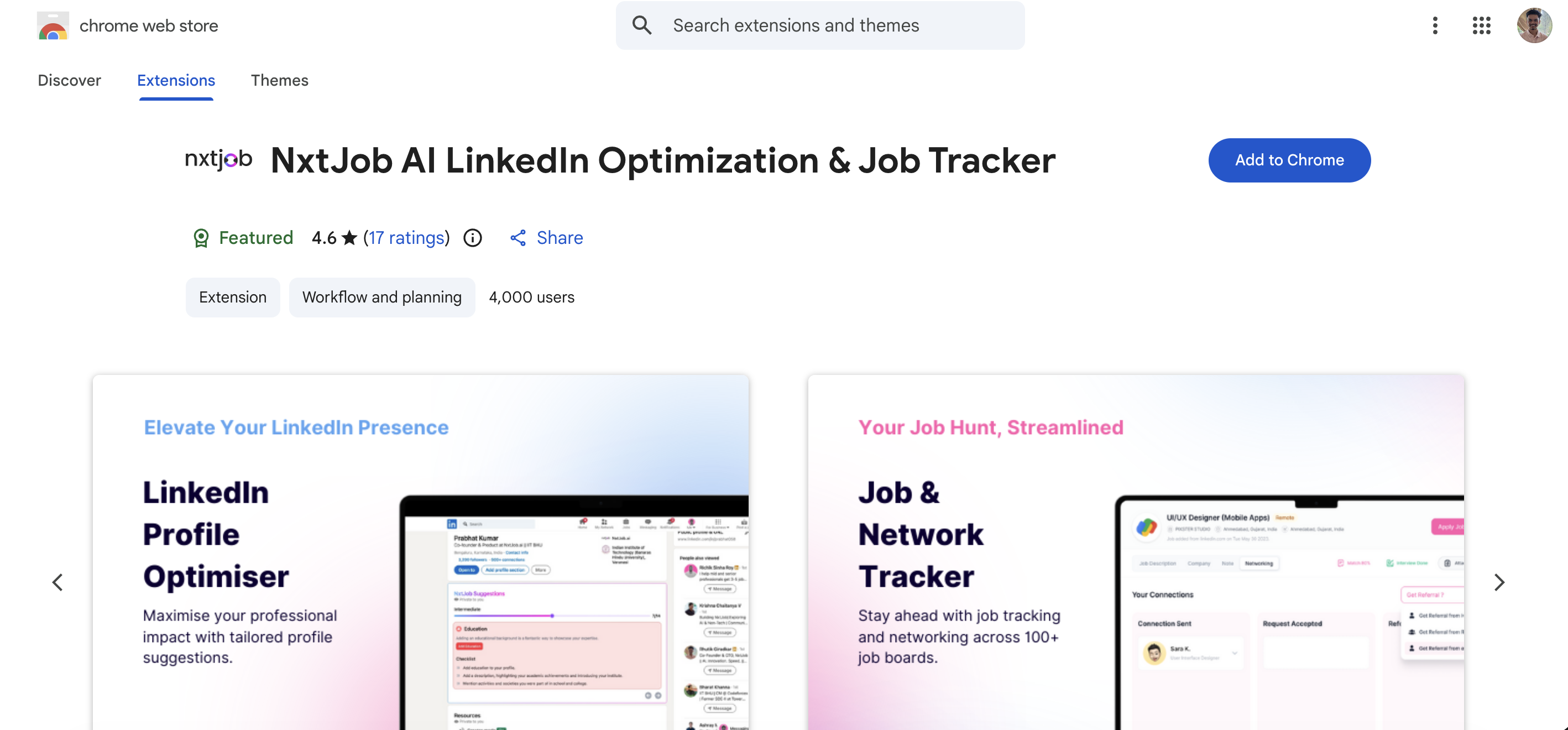
You can install the NxtJob Chrome Extension in two ways.From the Chrome Web Store
1
Open the Chrome Web Store listing
Search “NxtJob” in the Chrome Web Store, or navigate directly to the extension page.
2
Click "Add to Chrome"
A confirmation dialog appears asking which permissions the extension requires.
3
Click "Add extension" to confirm
The NxtJob icon appears in your browser toolbar once installation completes.
From NxtJob Product Pages
Every page on resume.nxtjob.ai and jobs.nxtjob.ai includes a “Download Extension” prompt. Clicking it takes you directly to the Chrome Web Store listing, where you can complete installation as described above.Pin the Extension to Your Toolbar
After installation, the NxtJob icon may be hidden behind Chrome’s Extensions menu. Pinning it makes it accessible with one click on any page.1
Click the puzzle-piece (Extensions) icon in the Chrome toolbar
This opens a dropdown listing all your installed extensions.
2
Find "NxtJob AI LinkedIn Optimization & Job Tracker" in the list
It appears alongside your other installed extensions.
3
Click the pin icon next to it
The NxtJob icon now appears permanently in your toolbar, visible on every page.
Sign In
The extension requires you to be signed in to sync saved jobs, resumes, and ATS scores with your NxtJob account.1
Click the NxtJob icon in your toolbar on any page
The extension popup opens.
2
Click "Sign In"
You are prompted to authenticate with your NxtJob account.
3
Sign in with your NxtJob account
Use the same account you use on resume.nxtjob.ai — Google SSO, LinkedIn, or email are all supported.
4
Start using the extension on supported sites
Once signed in, the extension activates automatically when you visit a supported job portal or LinkedIn page.