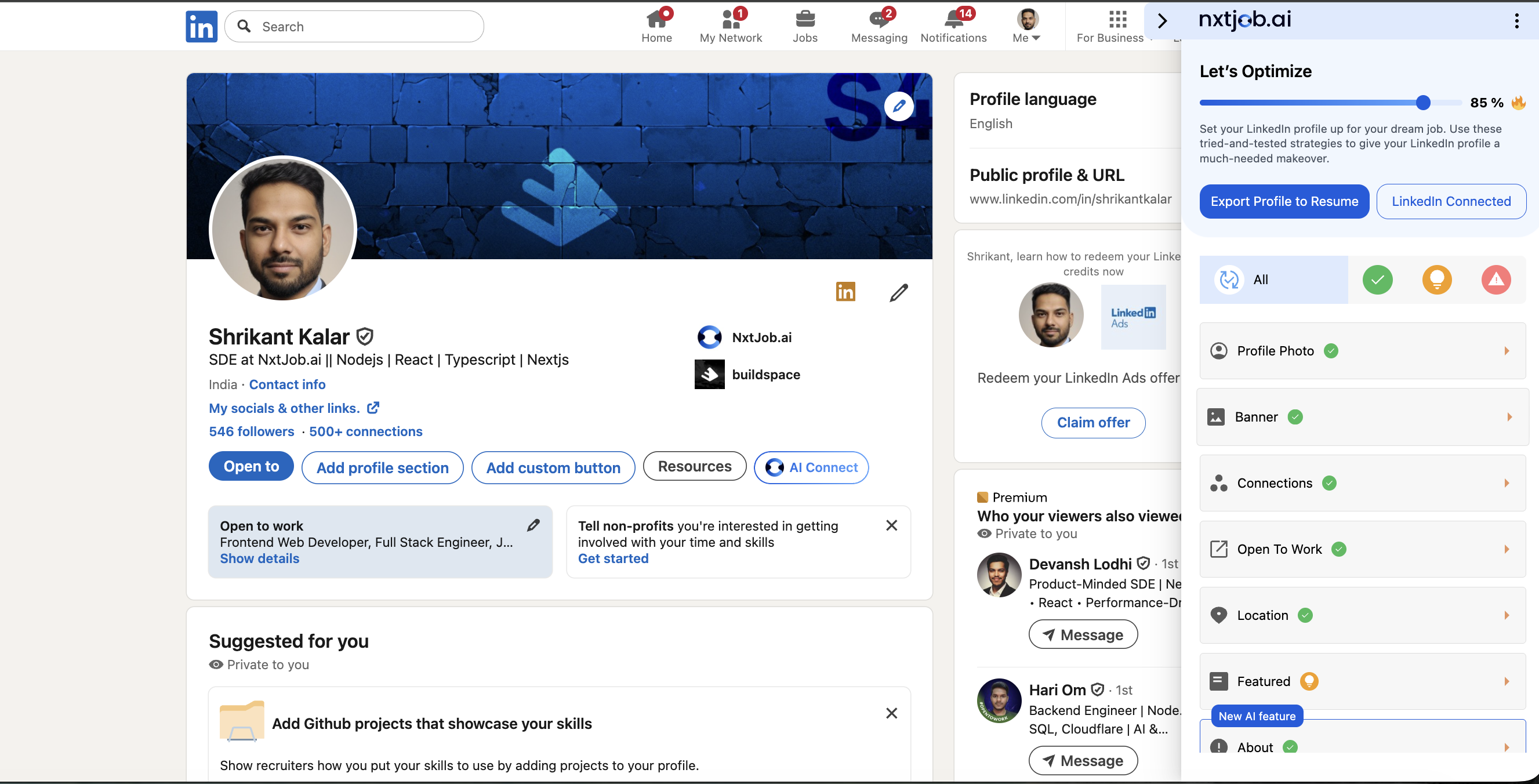
LinkedIn Profile Optimization is a Premium feature. Connect your LinkedIn account from your NxtJob settings to unlock profile scoring and AI-powered headline and summary generation.
Connecting Your LinkedIn Account
Before the extension can analyze your profile, you need a Premium subscription and a connected LinkedIn account. Once connected, two buttons appear at the top of the sidebar:
- Export Profile to Resume — sends your profile data to the Resume Builder
- LinkedIn Connected — confirms your account link is active
If you see a prompt to connect instead of these buttons, go to your NxtJob settings and complete the LinkedIn connection flow.
Your Overall Score
The sidebar displays a circular progress indicator showing your overall optimization score (for example, 85%). This score is a weighted average across all 14 analyzed sections. Below the score indicator, a row of section icons lets you jump directly into any individual section’s detail view.
Profile Sections Analyzed
The extension evaluates 14 sections of your LinkedIn profile. Each section is checked against specific criteria:
Section Status Indicators
Each section displays one of three statuses:
- Looking Good — This section meets all optimization criteria (shown with a green checkmark)
- Recommendations — This section could be improved; expand it to see specific tips (shown in yellow/orange)
- Needs Work — Critical items are missing from this section (shown in red)
Navigating Section Details
Click any section icon on the main panel to open its detail view.
Each detail view includes:
- Section name and a brief description of what the section covers
- Status indicator (Looking Good / Recommendations / Needs Work)
- A short explanation of your current status
- A Checklist of specific items to complete
- More Information with numbered tips explaining why each item matters
- Two action buttons at the bottom:
- Go To Section — scrolls your LinkedIn page directly to that section
- Edit Now — opens LinkedIn’s edit dialog for that section
Use the < and > arrow buttons to move between sections in sequence, or click All Sections to return to the overview panel.
Example: Banner Section
Example: Connections Section
Example: Open To Work Section
Example: Location Section
Example: Featured Section
AI-Powered Generation
Two sections offer AI generation tools to help you write optimized content:
Generate Headline with AI — Available from the Headline section. Produces a keyword-rich headline based on your experience and target roles.
Generate About/Summary with AI — Available from the About section. A “Generate Using AI — Supercharge your headline” card appears with a Start Now button that launches the generation flow.
Your LinkedIn profile is often the first thing a recruiter sees — even before your resume. A fully optimized profile with an 85%+ score significantly increases your visibility in recruiter searches. Work through each section systematically, starting with the ones marked Needs Work.