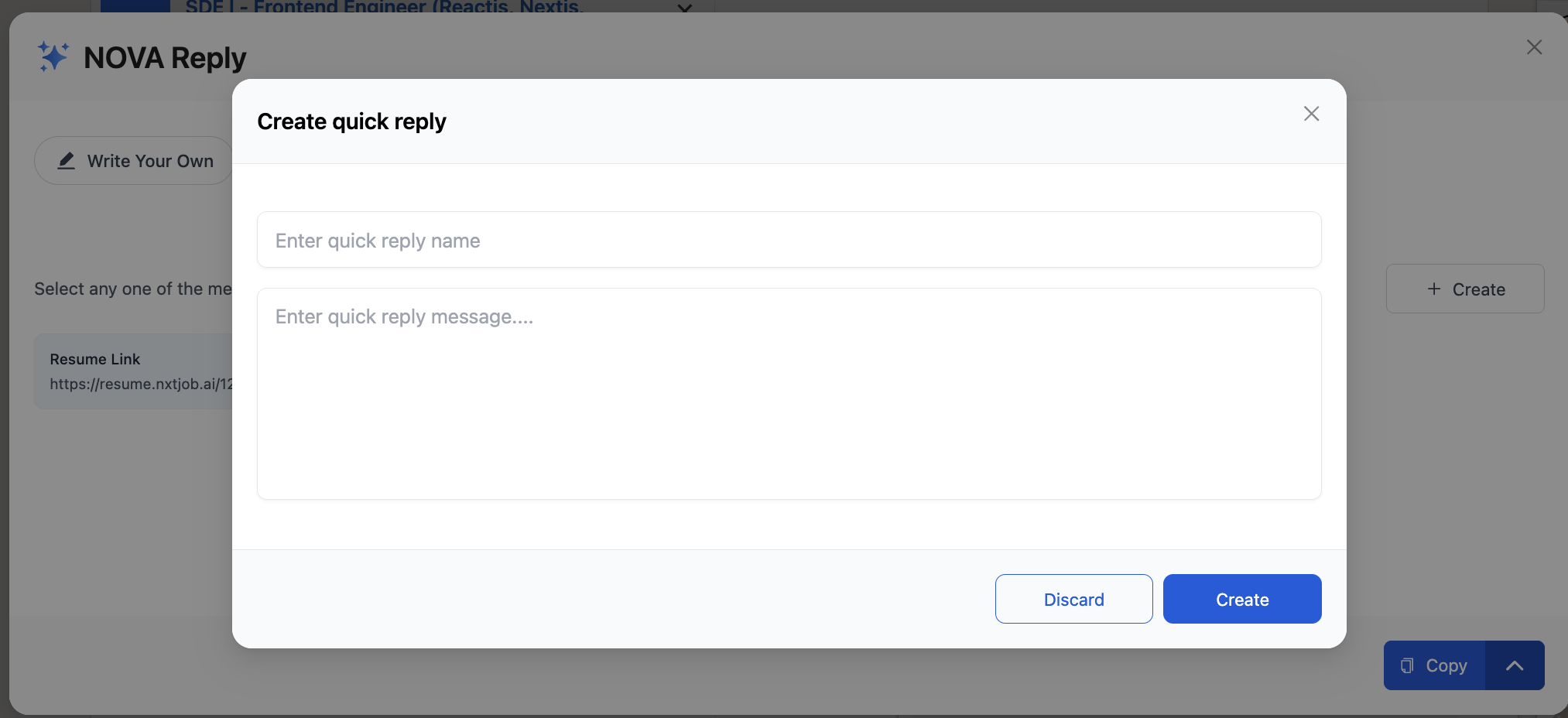
Where Nova Reply Appears
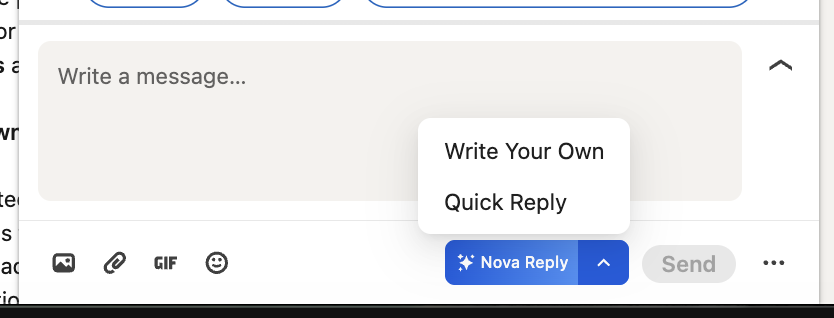
When you open any LinkedIn conversation, a blue Nova Reply button appears in the message composer toolbar, positioned between the emoji/attachment icons and the Send button. Clicking the upward arrow on the button opens a dropdown with two options:- Write Your Own — You provide a directive and the AI generates a message based on your instructions
- Quick Reply — Select from saved message templates or create new ones
Write Your Own Mode
Write Your Own mode lets you describe what you want to say in plain language, and Nova Reply generates a polished, professional message based on the conversation context and your directive.How It Works
1
Click Nova Reply and select Write Your Own
Click the Nova Reply button in the LinkedIn message composer, then select Write Your Own from the dropdown. The NOVA Reply panel opens as an overlay.
2
Enter your directive
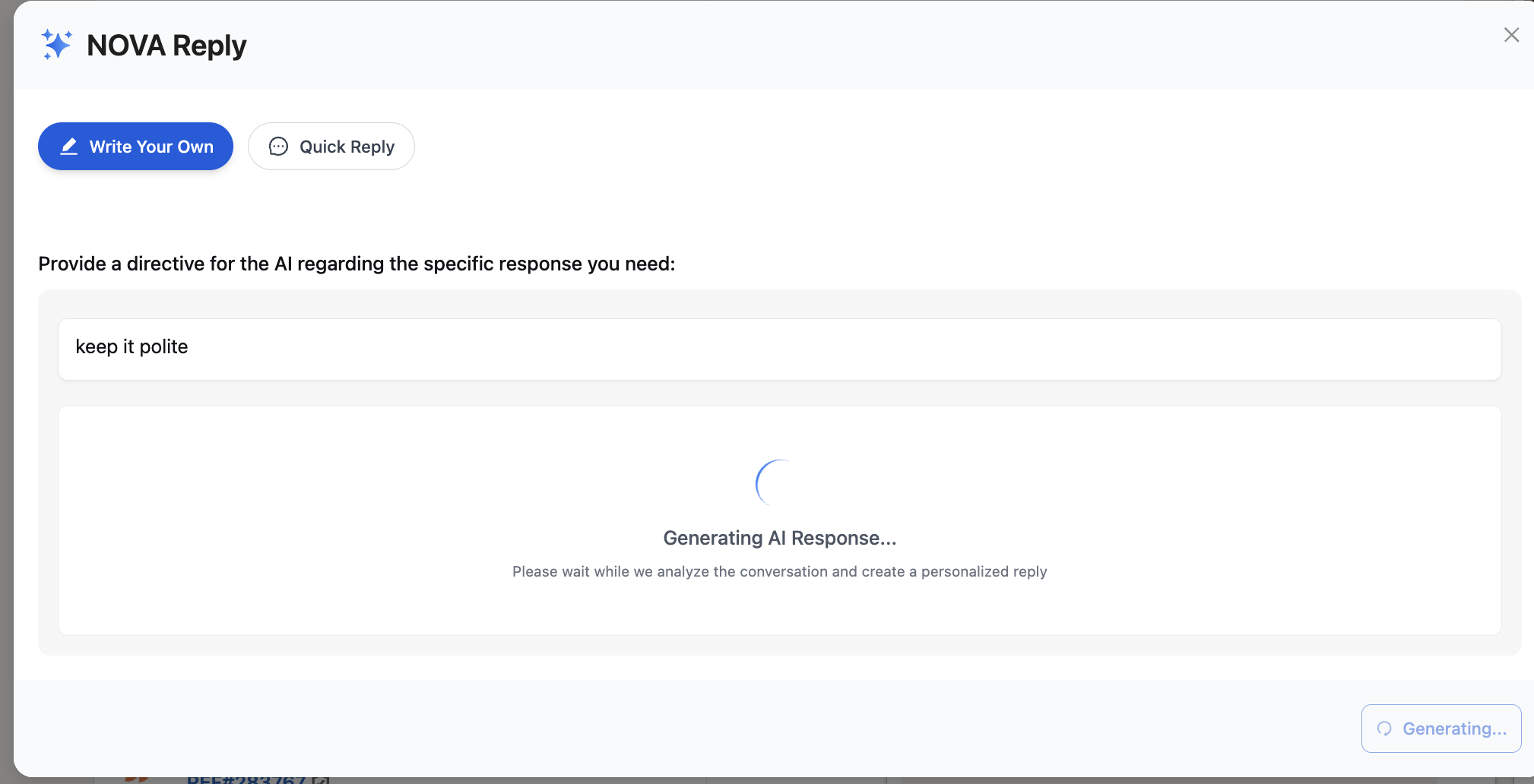
The panel shows two tabs at the top: Write Your Own (selected, highlighted in blue) and Quick Reply. Below the tabs, you see the prompt: “Provide a directive for the AI regarding the specific response you need.” Type your instruction in the text field — for example, “keep it polite” or “thank them for the referral and ask for a 5-minute call.”
3
Wait for the AI to generate a response
After entering your directive, the panel shows a loading state with “Generating AI Response…” and the message “Please wait while we analyze the conversation and create a personalized reply.” The AI reads the full conversation thread and combines it with your directive to craft the message.
4
Review the generated message
The generated message appears in the panel under an AI Response label. The AI produces a complete, ready-to-send message that incorporates conversation context, your background, and your directive. Two buttons appear at the bottom:
- Insert — Places the generated message into the LinkedIn compose field
- Re-Generate — Generates a new version if you are not satisfied with the first draft
5
Insert and send
Click Insert to place the message into the LinkedIn compose field. Review the text, make any final edits, and click Send.
Generated Response Example
The AI generates messages that are specific to the conversation. For example, with the directive “keep it polite” in a conversation about a referral, Nova Reply produced a message that thanked the person by name, referenced specific technical achievements (refactoring components, implementing CI/CD pipelines), and ended with a clear call to action asking for a 5-minute chat.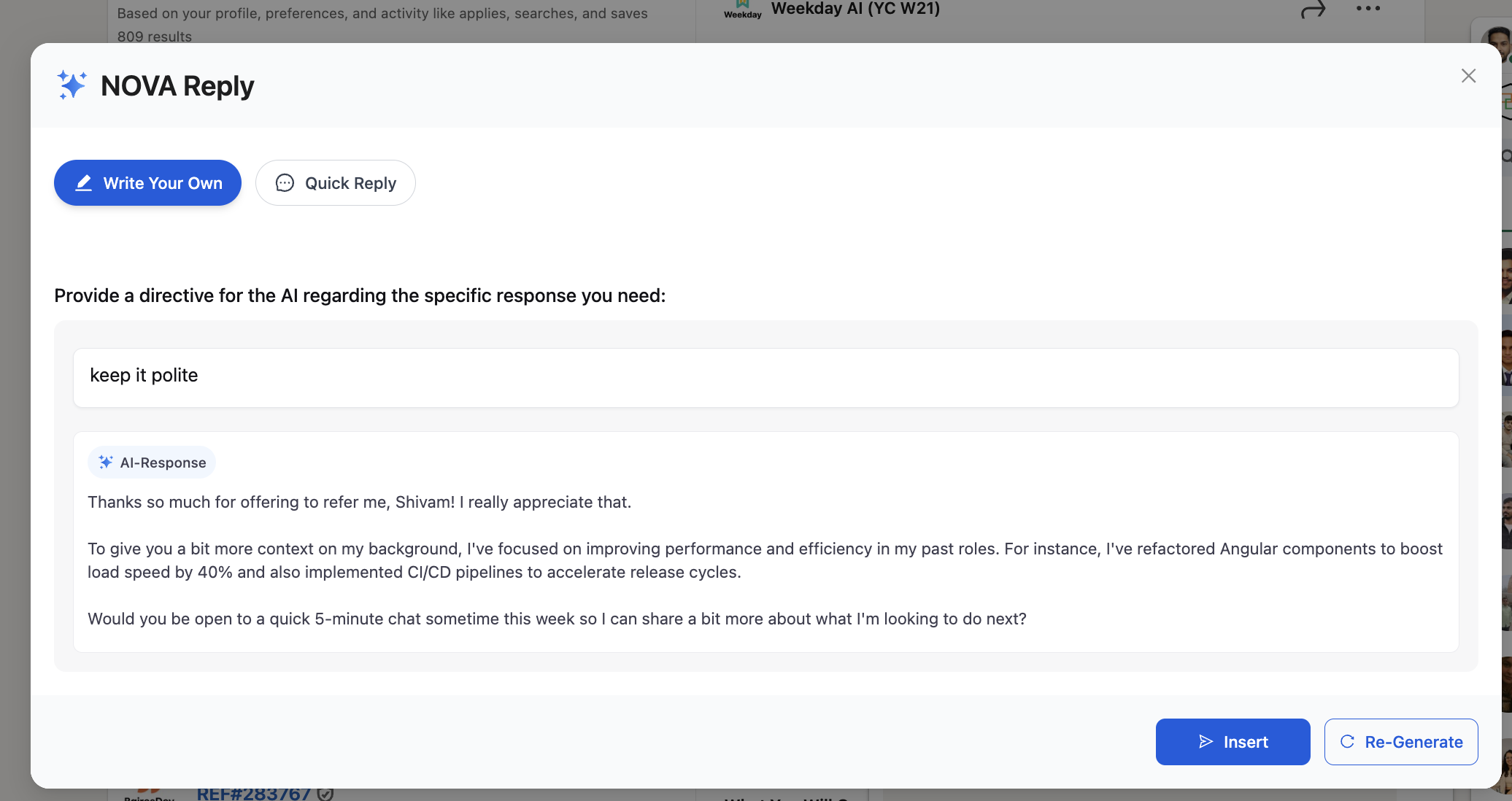
After Inserting
Once you click Insert, the generated message appears in the LinkedIn compose field. You can edit it directly before sending. LinkedIn’s quick suggestion pills (e.g., “Please”, “Thanks”, “May I have your phone number?”) remain available above the compose area.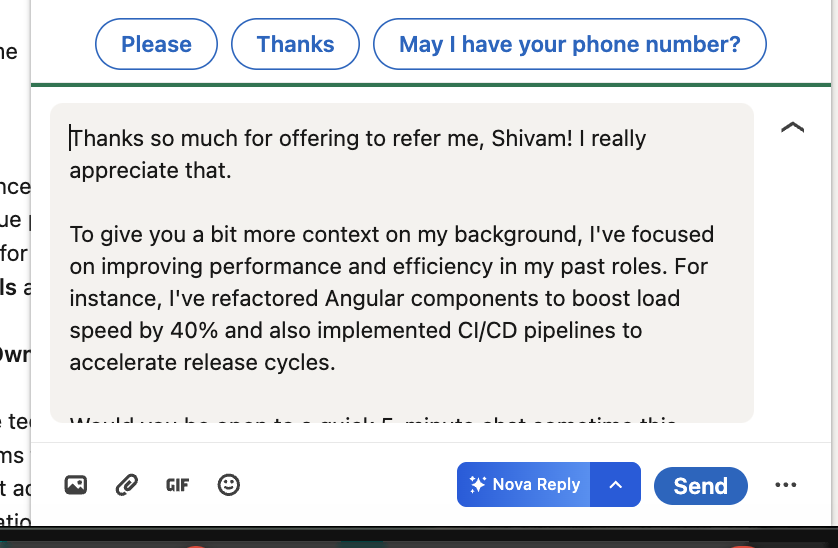
Quick Reply Mode
Quick Reply mode provides instant access to saved message templates. Instead of writing a directive each time, you select from a library of pre-built messages that you can insert with one click.How It Works
1
Click Nova Reply and select Quick Reply
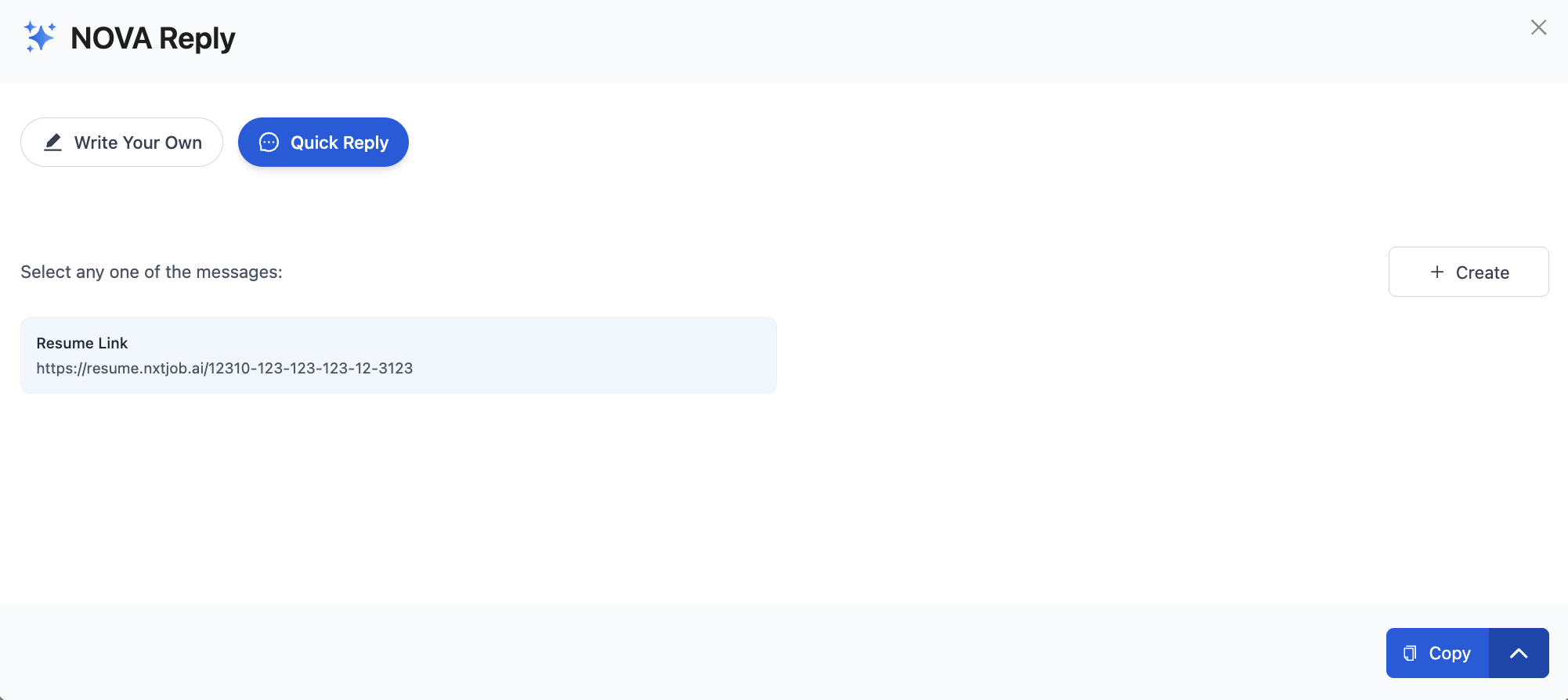
Click the Nova Reply button and select Quick Reply from the dropdown. The NOVA Reply panel opens with the Quick Reply tab active (highlighted in blue).
2
Browse saved templates
The panel shows “Select any one of the messages:” followed by your saved templates. Each template displays its name and a preview of the message content. For example, a “Resume Link” template might contain your resume URL from resume.nxtjob.ai.
3
Select and copy
Click on a template to select it. Use the Copy button in the bottom-right corner to copy the message content to your clipboard, then paste it into the LinkedIn compose field.
Creating a New Template
Click the + Create button in the top-right corner of the Quick Reply panel to create a new template. A “Create quick reply” dialog appears with two fields:- Enter quick reply name — A short name to identify the template (e.g., “Resume Link”, “Referral Ask”, “Thank You Note”)
- Enter quick reply message — The full message text you want to reuse