

How the Score Is Displayed
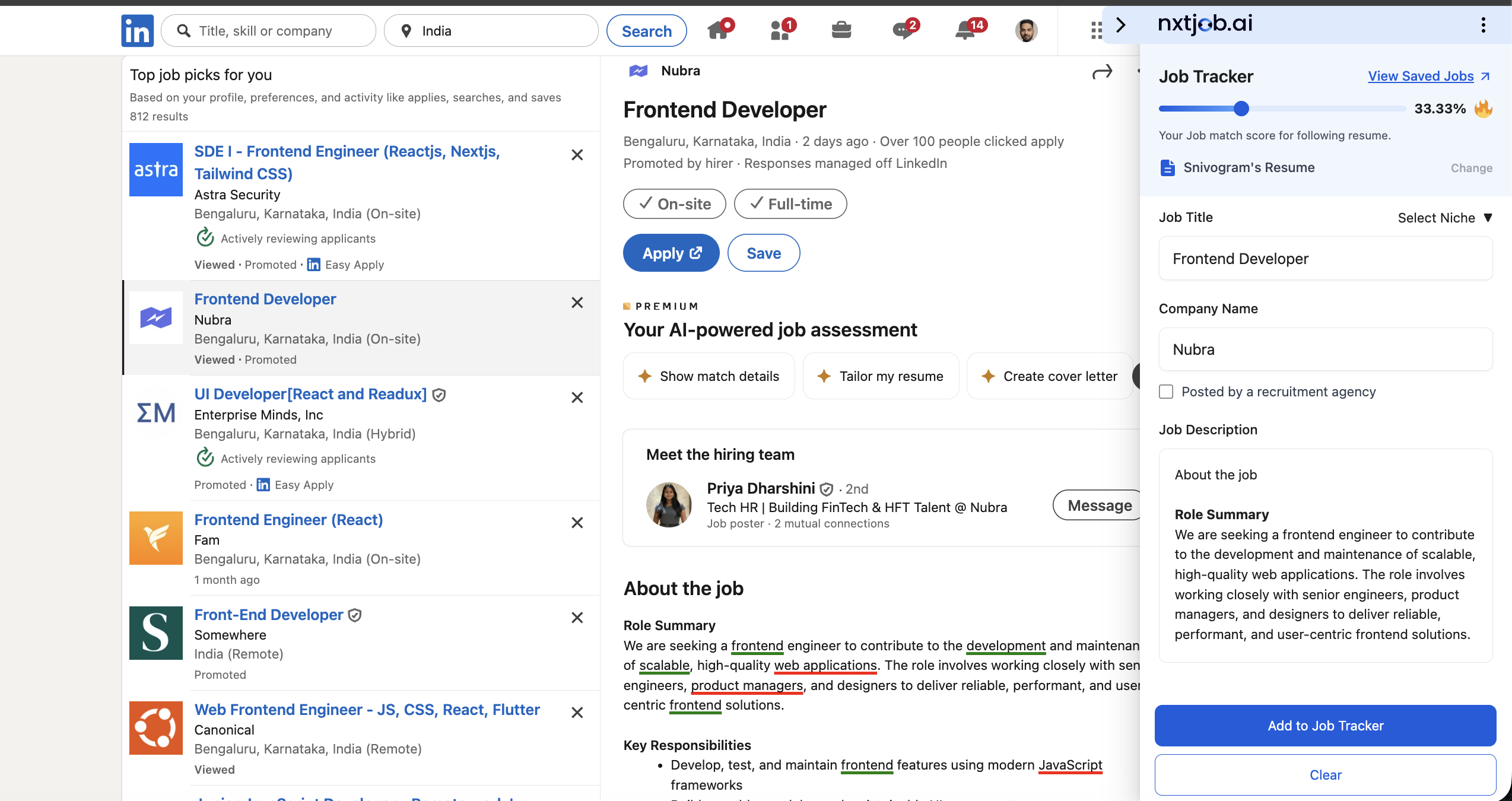
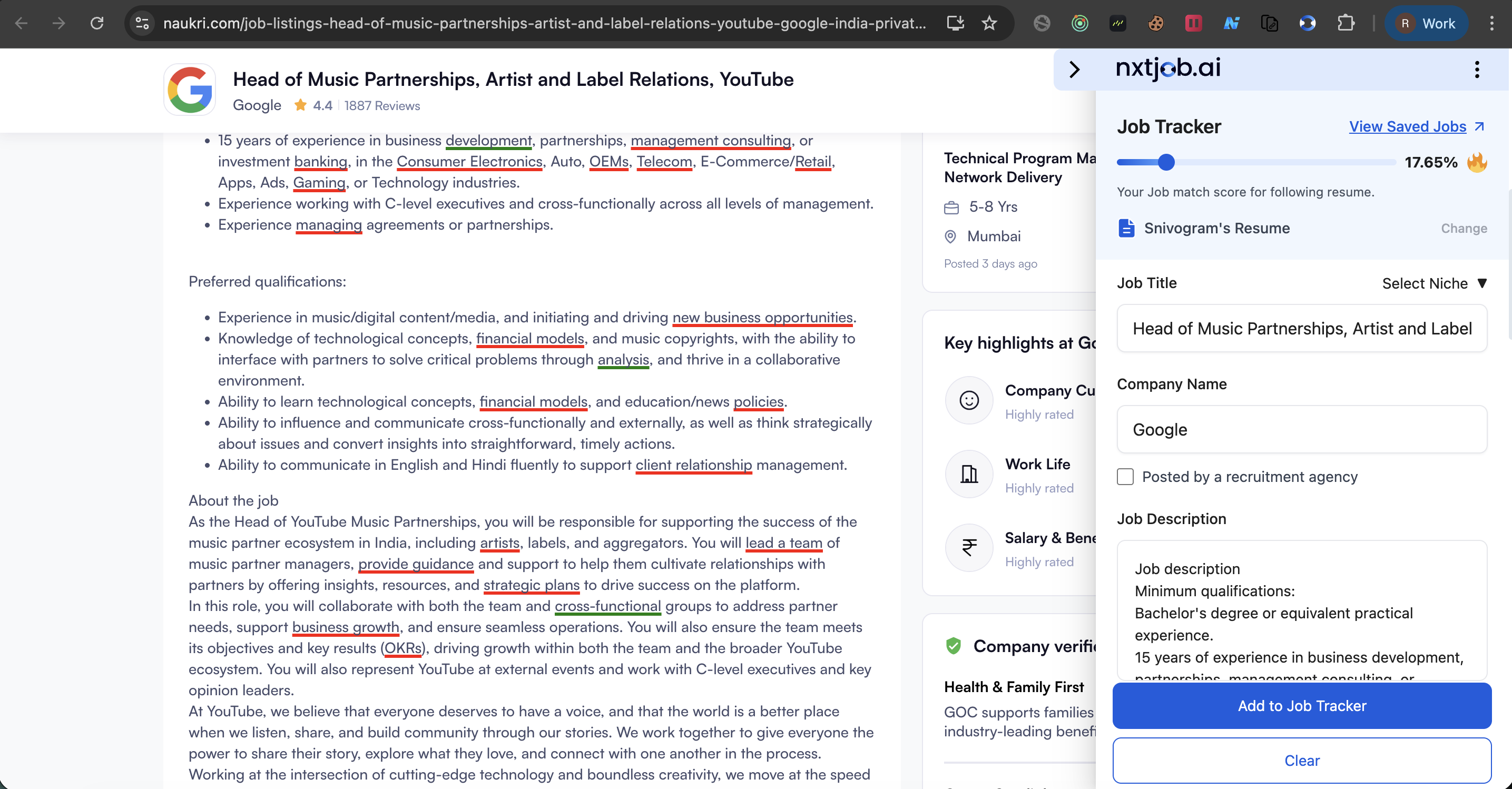
In the Job Tracker sidebar, the ATS score appears near the top with:- The percentage in large text, labeled “Your job match score for following resumes”
- The name of the resume being used for scoring (e.g., “Srivasgarni’s Resume”)
- A “Change” link to switch to a different resume
Keyword Highlighting
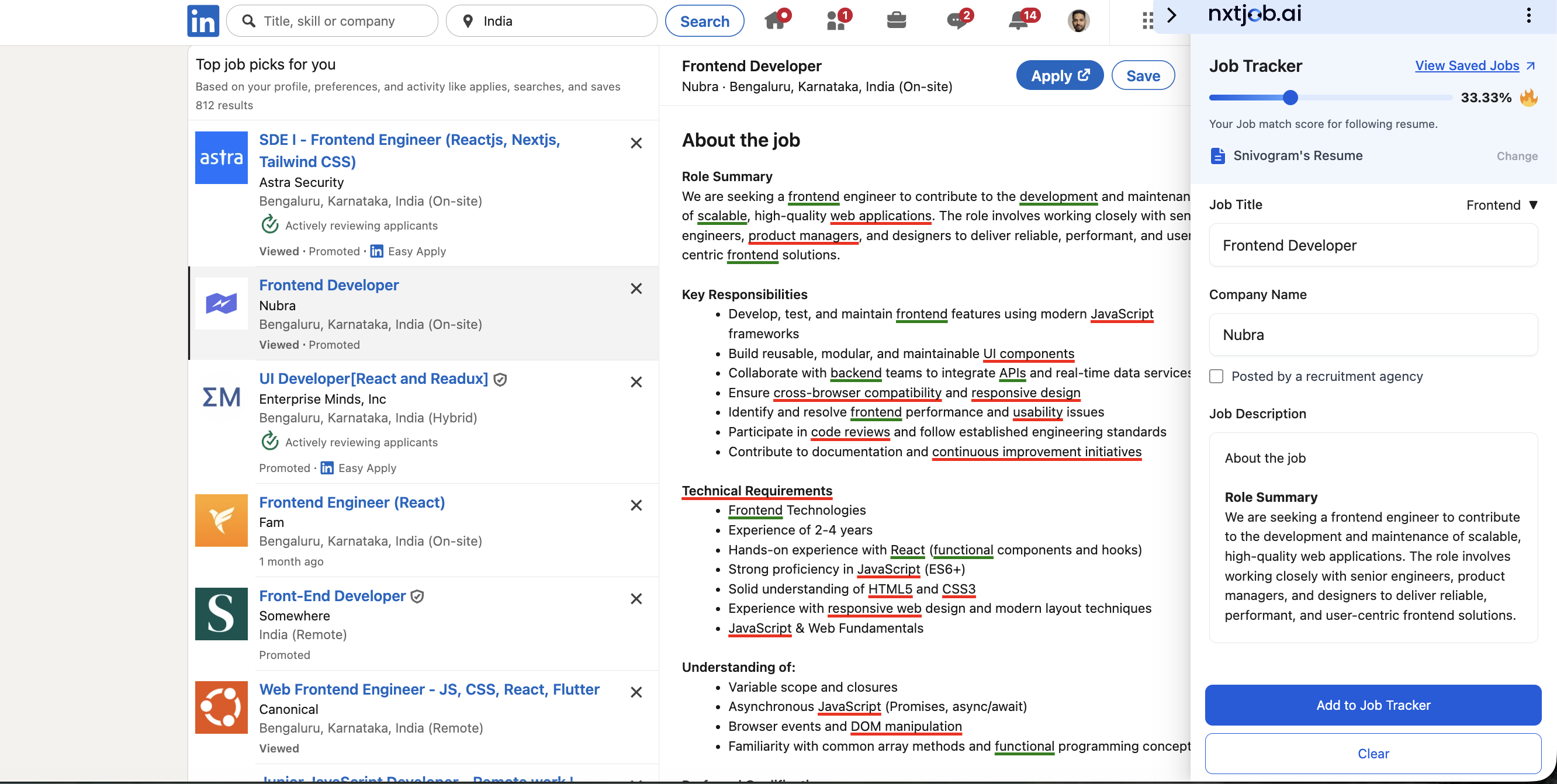
The extension overlays keyword highlights directly on the job portal page:- Green highlighting — Keywords that are present in your resume (matching terms)
- Red highlighting — Keywords that are missing from your resume (gaps)
Changing Your Resume
If you maintain multiple resume variants for different role types, you can switch which resume the score is calculated against.1
Click the Change link
Click the “Change” link next to the resume name in the sidebar.
2
Select a resume
A resume selector appears listing all your resumes from the Resume Builder. Select the resume you want to score against.
3
Review the updated score
The ATS score and keyword highlights recalculate automatically with the selected resume.
Understanding Your Score
Improving a Low Score
If your score is below 50%, follow these steps to close the gap before applying.1
Review the red-highlighted keywords
Look at the red-highlighted terms on the job page. These are keywords present in the job description that are missing from your resume.
2
Open the Resume Builder
Click “Customize Resume” from the job saved success screen, or open your resume directly in the Resume Builder.
3
Add missing keywords to relevant sections
Incorporate the missing terms into your Skills, Experience, or Summary sections where they accurately reflect your background. Do not add keywords that misrepresent your experience.
4
Return to the job page
Navigate back to the job listing. The ATS score and keyword highlights update automatically to reflect your revised resume.