

What Is Find Network?
Find Network is an AI-powered tool that searches LinkedIn for employees and recruiters at the companies you are targeting. Instead of manually searching LinkedIn and guessing who to connect with, Find Network identifies relevant people based on your target role and presents them for one-click connection requests. You can access Find Network from:- The Network tab on any job’s detail page
- The Find Network button on Target Company and Recruitment Agency cards
- The networking actions throughout the platform
Connecting Your LinkedIn Account
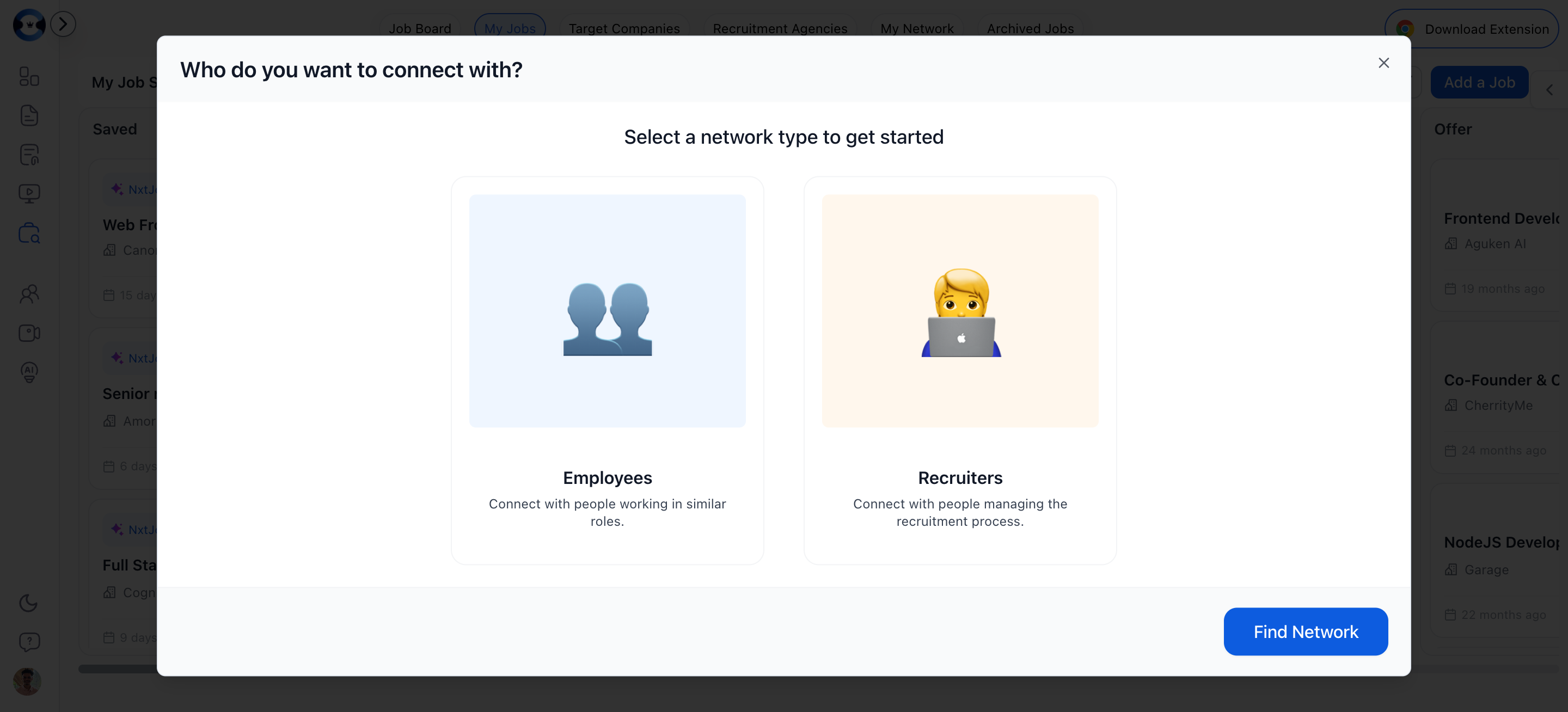
Find Network requires a connected LinkedIn account because the AI automation needs it to search profiles and send connection requests on your behalf.1
Click the LinkedIn button
On the My Jobs toolbar, click the LinkedIn account status button. If you are not connected, it prompts you to link your account.
2
Authorize access
Follow the LinkedIn authorization flow to connect your account to NxtJob.
3
Confirm connection
Once connected, the LinkedIn button shows your connected status. Find Network and LinkedIn Automation features become available.
Employees vs Recruiters
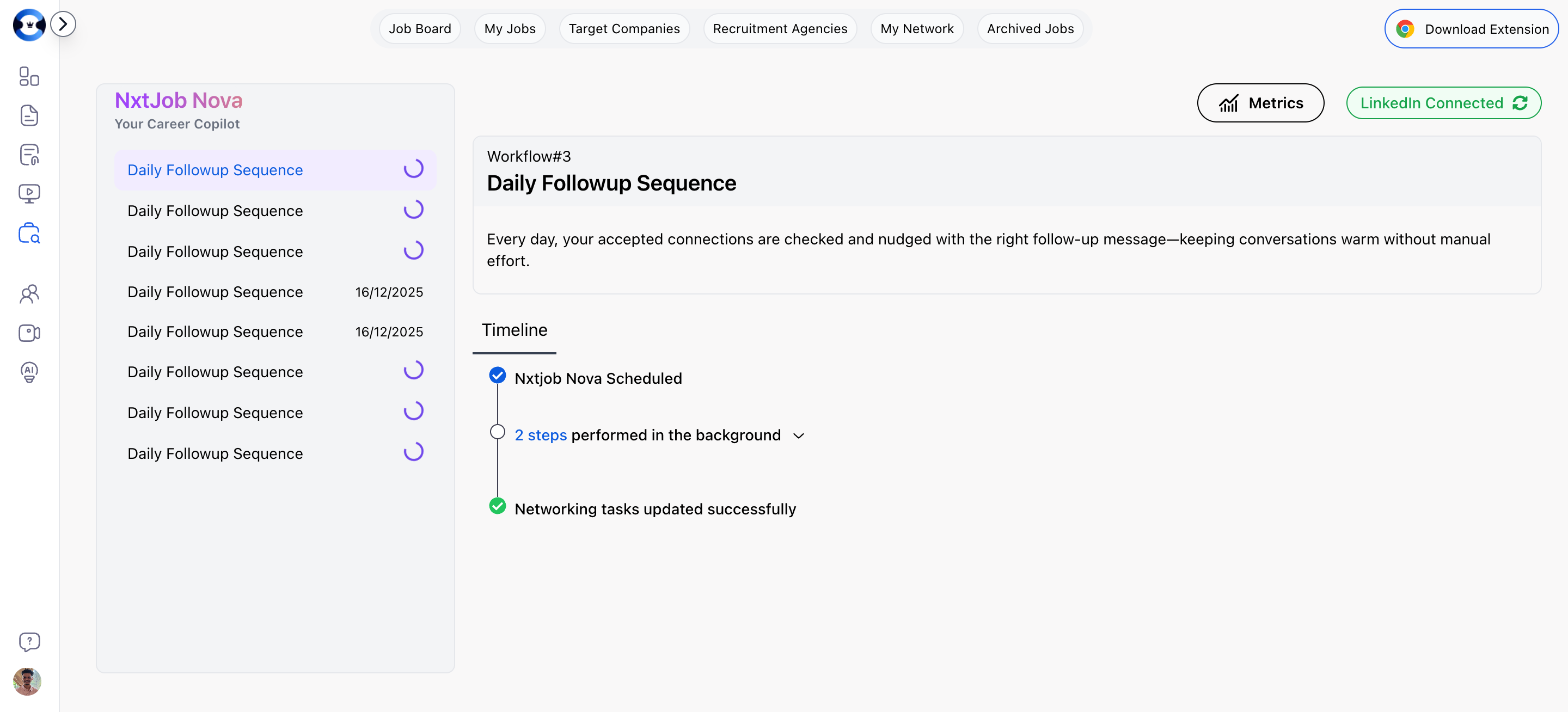
When you open Find Network, you first choose which type of people to search for:
Select your type and the search begins automatically, using the company name from your job or target company as the starting point.
Search Results
Results are displayed in a grid of profile cards. Each card shows:- Profile photo (or initials)
- Name and current title
- Company
- Selection checkbox
View All Results on LinkedIn
A “View all results on LinkedIn” link opens the full search in a new LinkedIn tab, letting you browse beyond what is shown in the dialog.Filtering Results
Three filter options help you narrow the results:Company Filter
Pre-populated with common companies and searchable via the input. Select one or more companies to filter results to people at those specific organizations.Location Filter
Filter by geography. Pre-populated with common locations and searchable. Useful when targeting offices in specific cities or regions.Keyword Search
Type keywords to search by name, title, or other profile attributes. The search debounces (waits 300ms after you stop typing) before fetching results. You can combine multiple filters. Click a filter value again to deselect it, or clear all filters to return to the full result set.Selecting People to Connect With
Click the checkbox on any profile card to select it. You can select up to 5 people at a time. The selection count is displayed so you can track how many you have chosen. If you try to select more than 5, a notification reminds you of the limit. Unselect someone to make room for a different connection.Why the 5-Person Limit?
LinkedIn limits how many connection requests you can send in a short period. The 5-person cap ensures your requests are spaced appropriately and your account remains in good standing.Sending Connection Requests
Once you have selected your people, click the “Connect” button at the bottom of the dialog. What happens next depends on how many people you selected:
After sending, the selected people are added to your My Networks board in the Sent column, where you can track their response and follow up.
Troubleshooting
No Relevant Profiles Appearing
- Verify the company name is correct and matches the LinkedIn company page
- Try broader keywords or remove location filters
- Switch between Employee and Recruiter search types
- Check that your LinkedIn account is connected and active
Connect Button Is Disabled
- You have not selected any profiles. Select at least one person.
- Your LinkedIn connection may have expired. Reconnect your account.
Cannot Select More People
- You have reached the 5-person selection limit. Unselect someone to add a different connection.
- Send your current batch first, then search and select a new batch.