LinkedIn Automation is a Nova-exclusive feature. It requires an active Nova subscription and a connected LinkedIn account.
What Is LinkedIn Automation?
LinkedIn Automation is an AI agent that handles the repetitive parts of professional networking — sending connection requests, crafting personalized messages, following up at the right intervals, and engaging with content. It runs in the background so you can focus on preparing for interviews and evaluating offers rather than manually messaging dozens of people.
The agent follows a structured workflow with four stages, each designed to move connections through your networking pipeline from initial outreach to active engagement.
Why LinkedIn Connection Is Required
The automation agent needs access to your LinkedIn account to:
- Search for relevant employees and recruiters at target companies
- Send personalized connection requests
- Deliver follow-up messages through LinkedIn messaging
- Engage with connections’ posts (likes, endorsements)
Without a connected LinkedIn account, none of the automated networking features function. Connect your account from the My Jobs toolbar.
The Automation Flow
Here is how a connection moves through the automated pipeline:
The Four Workflow Stages
The AI agent operates in four distinct workflow stages, each handling a different part of the networking lifecycle.
Workflow 1 — Find and Connect
The agent searches LinkedIn for relevant people and sends connection requests.
What the agent does:
- Uses the LinkedIn Search Tool to find employees at the target company
- Uses the Profile Scoring Tool to rank search results by relevance to your role
- Uses the LinkedIn Send Invite Tool to send personalized connection requests
- Uses the Track Network Tool to add connections to your My Networks board
After this workflow completes, new connections appear in your Sent column.
Workflow 2 — Send Messages
Once a connection accepts, the agent begins the messaging sequence.
What the agent does:
- Uses the LinkedIn Messaging Tool to send your pitch or follow-up message
- Updates the networking task status on your board
Messages are sent using the templates you configured in your message sequences. The agent respects 24-hour gaps between follow-ups.
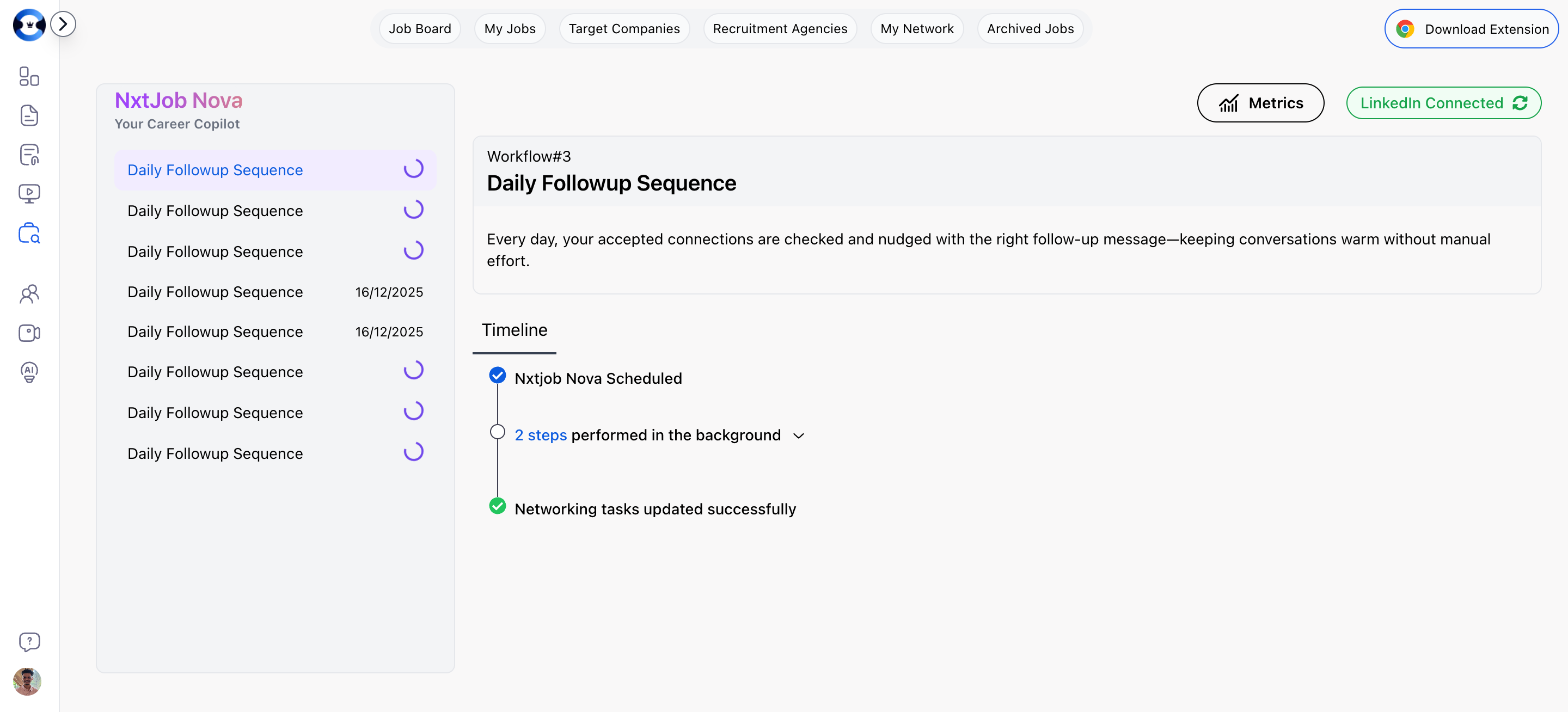
Workflow 3 — Daily Follow-up Sequence
A scheduled workflow that runs daily to keep your networking conversations moving.
What the agent does:
- Fetches all connections in the Accepted column
- Calculates which connections have tasks due today
- Executes the appropriate task (follow-up message, content engagement, skill endorsement)
- Updates task status on your board
This workflow ensures no connection falls through the cracks, even when you are managing 50+ active networking relationships.
Workflow 4 — Engagement Handling
When a connection replies to your messages, the agent transitions the conversation.
What the agent does:
- Moves the connection to the Engagement column
- Drafts an AI reply based on the conversation context
- Tracks the last engagement date and the message that was sent
At the Engagement stage, you take over. The AI provides a drafted reply, but you decide what to send. This is where human judgment matters — negotiating referrals, scheduling calls, and building genuine professional relationships.
Status Transitions Explained
What You Do at the Engagement Stage
When a connection moves to Engagement, automated messaging stops. This is intentional — real relationship building requires a human touch. At this stage:
- Review the conversation — Read the message thread to understand context
- Send a personalized reply — The AI drafts a reply, but edit it to sound like you
- Ask for what you need — A referral, an introduction to the hiring manager, or insights about the role
- Update the status — Move to Converted (Referred/Interviewing/Screening) when the outcome is clear
The Dead Column
Connections land in Dead when all four follow-up tasks have been executed and the person did not respond. This is normal — not every connection will reply. Senior professionals typically see a 20-40% response rate on personalized outreach.
Dead connections are not wasted effort. The person is now in your LinkedIn network and may respond to future outreach when timing is better.
Do not rely solely on automation. The most successful networking happens when you combine AI-powered outreach at scale with genuine, personalized engagement for the people who respond. Let the AI handle the volume; you handle the relationships.
Monitoring Automation
You can monitor what the AI agent is doing at any time:
- My Networks board — Cards move between columns as the agent works
- View Workflow — Click “View Workflow” on any AI-created network card to see the detailed step-by-step execution log
- Task progress — Each card shows how many tasks have been completed (e.g., “2/4 done”)
If something does not look right, disable automation for that specific connection or turn off the master automation toggle to pause everything.