
What Is the Job Detail View?

When you click on any job card or select View Job Details from the dropdown, you open the full detail page for that job. This is where you access the complete job description, run AI-powered tools, manage your network for the role, and track everything in one place.
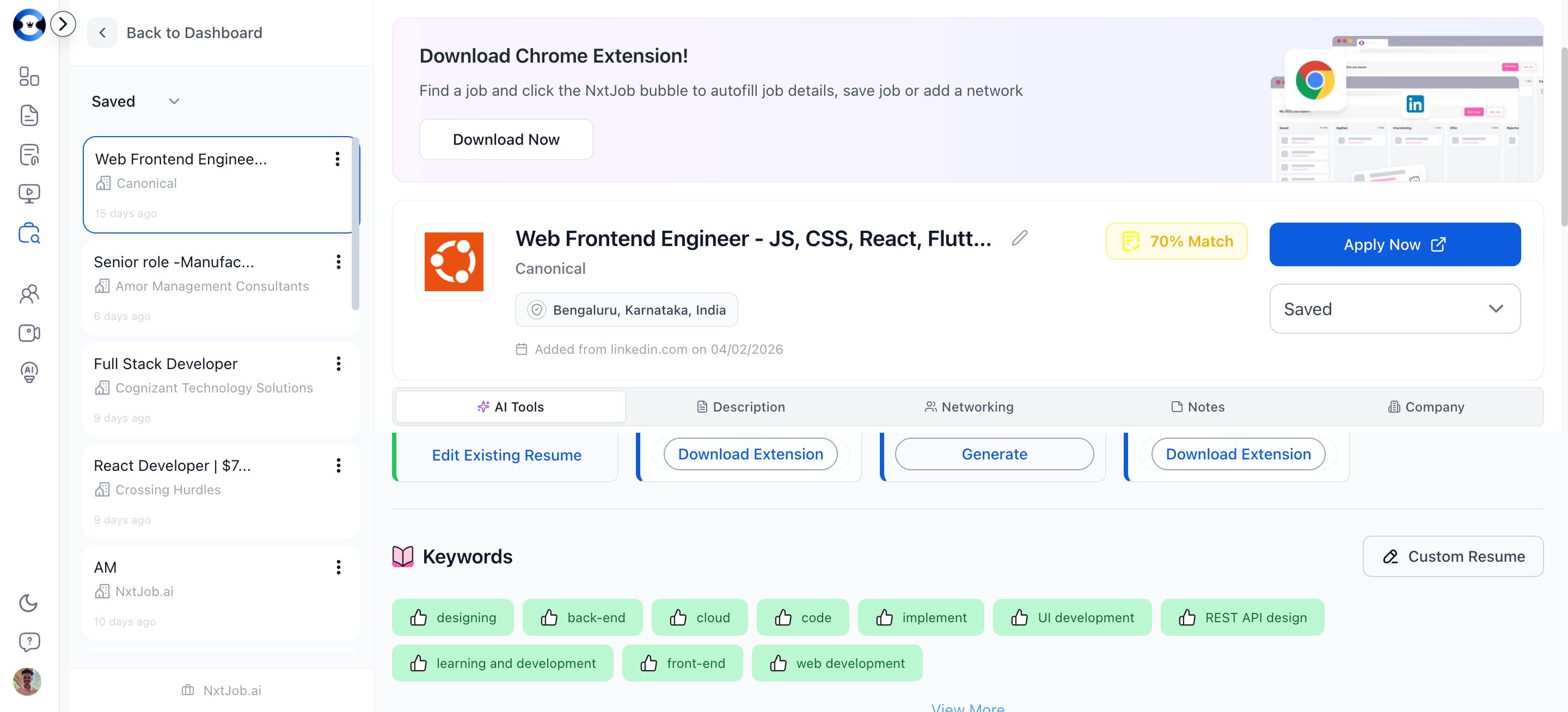
Job detail view showing tabs, description, and action buttons
The job detail page has seven tabs in a sticky navigation bar:
TabWhat It Shows
KeywordsKeyword analysis comparing the job description against your resume
DescriptionThe full job description text
TipsApplication tips and insights for this specific job
NetworkPeople you are networking with at this company
AI ToolsAI-powered actions organized by application stage
NotesYour private notes about the job
CompanyCompany details and background (when available)
Click any tab to scroll directly to that section.

Viewing and Editing Job Details

Job Header

The header displays:
  • Job Title and Company Name
  • Match Score — A color-coded percentage showing how well your resume matches this job
  • Status Dropdown — The current pipeline stage with an option to change it
  • Apply Now — Opens the original job posting in a new tab

Editing the Job Description

If the job description was pasted incorrectly or you want to add supplementary information, you can edit it directly from the Description tab.

Changing Job Status

Use the status dropdown in the header to move the job between stages:
  • Saved — In your research queue
  • Applied — Application submitted
  • Screening — Under initial review
  • Interviewing — In active interviews
  • Offer — Offer received
  • Rejected — Process ended
Changing the status here immediately updates the card position on your My Jobs board.

Match Score (ATS Keywords)

The Keywords tab shows a detailed breakdown of how your resume aligns with this job description:
  • Match percentage — Color-coded: green (80%+), yellow (50-79%), orange (20-49%), red (below 20%)
  • Matched keywords — Terms from the job description that appear in your resume
  • Missed keywords — Terms you need to add to improve your match
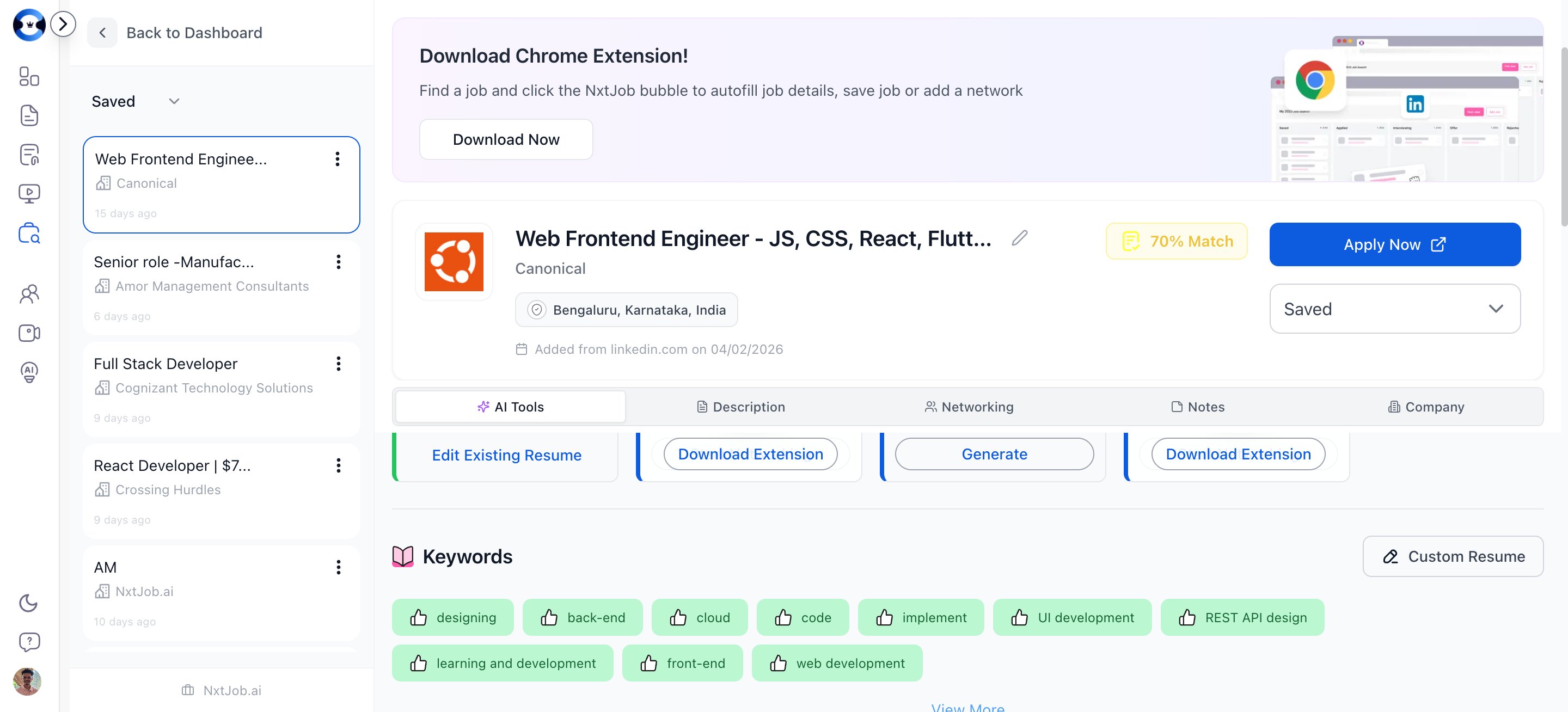
Click the match score badge in the header to view the full keyword analysis.
ATS match score showing keyword analysis with matched and missed keywords
If your match score is below 75%, head to the Resume Builder and use One-Click ATS Optimization against this specific job. You can access it directly from the AI Tools tab below.

AI Tools

The AI Tools tab organizes AI-powered actions into three stages that match your job search progression:

Application Stage

ToolWhat It Does
Customize ResumeGenerates a tailored version of your resume optimized for this job description
Ask for ReferralDrafts a referral request message you can send to connections at the company
Cover LetterCreates a targeted cover letter based on the job description and your resume
Follow Up MessageGenerates a professional follow-up email after applying

Interview Stage

ToolWhat It Does
Interview PrepCreates practice questions and frameworks based on the job requirements
Questions to AskGenerates thoughtful questions to ask your interviewer
Thank You After InterviewDrafts a thank-you email after an interview round
Follow Up After InterviewCreates a follow-up message if you haven’t heard back
Reschedule InterviewDrafts a professional rescheduling request
Decline InterviewCreates a polite decline message if you choose not to proceed

Offer Stage

ToolWhat It Does
Offer AcceptDrafts a professional acceptance message
Offer DeclineCreates a polite decline message while preserving the relationship
Each tool is a collapsible section. Click to expand and generate the content.

Managing Your Network for This Job

The Network tab shows all connections associated with this job — employees, hiring managers, and recruiters you have contacted.

Adding Networks from Job Detail

Click Add Network to open a dropdown with two options:
  • Connect to Employees — Searches LinkedIn for people working in similar roles at the company
  • Connect to Hiring Managers — Searches LinkedIn for recruiters and hiring managers at the company
Both options open the Find Network dialog. See Find Network for the full workflow. Network cards show each connection’s name, title, profile photo, and current outreach status.

Action Bar

A sticky action bar at the bottom of the page provides quick access to the most common actions:
ButtonWhat It Does
Apply NowOpens the original job posting in a new tab
NetworkShows your network count and scrolls to the Network section
SaveToggles the job’s saved/bookmarked status
ShareShares the job using your device’s native share functionality

Adding Notes

The Notes tab is your private scratchpad for each job. Use it to track:
  • Why you are interested in this role
  • Key contacts or referral sources
  • Interview preparation notes
  • Compensation details discussed
  • Follow-up reminders
Notes are visible only to you and persist across sessions.
Use notes to track details that do not fit neatly into other categories — salary expectations, recruiter names, interview dates, or things you want to mention in your next conversation. This context becomes invaluable when you are managing 10+ active applications simultaneously.