

What Is My Networks?
My Networks is a kanban board that tracks every professional connection you are building during your job search. Each person you connect with — whether through Find Network, Target Companies, or manual addition — becomes a card that moves through outreach stages from first contact to active engagement or referral. This is where you manage the human side of your job search: sending pitch messages, following up, engaging with content, and converting connections into referrals and interview opportunities.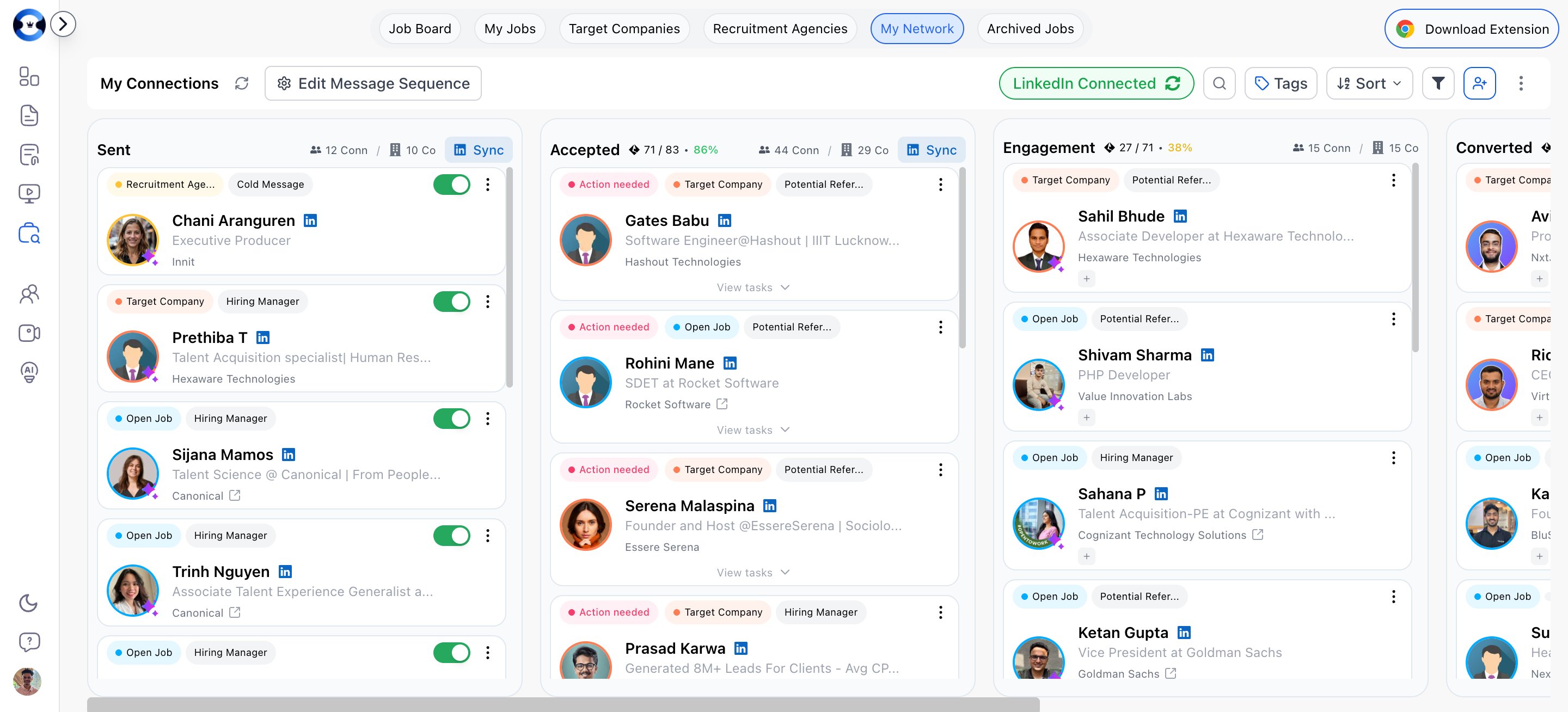
Network Status Columns
The board has five columns:What “Dead” Means
A connection moves to Dead when they have not responded after all follow-up tasks have been completed. This does not mean the relationship is over — it simply means the automated sequence has ended and no response was received.What “Converted” Sub-statuses Mean
- Referred — The person provided a referral to the company
- Interviewing — You are now in an interview process partly through this connection
- Screening — The company is screening your application through this connection
Adding Networks
Networks are typically added through:- Find Network — Search LinkedIn for employees/recruiters from a job detail or company card (Nova only)
- Manual addition — Add a connection directly if you met someone outside the platform
Network Types
Each connection is also classified by the person’s role relative to your job search:- Potential Referer — Someone in a similar role who could provide an internal referral
- Hiring Manager — A hiring manager or team lead involved in the hiring decision
- Top Management — A senior executive at the company
Networking Tasks
Once a connection accepts your request, the platform creates a sequence of four tasks designed to build the relationship and earn a referral: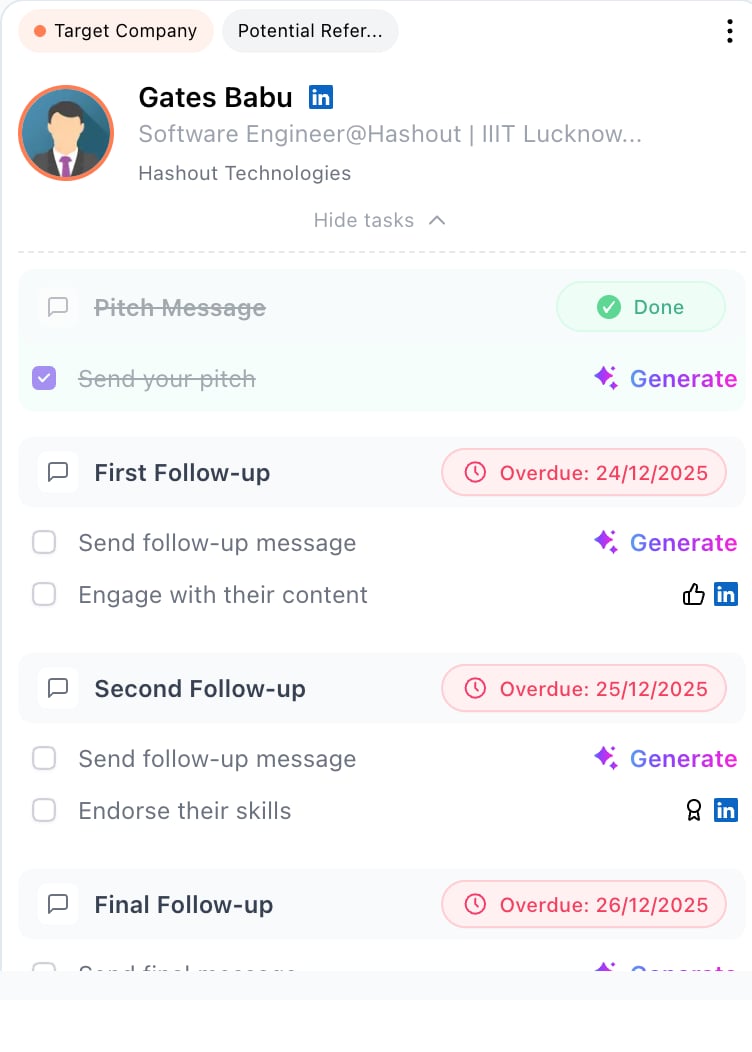
- “Action needed” (red) — Tasks are pending and need your attention
- “X/Y done” (green) — Progress through the task sequence
Manual vs Automated Messaging
You have two options for executing tasks:- Manual — Write and send each message yourself through LinkedIn
- Automated — Enable AI automation to send messages automatically with 24-hour gaps between follow-ups (Nova only)
Message Sequences
Click “Edit Message Sequence” to customize the templates used for each stage of outreach. The editor has five tabs:
Templates vary based on the connection category and type. For example, an “Open Job → Potential Referer” template differs from a “Target Company → Hiring Manager” template.
Each template supports variables — placeholder tokens that get replaced with actual names, company names, and job titles when the message is sent. A character count tracker helps you stay within LinkedIn’s message limits.
AI Networking Automation
Master Automation Toggle
The “AI Networking Automation” toggle in the top-right menu controls whether automation is active across your entire network:- Active — AI will automatically send scheduled messages and execute follow-up tasks for all eligible connections
- Disabled — All automated outreach is paused; you handle everything manually
Per-Network Automation
You can also control automation for individual connections. For AI-created networks in the Sent or Accepted columns, a per-network toggle lets you enable or disable automation for that specific person without affecting others.How Automated Follow-ups Work
When automation is enabled:- After a connection is accepted, the system waits for a scheduled interval
- The pitch message (Task 1) is sent automatically
- Follow-up messages are sent with 24-hour gaps between each
- The system engages with the person’s LinkedIn content (likes posts, endorses skills) alongside messages
- If the person replies, the connection moves to Engagement for you to take over manually
- If all tasks complete without a response, the connection moves to Dead
Managing Network Cards
Changing Status
Open the card dropdown and select Change Status to move a connection between columns. Sub-statuses are available for Converted (Interviewing, Referred, Screening) and Rejected (Rejected, Dead). You can also drag and drop cards between columns in the kanban view.Changing Network Type
From the card dropdown, select Change Type to update:- Connection Category — Open Job, Target Company, or Recruitment Agency
- Message Type — Hiring Manager, Potential Referer, Top Management, or Cold Outreach
Editing and Deleting
- Edit Network — Update the person’s name, company name, or title
- Delete Network — Remove the connection (with confirmation)