

What Is My Jobs?
My Jobs is the operational heart of the NxtJob Job Board. It displays every job in your pipeline as cards organized into status columns, giving you a bird’s-eye view of where each application stands. Think of it as a personal CRM for your job search. You can view your pipeline as a kanban board (drag-and-drop columns) or a table (sortable rows). Both views show the same data — choose whichever fits your workflow.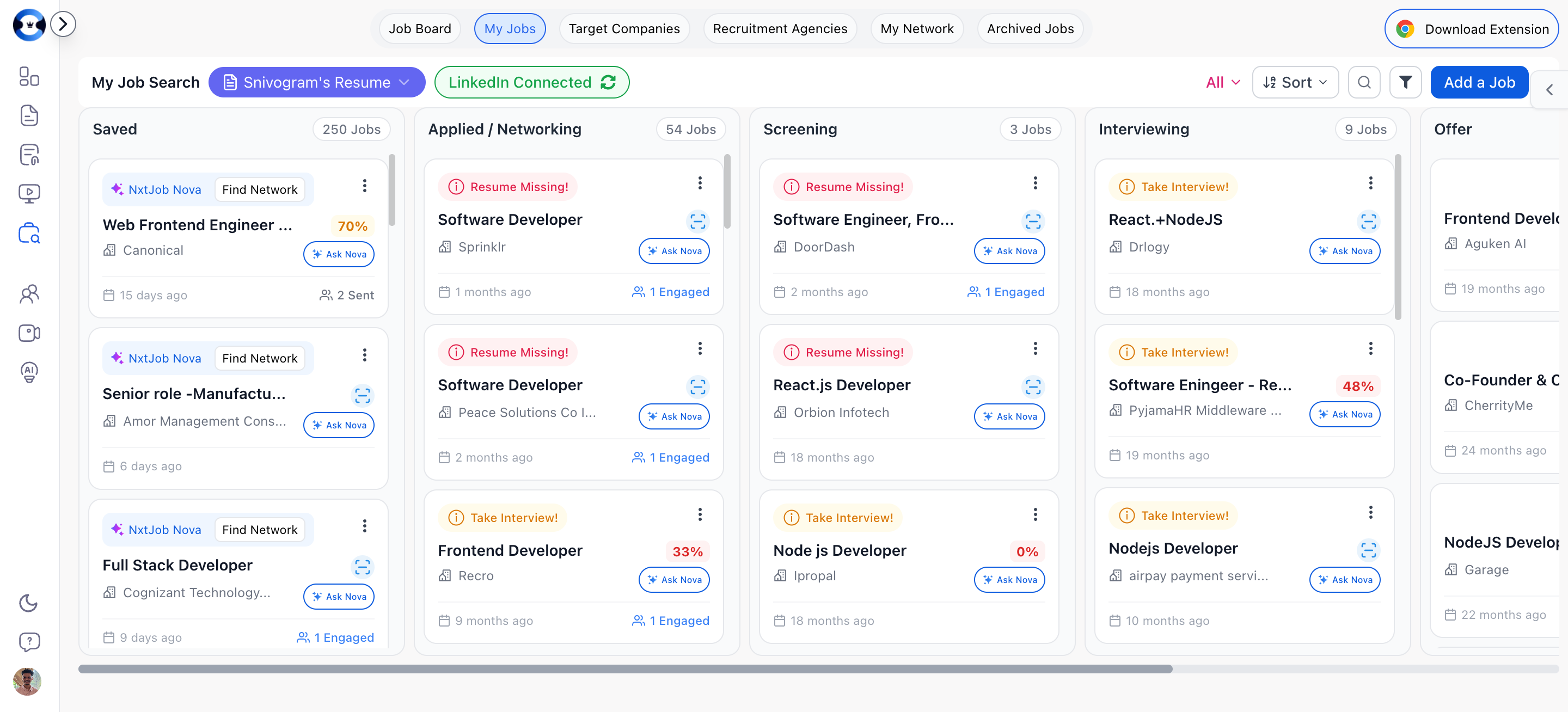
Status Columns
Jobs move through six stages from left to right:
Each column header shows the number of jobs in that stage (e.g., “5 Jobs”).
Adding Jobs
Adding a Job Manually
1
Click Add a Job
Click the “Add a Job” button in the top-right toolbar. A dialog opens with a form.
2
Fill in job details
Complete the form fields:
- Job Title (required) — e.g., “Senior Frontend Engineer”
- Job Niche — Select your target niche if you have multiple configured
- Company Name (required) — e.g., “Acme Corp”
- Location (optional) — e.g., “Remote, New York, NY”
- Job Link (required) — The URL of the original job posting
- Job Description (required, minimum 100 characters) — Paste the full job description
3
Click Create Job
Click Create Job to add it to your Saved column. The job is now part of your pipeline.

Adding Jobs via Chrome Extension
Install the NxtJob Chrome Extension to save jobs directly from LinkedIn, Indeed, Glassdoor, and 13 more job portals with one click. The extension opens a sidebar on supported sites and extracts the job title, company, description, and URL automatically. See Saving Jobs for the full walkthrough.Finding Jobs from the Board
The Add a Job dialog also includes a Find Jobs tab where you can search for jobs by:- Job Title
- Company (optional)
- Industry
- Role Category
- Keywords to include/exclude
- Location
- Experience (years)
Moving Jobs Between Stages
Drag and Drop (Board View)
Click and hold any job card, then drag it to a different status column. Release to drop. The status updates immediately.Status Dropdown
On any job card, open the dropdown menu and select Change Status. A submenu shows all available statuses. Click the target status to move the job.From Job Detail View
Open any job and use the status dropdown in the header to change the current stage. See Job Details for more.Job Card Actions
Each job card has a dropdown menu with these actions:Checking ATS Match Score
To see how well your resume matches a job:- Attach a resume to the job using the card dropdown menu.
- Select Calculate Match Score from the dropdown.
- The match percentage appears as a color-coded badge on the card:
- Green (80%+) — Strong match
- Yellow (50-79%) — Moderate match, consider optimizing
- Orange (20-49%) — Weak match, optimization recommended
- Red (below 20%) — Significant gaps
Resume Selector
The toolbar includes a Primary Resume selector dropdown. This sets which resume is used by default for match score calculations and AI features across the board. You can also attach a different resume to individual jobs.
Switching Between Niches
If you have configured multiple job search niches (e.g., “Engineering Management” and “Product Management”), use the Niche Filter dropdown in the toolbar to view jobs for a specific niche or select “All” to see everything.Search, Filter, and Sort
Search
Click the search icon in the toolbar to expand a search input. Type any part of a job title or company name to filter your board in real time.Filter
Click the filter button to access:- Date Range — Filter by when jobs were added (From/To date picker)
- Company Name — Filter by specific company
Sort (Board View)
Use the sort dropdown to reorder cards within columns:Board View vs Table View
Toggle between views using the icons in the toolbar:- Board View — Kanban-style columns with drag-and-drop. Best for visual pipeline management and moving jobs between stages.
- Table View — Spreadsheet-style rows with sortable columns. Best for scanning a large number of jobs quickly and comparing details side by side.
Archiving and Deleting Jobs
- Delete removes a job from your pipeline permanently.
- Archive moves a job out of your active board into the Archived Jobs section, where it can be restored later.